

Eventful makes it easy to export your event layouts (shortcodes) so you can reuse them on another website, create backups, or share layouts between environments.
You can export all layouts at once or only selected layouts, depending on your needs.
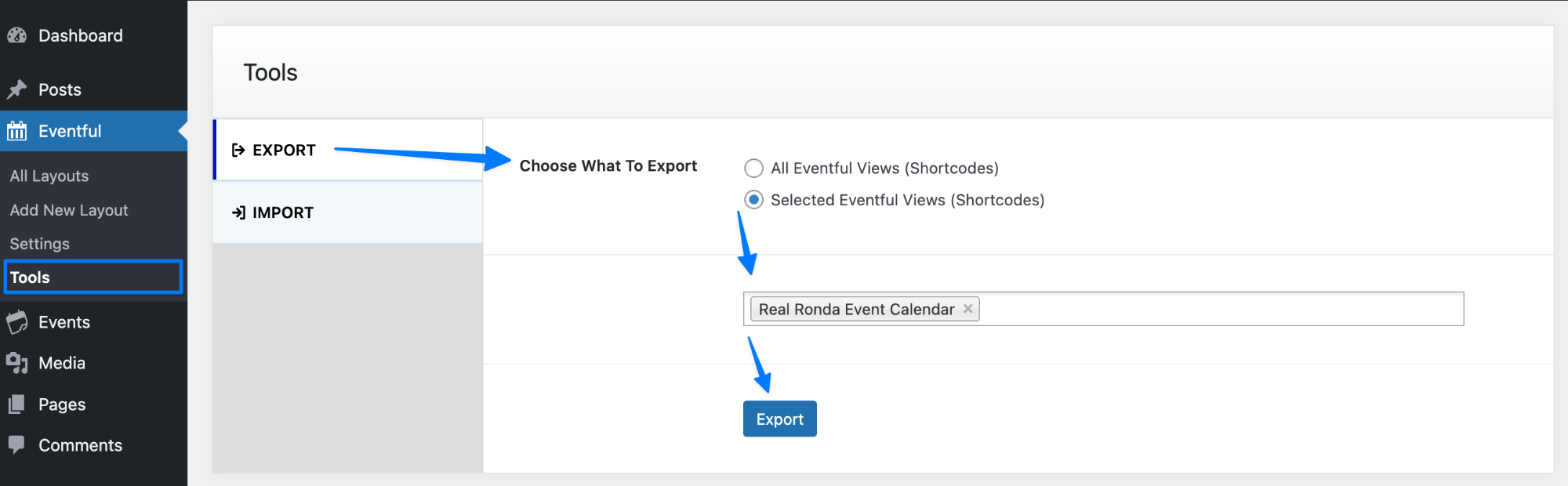
Where to Find the Export Tool #
- Go to WordPress Dashboard → Eventful → Tools
- Click on the Export tab
From here, you can choose what you want to export.
Choose What to Export #
Under Choose What to Export, you’ll see two options:
1. All Eventful Views (Shortcodes) #
- Exports all Eventful layouts you’ve created.
- Best for:
- Full site migration
- Complete backup
- Moving everything to a new website
2. Selected Eventful Views (Shortcodes) #
- Export only specific layouts.
- A searchable dropdown appears where you can select one or more layouts.
- Best for:
- Reusing a single layout
- Sharing layouts between projects
- Partial migrations
Export Selected Layouts #
If you choose Selected Eventful Views (Shortcodes):
- Click inside the selection field
- Search and select one or more layouts (e.g., “Real Ronda Event Calendar”)
- Click the Export button
Eventful will generate a downloadable export file containing the selected layouts.
What’s Included in the Export #
The export file includes:
- Layout configuration
- Display & filter settings
- Design and styling options
- Custom field mappings
- Shortcode structure
This ensures the layout looks and behaves exactly the same when imported.
When to Use Export #
Use the Export feature when you want to:
- 🔁 Move layouts between websites
- 💾 Create backups before major changes
- 👥 Share layouts with clients or team members
- 🧪 Transfer layouts from staging to production
Next Step: Importing Layouts #
After exporting, you can import the layouts from:
Eventful → Tools → Import
This allows you to restore or reuse exported layouts in just a few clicks.
💡 Tip: Exporting layouts does not affect your existing layouts. It’s a safe, non-destructive process.


