

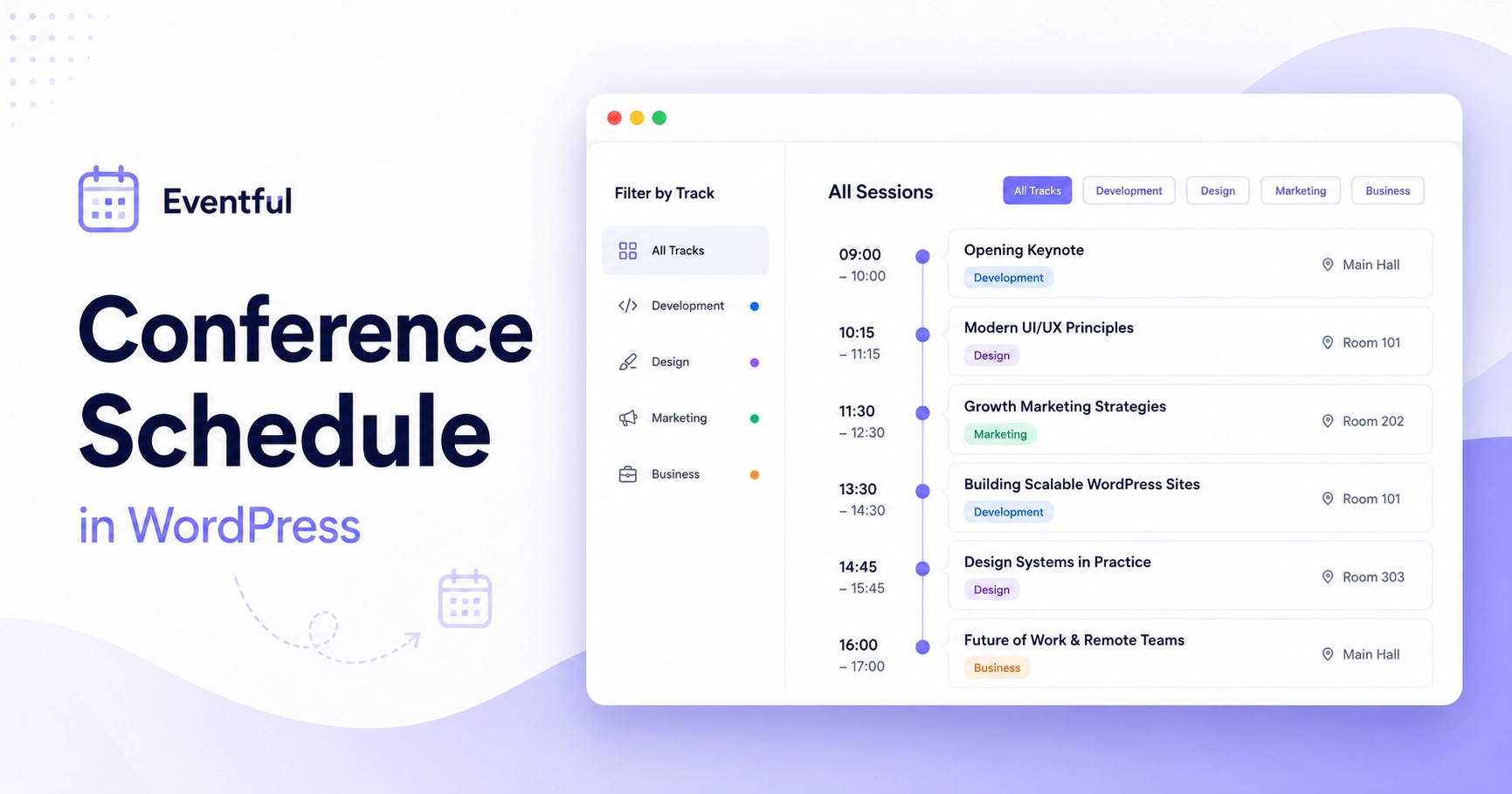

A normal WordPress events page works fine when you have five unrelated events spread across next month. What a conference schedule WordPress site actually needs is different — packed sessions, overlapping time slots, and multiple tracks running at once.
Attendees might need to choose between three sessions all starting at 10:30 AM, remember which room each workshop is in, and see what’s happening next without scrolling through a wall of oversized event cards. A generic list wasn’t built for that kind of density.
This guide walks through structuring conference or workshop sessions as events in The Events Calendar, then using Eventful to turn that data into a schedule people can actually scan — chronologically, by track, and without visual clutter.
Table of Contents
Key Takeaways
- Treat each talk, workshop, or session as its own event so it can be ordered chronologically and linked to directly.
- Use event categories (or another consistent method) to represent tracks — Eventful doesn’t have a native “track” feature, so this is a modeling choice, not a built-in system.
- Keep session time, title, and room easy to scan; that’s what attendees look for first in a dense agenda.
- Eventful’s Vertical Timeline and Minimal List layouts generally read better than large grid cards once a program has more than a handful of sessions.
- Category, venue, and date-based filtering can help visitors narrow a large program, using Eventful’s existing filter controls.
- Test the schedule on mobile specifically — a layout that works as parallel columns on desktop usually needs to stack vertically on a phone.
Why Conference Schedules Need More Than a Basic Event List
A simple event listing handles unrelated events spread across weeks or months, each with its own space to breathe. A conference schedule is denser: many sessions packed into a few hours, often running in parallel across multiple rooms.
That density changes what attendees need. They’re not browsing for something interesting eventually — they’re deciding, in real time, what to attend next. A schedule display needs to support that decision quickly: clear times, clear tracks, minimal scrolling.
What You Need to Build a Conference Schedule in WordPress
- WordPress with The Events Calendar installed and active
- Eventful, installed and active — it’s an add-on for The Events Calendar, not a standalone system, so it needs TEC in place first
- Your sessions, workshops, or talks, each ready to be entered as individual events
- A rough plan for how you’ll classify tracks or session types before you start building
Plan Your Conference Schedule Before Building the Layout
The layout step goes faster if you’ve already decided how your conference data maps onto WordPress events. Three decisions matter most.
Make Each Session an Individual Event
Give every talk, workshop, or panel its own event record in The Events Calendar, rather than listing the whole program as one entry. Each session then gets its own start and end time, its own venue, its own description, and its own URL — all things a schedule display depends on. Eventful doesn’t create these sessions for you; it displays and filters events that already exist in The Events Calendar.
Decide How You’ll Represent Tracks
Eventful doesn’t include a native “track” feature, so tracks need a classification method you apply consistently. Event categories work well for this — for example, “Marketing Track,” “Development Track,” and “Business Track” as three categories, with each session assigned to one. This is a practical modeling choice, not a built-in conference-management system.
Decide What Session Information Visitors Actually Need
Before configuring anything, prioritize: session title, start time, room or venue, track, and a concise description. Speaker information belongs here too, but only where your event data genuinely represents a presenter — more on that below.
How to Create a Conference Schedule with Eventful
Step 1 — Add Your Sessions to The Events Calendar
Create each session as its own event in The Events Calendar with an accurate start and end time. Assign the track category you settled on, set the correct venue, and use a session title attendees will actually recognize on a schedule — not just a generic “Session 1.”
Step 2 — Create a New Eventful Layout
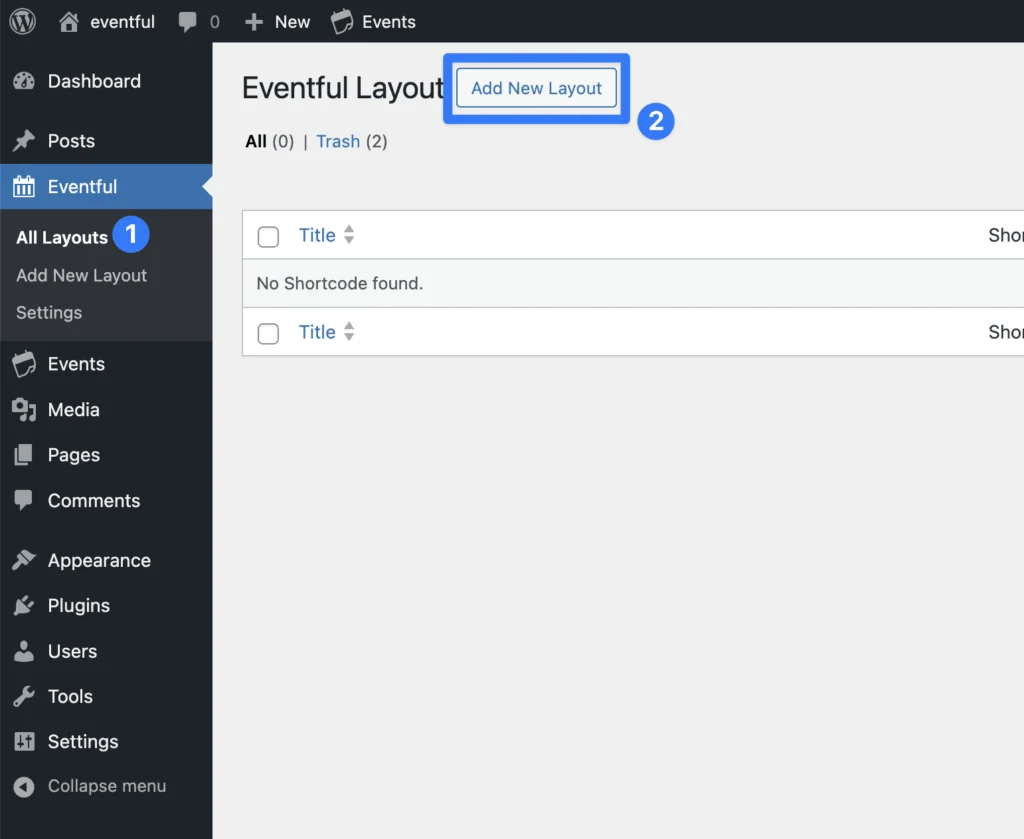
In your WordPress admin, go to Eventful > Add New Layout. Name it something you’ll recognize later, like “Conference Schedule.”
Step 3 — Choose a Schedule-Friendly Layout
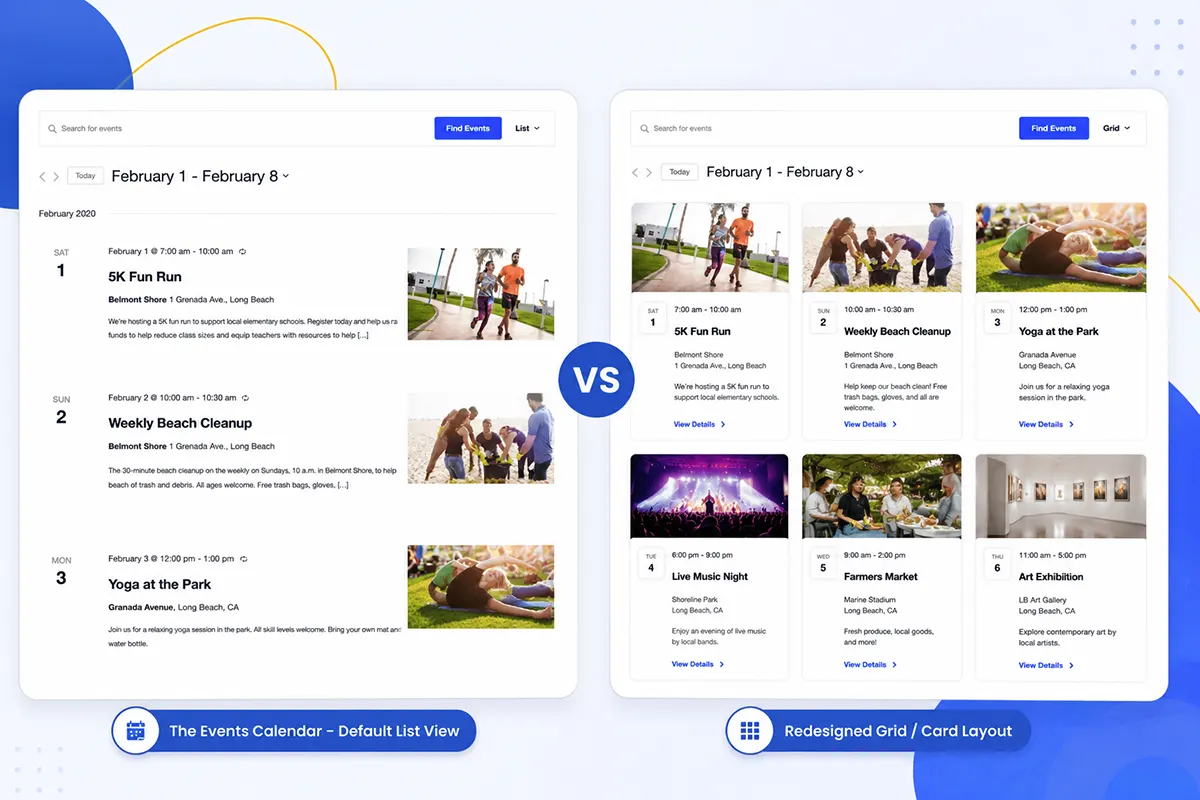
Eventful’s Vertical Timeline layout is built specifically for chronological sequences — it displays events in time order with a timeline line and date markers, which suits a multi-session agenda well. The Minimal List layout is a strong alternative when you want a denser, more text-forward view without the visual timeline elements.
A Grid layout can work for a smaller number of sessions, or for a workshop catalog people are browsing rather than scheduling around — but a large multi-track program with dozens of sessions tends to get harder to scan as cards than as a list or timeline. No single layout is universally best; match it to how dense your program actually is.
Step 4 — Order Sessions by Start Time
In the layout’s sorting settings, set Order By to “Event Start Date” and Sort Direction to “Ascending.” That’s what keeps the schedule chronological rather than showing sessions in whatever order they were created.
Step 5 — Configure Conference Filters
Eventful’s filtering supports categories, tags, venues, organizers, and date-based criteria. Mapped onto a conference: category can represent track, venue can represent room, and date can represent conference day. This is a recommended content model, not a dedicated conference-management feature — you’re reusing existing filter controls for a new purpose.
Set Events to Show to “Upcoming” so past sessions drop off automatically once the conference is underway. Category filtering in particular is what lets visitors narrow the schedule down to just their track.
Step 6 — Choose Which Session Details to Display
Keep the title, event time, and venue/room visible — those are what someone scanning a packed agenda looks for first. Show the relevant taxonomy (your track category) so it’s clear at a glance. Only show organizer information as a “speaker” if your event data genuinely stores the presenter there — don’t relabel it in the article copy or the display if the underlying field is really tracking something else.
Consider hiding large featured images, long excerpts, and social-sharing controls. In a dense schedule, every extra element competes for space that time and title need more.
Step 7 — Adjust Layout and Spacing for Readability
Tighten spacing and keep titles short enough to avoid awkward wrapping across multiple lines. The goal is a layout someone can scan in a few seconds, not one they have to read carefully to parse. Avoid decorative styling that doesn’t help someone find their next session faster.
Step 8 — Publish and Place the Schedule
Publish the layout. Eventful generates a shortcode for it, shown in the editor’s right sidebar just below the Publish button. Copy that shortcode and paste it into a Shortcode block wherever your conference schedule page lives. If you want more detail on how shortcode placement works generally, see our overview of Eventful shortcodes.
Example: Building a Two-Day, Three-Track Conference Agenda
Here’s an illustrative example — not a live Eventful demo — of a two-day WordPress business conference with three tracks: Marketing, Development, and Business.
| Time | Marketing Track | Development Track | Business Track |
|---|---|---|---|
| 9:00 AM | Opening Keynote | ||
| 10:30 AM | SEO Strategy | Gutenberg Development | — |
| 1:00 PM | — | — | WooCommerce Growth Workshop |
| 3:00 PM | — | Performance Optimization | — |
This table illustrates the conference program itself — it isn’t something Eventful automatically renders as a grid matrix. In WordPress, each cell becomes its own event: session time as the event’s start time, track as its category, and room as its venue where relevant. Eventful then displays and filters those event records using a Timeline or Minimal List layout, letting visitors filter down to a single track if the program has a lot happening in parallel.
Best Layout for a Workshop Schedule
Workshop programs tend to differ from conference agendas: fewer sessions, longer durations, and descriptions that matter more since attendees are often choosing one workshop to commit to rather than hopping between short talks. Instructor information and skill level (beginner, intermediate, advanced) are often more useful here than a track label.
For a single-day workshop program, a compact chronological list keeps things simple. For a catalog of independently bookable workshops — where attendees are comparing options rather than following a single-day flow — a grid can make more sense, since each card gets more room to explain what the workshop covers. If registration or capacity limits are part of your workflow, that typically lives in a separate booking or ticketing system rather than in Eventful’s display layer.
How to Make a Dense Conference Schedule Easy to Read
A few practical habits make the biggest difference once a program gets busy:
- Keep time highly visible. Attendees scan conference agendas by time first — it should never be buried below other metadata.
- Keep titles short enough to scan. A session title that wraps across three lines slows down every attendee comparing options.
- Reduce decorative content. Large images consume vertical space a dense schedule can’t spare.
- Use consistent track labels. Don’t mix categories and tags for the same purpose — pick one classification method and stick with it.
- Make rooms easy to find. Where venue data represents a physical room, keep it visually close to the time and title.
- Provide filtering for large programs. Category or venue filters help attendees narrow a big schedule down to what’s relevant to them.
Test all of this on mobile specifically. A schedule that reads as parallel tracks on desktop usually needs to become a single vertical column on a phone — attendees still need to see what starts next, what track it’s in, and where it happens, just stacked instead of side by side. Don’t assume the desktop layout will translate automatically without checking.
Conference Schedule Design: Timeline vs List vs Grid
| Layout | Best For | Strength | Trade-off |
|---|---|---|---|
| Vertical Timeline | Chronological, single-track or lightly parallel programs | Clear time sequence with visual date markers | Can feel long for very large multi-day programs |
| Minimal List | Dense, scan-friendly agendas | Compact — fits a lot of sessions without much scrolling per session | Less visual distinction between sessions |
| Grid | Workshop catalogs, visual session discovery | Gives each session more visual room | Harder to scan once dozens of sessions are involved |
Common Mistakes When Building a Conference Schedule
- Treating the entire conference as one event. A single “Conference 2026” event with no session-level breakdown means visitors can’t browse individual talks or filter by track — technically valid in The Events Calendar, but it defeats the purpose of a schedule display.
- Using large event cards for dozens of sessions. What looks good for five events becomes unreadable at fifty — readability drops fast once a grid has to represent a packed program.
- Mixing track classification methods. Using categories for some tracks and tags for others makes filtering inconsistent and confusing.
- Hiding session times. Time is one of the most important scanning signals in any agenda — burying it under other metadata slows everyone down.
- Ignoring mobile layout. A schedule that only gets tested on a desktop monitor often breaks down once it has to stack vertically on a phone.
- Overloading the schedule with metadata. Not every field needs to show on every session card — prioritize what attendees actually use to decide.
What Eventful Does — and Doesn’t — Do for Conference Websites
Worth being direct about this: Eventful is a display and layout tool for events already stored in The Events Calendar. It’s a good fit for showing sessions, presenting them chronologically, filtering by track or venue, customizing layout appearance, and rendering responsively across devices.
It is not a conference-management platform. It doesn’t handle attendee registration, badge printing, speaker application workflows, automatic session-conflict detection, room-capacity planning, drag-and-drop agenda building, or a native track-scheduling system — none of that is part of what’s documented for Eventful. If your event needs those capabilities, you’ll be pairing Eventful’s display layer with separate tools that handle them.
Frequently Asked Questions
How do I create a conference schedule in WordPress?
Create each session as its own event in The Events Calendar with accurate start times and a track category, then use an Eventful layout — Vertical Timeline or Minimal List work well — sorted by Event Start Date to display them as a readable schedule.
Can I display conference sessions by time in WordPress?
Yes. Set an Eventful layout’s Order By to “Event Start Date” with ascending Sort Direction, and sessions will display in chronological order automatically as you add or update them.
How can I organize conference tracks in WordPress?
Use event categories as a track classification — for example, one category per track. Eventful doesn’t have a native track feature, so this category-based approach is the practical modeling method for representing tracks.
Can visitors filter conference sessions by track?
Yes, if tracks are modeled as categories. Eventful’s category filtering lets visitors narrow the displayed schedule down to a single track, which is especially useful once a program has more than a handful of parallel sessions.
What is the best WordPress layout for a workshop schedule?
It depends on the program. A compact list suits a single-day workshop schedule with several sessions in sequence. A grid works better for a catalog of independently bookable workshops where each one needs more visual space to explain.
Can Eventful show a multi-day event schedule?
Yes. Since each session is its own event with its own date, a multi-day program displays correctly as long as sessions are dated accurately and the layout is sorted by Event Start Date.
Does Eventful replace The Events Calendar?
No. Eventful is an add-on that requires The Events Calendar to be installed and active — it displays and filters event data that The Events Calendar manages, rather than replacing it.
Once your sessions exist as individual events with consistent track categories, most of this comes down to picking the right Eventful layout and sorting it chronologically. Eventful handles that presentation layer for The Events Calendar — the free version includes the Vertical Timeline and Minimal List layouts covered above, which is enough to try this approach before deciding whether Pro’s additional layouts fit your event better.