


🎯 Introduction
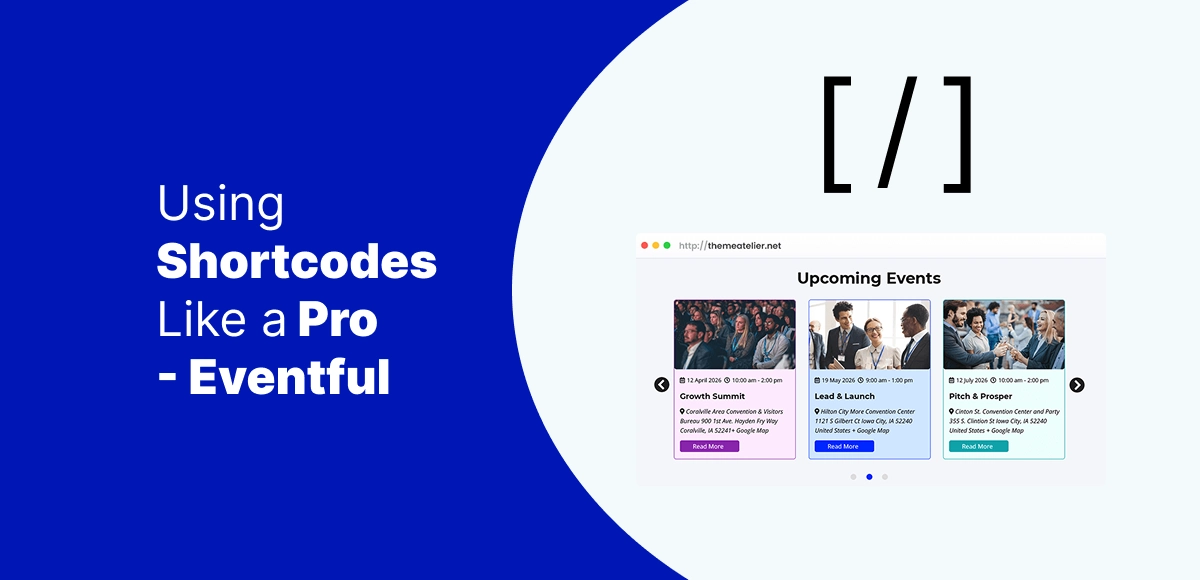
Shortcodes are one of WordPress’s hidden power tools. With just a simple bracketed command, you can unlock features, embed dynamic content, and place event showcases anywhere on your site—without touching code.
Yet here’s the problem: most users only use Eventful shortcodes in their simplest form. They copy an [ eventful id="123" ] shortcode, drop it into a page, and stop there—missing out on the advanced flexibility built into Eventful’s layout system.
That’s where this guide comes in. Eventful uses an ID-based shortcode system, meaning every layout you create in the Eventful dashboard generates its own shortcode. By learning how to configure and reuse those layouts, you can go beyond basic lists and grids to build dynamic, branded event experiences across your entire site.
This post will show you how to use Eventful shortcodes like a pro—unlocking advanced layouts, smarter workflows, and event showcases that truly stand out.
Table of Contents
🔎 What Are Eventful Shortcodes?
📌 Shortcodes in WordPress
In WordPress, shortcodes are small snippets wrapped in brackets—like [ gallery ] or [ eventful id="123" ]—that let you insert dynamic content into pages, posts, or widgets. They act as shortcuts, replacing complex code or templates with a simple command anyone can use.
⚡ Eventful’s Unique ID-Based System
Unlike traditional plugins that rely on attribute-heavy shortcodes, Eventful takes a different approach. Each time you create a layout in the Eventful Layouts dashboard—whether it’s a grid, list, or carousel—the system automatically generates a unique shortcode tied to that layout: [ eventful id=”123″ ]
All of the settings, filters, and design options for that layout are configured once in the editor. Wherever you place that shortcode, the output will always match the layout’s configuration.
🚀 Why This Is Cleaner & More Powerful
This ID-based system has three big advantages:
- No messy attributes — you don’t have to remember long strings of parameters.
- Centralized control — update the layout in one place, and it updates everywhere the shortcode is used.
- Scalable flexibility — you can duplicate layouts, tweak settings, and generate new IDs for different use cases.
In short, Eventful shortcodes keep things clean for content creators while offering the power and flexibility developers love.
📝 Basic Shortcode Workflow (Quick Recap)
Using Eventful shortcodes in WordPress is straightforward once you understand the workflow. Each layout you create in Eventful generates its own shortcode, which you can reuse across your site.
1. Create a New Eventful Layout
Head to Eventful → Layouts → Add New in your WordPress dashboard. Choose the layout type that best fits your event showcase—whether it’s a Grid for conferences, a List for webinars, or a Carousel for workshops.
2. Configure Layout Options
Inside the layout editor, customize how your events will appear:
- Data Source: filter by category, tags, or featured events.
- Limits: control how many events display at once.
- Design: adjust columns, spacing, overlays, and typography.
- CTAs: enable buttons like “Buy Tickets” or “Register Now” to drive conversions.
3. Publish & Copy the Shortcode
Once your layout looks the way you want, click Publish. A unique shortcode will appear in the layout box, for example: [ eventful id=”123″ ]
4. Paste Shortcode Anywhere
You can now place this shortcode anywhere on your site:
- Posts & Pages: paste directly into the editor.
- Gutenberg: use the Shortcode block.
- Elementor: drag in the Shortcode widget.
- Widgets/Sidebars: paste in a text widget.
- Templates (for devs): echo do_shortcode(‘[ eventful id=”123″ ]’); And just like that, your configured layout is live and ready—no coding required.
⚡ Advanced Layout Settings (The Real Power)
The real strength of Eventful’s ID-based shortcodes comes from the powerful settings you configure inside each layout. Instead of cramming parameters into a shortcode, you set everything once in the layout editor—then reuse it anywhere with [ eventful id="xxx" ].
🎯 Filtering by Category, Tags, or Featured
Want to showcase only “Workshops” or highlight featured events? Eventful lets you filter events by category, tag, or featured status, ensuring that each layout displays exactly the type of events you want.
📅 Controlling Number of Events & Timeframe
You can set limits on how many events appear and whether they pull from upcoming or past events. This makes it easy to create a “Next 5 Webinars” list or a “Past Events Archive” carousel.
⏱️ Ordering Options
Choose how your events are sorted—by date in ascending or descending order. For example, a “Countdown to Conference” section might show soonest events first, while an archive might start with the most recent.
🎨 Design Tweaks for a Branded Look
Eventful gives you full control over the look of each layout:
- Columns & spacing for balanced grids
- Image overlays for visual polish
- Typography settings for headings and details
- CTA button styles like “Buy Tickets” or “Register Now”
♻️ Reusable Layouts for Different Sections
The best part? Layouts are reusable. You can clone an existing layout, tweak the settings, and generate a new shortcode. This makes it easy to create variations—like a homepage carousel, a sidebar list, and a category-specific grid—all without starting from scratch.
In short, advanced layout settings give you pro-level control without needing to touch a single line of code.
🖥️ Using Eventful Shortcodes Across WordPress
One of the biggest advantages of Eventful’s ID-based shortcode system is that you can place your layouts almost anywhere in WordPress. No matter which editor or theme you use, a simple [ eventful id="123" ] gives you full flexibility.
🧩 Embedding in Gutenberg Blocks
In the WordPress block editor, add a Shortcode block and paste in your Eventful shortcode. The layout will render on the front end, letting you insert grids, carousels, or lists seamlessly inside your content.
🎨 Adding Inside Elementor Widgets
For Elementor users, drop a Shortcode widget onto the page and paste in the Eventful code. This allows you to integrate event layouts into custom landing pages, hero sections, or even footers without breaking design flow.
✍️ Inserting in Classic Editor or Reusable Blocks
Still using the Classic Editor? Simply paste the shortcode into your post or page. If you want to reuse a layout across multiple posts, save it inside a reusable block for quick insertion later.
🗂️ Displaying in Widgets or Sidebars
Shortcodes aren’t limited to pages—they can also live in sidebars, footers, or widget areas. Just use a Text widget or Custom HTML widget, drop in [ eventful id="123" ], and your event showcase will display where you need it.
💻 Developers: Using Shortcodes in Templates
If you’re customizing a theme or building a template, you can call Eventful shortcodes directly in PHP:
echo do_shortcode('[ eventful id="123" ]');
This makes it possible to hardcode event showcases into headers, custom templates, or theme files while still keeping all layout logic centralized in Eventful.
🔗 Combining Multiple Layouts for Dynamic Pages
The true power of Eventful’s shortcode system comes when you mix and match multiple layouts on the same page. Since each layout has its own [ eventful id="xxx" ], you can build dynamic event experiences that go far beyond a single list or grid.
🎡 Homepage Hero + Category Grid
Imagine starting your homepage with a Carousel layout in the hero section to spotlight headline events, followed by a Grid of upcoming sessions grouped by category. This combination builds excitement at the top while giving visitors easy navigation below.
🎯 Landing Pages for Tracks or Themes
If you host multi-track events like conferences, you can create dedicated landing pages for each track—such as “Workshops” or “Webinars.” Each page simply uses a different Eventful shortcode configured to display only that category, keeping content relevant and organized.
🗂️ Sidebars with Compact Lists
You don’t need to reserve showcases for the main content area. By placing a List layout in a sidebar or footer, you can display a concise “Upcoming Events” section alongside your regular content—perfect for keeping events visible on every page.
By combining multiple layouts, you transform your WordPress site into a flexible event hub where visitors always find the right information in the right place.
🎨 Styling & Branding Without Code
Professional events need professional presentation. With Eventful, you don’t need to be a developer to make your event showcases match your brand identity. Every [ eventful id="xxx" ] layout comes with built-in styling controls, plus the flexibility to go deeper if you want.
⚙️ Adjusting Settings in the Layout Editor
Inside each Eventful Layout, you can control the columns, spacing, typography, colors, and overlays directly from the editor. This ensures your grid, list, or carousel looks polished and aligned with your overall website design—no extra plugins required.
🎭 Using Custom CSS for Deeper Control
If you want to take things further, Eventful supports custom CSS classes. This allows you to refine details like hover effects, button styles, or background treatments while keeping the shortcode output clean. Developers and designers can style once in the layout and reuse it across multiple pages.
🖌️ Keeping Layouts Consistent with Brand Guidelines
Consistency builds trust. By applying your brand’s colors, fonts, and logo styling across all Eventful layouts, you create a seamless experience between your website, email campaigns, and event materials. Attendees should recognize your brand instantly—whether they’re looking at your homepage carousel or an event landing page.
With Eventful, you get the flexibility to style layouts your way—without code if you prefer, but with deeper customization options when you need them.
⚡ Pro Tips for Power Users
Once you’ve mastered the basics of [ eventful id="xxx" ], you can push Eventful even further with a few power-user strategies. These techniques help you scale, streamline, and get the most out of your event showcases.
🔁 Reuse Layouts Across Multiple Pages
If you’ve built a great Grid or Carousel, don’t reinvent the wheel. Use the same shortcode across multiple pages—homepage, landing pages, sidebars—to maintain a consistent look and save time. Update the layout once, and it updates everywhere.
🎉 Duplicate Layouts for Campaigns or Special Events
Need a slightly different version of an existing layout? Just clone it in the Eventful dashboard, tweak the settings (categories, colors, or limits), and publish a new shortcode. This is perfect for seasonal campaigns, holiday events, or limited-time promotions.
🧩 Mix Eventful with Other Plugins
Eventful shortcodes play well with others. Drop them inside tabs, accordions, or popups created by your favorite page builder or plugin. This allows you to present event information in interactive ways without heavy customization.
⚡ Pair with Caching/CDN for Performance
If you’re running a large event site with multiple showcases, combine Eventful layouts with a caching plugin or CDN. This keeps pages loading fast, even when you’re displaying rich grids or multiple carousels on the same page.
These pro tips let you use Eventful like a true power user—efficient, consistent, and optimized for both design and performance.
🚫 Common Mistakes to Avoid
Even though Eventful’s [ eventful id="xxx" ] shortcode system is simple, there are a few common pitfalls that can trip up new users. Avoiding these will save time and keep your event pages professional.
📌 Forgetting to Publish Before Copying
It may sound obvious, but if you copy a shortcode from a Draft layout, nothing will appear on the page. Always make sure the layout is Published before you embed it.
🗂️ Using the Wrong Layout Type
Each layout serves a purpose. A Grid is perfect for multi-track conferences, a List works best for straightforward webinar schedules, and a Carousel is ideal for featured events. Choosing the wrong layout can confuse visitors and lower conversions.
⚠️ Overloading Pages with Too Many Showcases
Just because you can drop multiple shortcodes on one page doesn’t mean you should. Too many grids, lists, and carousels can overwhelm visitors and slow down your site. Be selective and intentional with placement.
📱 Ignoring Mobile Responsiveness
Most attendees browse on their phones. If your layouts aren’t optimized for smaller screens—columns too wide, CTAs buried—your event promotion suffers. Always preview layouts on mobile to ensure they look sharp and easy to use.
By avoiding these mistakes, you’ll ensure your Eventful layouts stay clean, effective, and user-friendly.
🎯 Conclusion
Shortcodes may look simple, but in Eventful they unlock incredible flexibility. By using [ eventful id="xxx" ], you can create layouts that are flexible, reusable, and professional—perfect for promoting conferences, webinars, and workshops of any size.
Instead of relying on plain event listings, Eventful lets you build grids, lists, carousels, and custom layouts that you can drop anywhere on your WordPress site. Update a layout once, and it updates everywhere the shortcode is used. That means less time tweaking and more time promoting your events.
Don’t stop at just one shortcode—experiment with multiple layouts to see what works best for your audience. Mix a homepage carousel with a category grid, add a compact list in your sidebar, and test CTAs for higher registrations.
FAQs – Using Eventful Shortcodes in WordPress
-
How do Eventful shortcodes differ from standard WordPress shortcodes?
Standard WordPress shortcodes often rely on long strings of attributes. Eventful uses a cleaner system: each layout you create generates a unique ID-based WordPress event shortcode (e.g.,
[ eventful id="123" ]). All the design and filters are handled inside the layout editor, making it easier to manage and reuse. -
Can I customize Eventful layouts without coding?
Yes. Eventful layouts can be styled directly in the layout editor—adjusting columns, typography, spacing, and CTAs—without writing code. For advanced users, custom CSS can be applied to refine the design even further while still using the same Eventful WordPress shortcode.
-
Do Eventful shortcodes work with Elementor and Gutenberg?
Absolutely. You can paste any
[ eventful id="xxx" ]shortcode inside a Gutenberg Shortcode block or an Elementor Shortcode widget. This makes it simple to embed your layouts anywhere, keeping your WordPress event layouts consistent across editors. -
What happens if I update a layout used by multiple shortcodes?
That’s the beauty of Eventful’s ID-based system. If you update the settings in a layout, every page or post using that
[ eventful id="xxx" ]shortcode will automatically display the new version. This ensures your WordPress event layouts stay consistent without having to edit each page manually.
Try Eventful Today
Bring your events to life with modern layouts, reusable shortcodes, and advanced customization—all without touching code.