Eventful Event Showcase for The Event Calendar
🛍️ Black Friday Sale is Live! Get 80% OFF on all plans. Sale ends soon! Get Offer

Tag: Eventful plugin

  • How to Add Event Categories & Filters with Eventful Shortcodes

    How to Add Event Categories & Filters with Eventful Shortcodes

    🎯 Introduction

    When visitors land on your events page, they shouldn’t feel like they’re scrolling through a wall of dates and titles. Visual organization is what turns an event list into a genuine experience — one where users can instantly find what they want and feel excited to explore more.

    Unfortunately, many WordPress sites still rely on plain event listings that show everything in one long, cluttered column. It’s not just hard to navigate — it’s a missed opportunity to impress.

    That’s where Eventful shortcodes filters come in. With a few clicks, you can categorize, organize, and filter your events beautifully — whether you’re showcasing concerts, webinars, or community meetups.

    Eventful gives you a flexible shortcode system that works hand-in-hand with The Events Calendar, allowing you to design layouts that are clean, modern, and tailored to your audience.

    In this guide, we’ll show you how to use Eventful’s shortcode filters to make your events page not only functional but unforgettable.

    💡 Why Event Categories & Filters Matter

    When your site features multiple types of events — from workshops to webinars to concerts — clarity becomes your biggest design asset. Visitors shouldn’t have to scroll endlessly or guess which events are relevant to them. That’s exactly why Eventful shortcodes filters matter.

    🧭 Improve Event Navigation

    Categories and filters turn chaos into clarity. Instead of dumping every event into one long list, you can organize them by type, theme, or audience — making it effortless for visitors to find what they’re looking for.

    ⚡ Boost Engagement & Conversions

    When users can instantly sort through your events — say, selecting Upcoming Webinars or Local Workshops — they’re far more likely to click, register, and attend. Simplicity equals participation.

    🔍 Enhance SEO with Focused Content

    Creating category-specific layouts helps you target search intent more effectively. For example, a “Business Events” page can rank independently from a “Music Festivals” page, improving your site’s visibility and relevance.

    🗂️ Structure Large Calendars with Ease

    If you manage a busy event calendar, filters are essential. They help you organize hundreds of listings without overwhelming visitors — keeping your site both fast and user-friendly.

    With Eventful’s shortcode filters, you don’t just display events — you create a guided, intuitive experience that keeps users engaged and coming back.

    ⚙️ How Eventful Shortcodes Work

    Eventful makes it effortless to display events exactly how you want — without writing a single line of code. Every time you create a layout, the plugin automatically generates a unique shortcode that brings your design to life anywhere on your WordPress site.

    🧩 One Layout = One Shortcode

    Each layout you build inside Eventful comes with its own shortcode — for example: [ eventful id=”123″ ]

    This ID links directly to the settings of that specific layout, ensuring that your chosen style, filters, and design options stay perfectly consistent wherever you embed it.

    🎛️ Apply Filters and Categories Easily

    Inside the layout editor, you can filter your events by category, tag, featured status, or even by upcoming / past. These filters define what content appears in your layout — all managed through simple dropdowns, no scripts or queries required.

    🧠 Zero Coding Needed

    Everything is done visually. Configure your layout, copy the shortcode, and paste it into any page, post, or builder block. In seconds, your calendar transforms from a static list into an organized, filterable showcase.

    With Eventful shortcodes filters, you control both the look and the logic — combining power, flexibility, and simplicity in one smart workflow.

    🏷️ Step 1: Create Event Categories in The Events Calendar

    Before you start filtering events with Eventful, you need to make sure your events are properly organized within The Events Calendar. Setting up categories gives Eventful the structure it needs to sort and display events beautifully.

    🪄 How to Create Categories

    1. In your WordPress dashboard, go to Events → Categories.
    2. Click Add New Category and name it based on your event type — for example:
      • 🎓 Webinars
      • 🎶 Concerts
      • 🧠 Workshops
      • 💼 Business Meetups
    3. Add a brief description or slug (optional) for clarity.

    🗂️ Assign Categories to Events

    When creating or editing an event, simply check the relevant category box in the Event Categories panel. You can assign one or multiple categories depending on how you want them to appear in your layouts.

    💡 Why This Step Matters

    Eventful relies on The Events Calendar’s category system to know what to display. Once categories are set, you can easily apply filters within Eventful layouts — allowing you to build separate sections for “Upcoming Webinars,” “Music Festivals,” or “Past Workshops” effortlessly.

    Setting up categories first ensures that Eventful shortcodes filters work seamlessly and accurately.

    🧱 Step 2: Build a Layout with Eventful

    Now that your events are categorized, it’s time to design how they’ll appear. Eventful makes this process simple, giving you the freedom to choose stunning layouts and styles — all without coding.

    In your WordPress dashboard, go to Eventful → Layouts → Add New.
    Give your layout a clear name like “Webinar Grid” or “Featured Concerts Carousel” so you can easily manage it later.

    🎨 Choose Your Layout Type

    Eventful offers several professional display options:

    • Grid — perfect for showcasing multiple events side by side.
    • List — ideal for detailed event overviews or schedules.
    • Carousel — great for dynamic, interactive featured sections.

    Each layout type is fully customizable to match your website’s aesthetic.

    ⚙️ Customize the Design

    Fine-tune your layout using Eventful’s built-in styling controls:

    • Adjust columns and spacing.
    • Set your typography for event titles and dates.
    • Add image overlays or hover effects.
    • Include CTA buttons like Learn More or Buy Tickets.

    💾 Save & Generate Your Shortcode

    Once you’re happy with the design, click Publish. Eventful will automatically generate a shortcode like: [ eventful id=”123″ ]

    This shortcode connects directly to your layout’s settings, ready to embed anywhere on your site.

    With your first layout ready, you’re just a few clicks away from activating Eventful shortcodes filters that display events with style and precision.

    🔍 Step 3: Apply Filters in Eventful Layout Settings

    Once your layout is created, you can make it interactive by adding filters that help visitors explore your events easily. Eventful gives you an advanced Filter Bar feature right inside the layout editor — no extra plugin required.

    Here’s how to set it up:

    🧭 1. Open Advanced Filtering

    In your Eventful layout editor, scroll down to the Advanced Filtering section.
    You’ll see several options for what you can filter by:

    • Keyword / Search
    • Venue, Organizer & Taxonomy
    • Event Date & Time

    To filter events by category, tag, or venue, check the box for Venue, Organizer & Taxonomy.

    🏷️ 2. Add Category Filters

    Under the Venue, Organizer & Taxonomy section:

    • Click category to expand its settings.
    • From Select Option, choose Event Categories.
    • In Choose Categories, select which event categories you want available (for example: Workshops, Concerts, Webinars).
    • Set Operator to IN — this means any event matching the selected categories will appear.
    • Check Add to Ajax Live Filters if you want your filters to update instantly without reloading the page.

    🎛️ 3. Customize Filter Appearance

    Still within the category settings, you can style your filter bar:

    • Choose Filter Type — Button, Dropdown, Radio, or Checkbox.
    • Add an Icon using the Add Icon button for visual appeal.
    • Customize Button Colors — set text, hover, and background colors to match your brand.
    • Rename the “All Category” label if you prefer something like All Events or Show All.
    • Check Show Event Count to display how many events exist per category.
    • Adjust Alignment (Left, Center, Right) to control the filter bar’s layout.

    🧩 4. Add More Filters (Optional)

    You can also click Add New to include filters for:

    • Tags (e.g., “Free,” “Online,” “Family-Friendly”)
    • Venue (for location-based filtering)
    • Organizer (helpful if you host events from different teams or speakers)

    You can even combine multiple filters using the Relation setting:

    • AND → Events must match all filters.
    • OR → Events can match any filter.

    📱 5. Adjust Layout Responsiveness

    At the bottom, you’ll see Filter Option Columns — use this to control how many filter buttons appear per row on desktop, tablet, and mobile.
    You can also set the Margin Between Filter Columns (e.g., 20px) to create breathing room between items.

    🔄 6. Enable or Hide Buttons

    Finally, use these toggle options to fine-tune your filter bar:

    • Advance Filter Reset Button: Turn this ON to let users clear all filters at once.
    • Show Hide Filter Button: Keep this OFF if you want filters visible at all times.

    👀 7. Preview and Save

    Once everything looks good, click Preview to test your filter bar live.
    When satisfied, hit Publish.

    Now your visitors can dynamically browse your events — filtering by category, venue, or organizer — without ever leaving the page.

    With this setup, you’ve unlocked the full power of Eventful shortcodes filters for creating modern, user-friendly event directories.

    🔗 Step 4: Embed Shortcode Anywhere

    Once your filtered layout is ready, it’s time to display it on your website. Each layout you create in Eventful generates a unique shortcode that you can place anywhere — pages, posts, or even template files — to showcase your events exactly where they belong.

    📋 1. Copy Your Shortcode

    After publishing your layout, Eventful will display a shortcode like: [ eventful id=”123″ ]

    This shortcode connects directly to your saved layout, complete with its filters, design, and styling.

    🏠 2. Add to Pages or Posts

    Paste your shortcode into any WordPress page — for example, a section titled “Upcoming Workshops” or “Featured Webinars.”
    You can do this using the Classic Editor, Gutenberg, or Elementor.

    🧩 3. Use in Page Builders

    • Elementor: Drag the Shortcode widget into your design and paste [ eventful id="123" ].
    • Gutenberg: Add a Shortcode block and insert your shortcode directly.

    Your filtered layout will instantly load and adjust to the page style.

    🪄 4. Display in Sidebars or Widgets

    Eventful layouts can also appear in widget-ready areas like sidebars or footers.
    Just use a Text or Custom HTML widget and paste the same shortcode — perfect for smaller “Upcoming Events” or “Featured Category” lists.

    💻 5. For Developers: Template Integration

    If you want to include your layout in a custom theme file, simply add this line of PHP: echo do_shortcode(‘[ eventful id=”123″ ]’);

    This gives developers full flexibility to place Eventful layouts within any template, dynamically pulling in events with your predefined filters.

    🧩 Step 5: Combine Multiple Filtered Layouts

    Once you’ve mastered creating one layout, you can take your event page design to the next level by combining several Eventful shortcodes filters on the same page. This lets you organize different event categories into beautifully structured sections — all powered by the same simple shortcode system.

    🧱 Build Category-Specific Sections

    For example:

    • 🎓 Workshops — a Grid layout showcasing hands-on learning sessions.
    • 💻 Webinars — a List layout displaying upcoming online sessions.
    • 🎶 Concerts — a Carousel layout with featured music events.

    Each section gets its own unique layout and shortcode, giving your site variety while maintaining visual consistency.

    ⚙️ Create Multiple Layouts with Unique Filters

    1. Go to Eventful → Layouts → Add New.
    2. Choose your layout type (Grid, List, or Carousel).
    3. Under Advanced Filtering, select a specific Category or Tag (e.g., “Workshops”).
    4. Customize design and publish to generate your shortcode — e.g., [ eventful id="201" ].
    5. Repeat the process for each new category or event type.

    🏗️ Build Dynamic Event Hubs

    Once you’ve created multiple filtered layouts, embed each shortcode on your homepage or a dedicated Event Hub page.
    For example:

    [ eventful id="201" ]  <!-- Workshops -->
    [ eventful id="202" ]  <!-- Webinars -->
    [ eventful id="203" ]  <!-- Concerts -->

    This approach lets visitors quickly browse by interest — without overwhelming them with too much information at once.

    With Eventful shortcodes filters, you can easily transform a generic calendar into a dynamic, category-driven event experience that’s both functional and visually engaging.

    🎨 Styling & Branding Tips

    Design plays a huge role in how your events are perceived. Even the most organized event listings can feel dull if they don’t visually connect with your brand or audience. With Eventful shortcodes filters, you can easily add style, structure, and personality to every layout.

    🎨 Use Color-Coded Headers or Icons

    Differentiate categories by color or icon for quick visual recognition.

    • Example: Blue for Workshops, Green for Webinars, Red for Concerts.
    • You can also use small icons — 🎓 for learning, 🎶 for music, 💼 for business — to make browsing effortless and fun.

    💼 Match Event Design with Your Brand Identity

    Eventful lets you customize fonts, buttons, and overlays, so your event listings blend seamlessly with your website’s design. Stick to your brand colors and typography for a unified, professional look that builds trust.

    📐 Keep Spacing Consistent Across Layouts

    If you’ve created multiple filtered layouts on one page, maintain consistent spacing and alignment. Equal padding and margins between sections make your event hub feel structured and polished — even when showcasing different event types.

    🎟️ Add Clear CTAs

    Every event should end with a clear action. Use bold, branded buttons like:

    • Join Now
    • Book Your Seat
    • Register Free
      These CTAs not only guide users but also increase conversions dramatically.

    With thoughtful design and consistency, your Eventful shortcodes filters layouts won’t just organize content — they’ll elevate your brand’s entire event experience.

    ⚠️ Common Mistakes to Avoid

    Even though Eventful shortcodes filters make event organization simple, a few common oversights can limit how effective your layouts look and perform. Here’s what to watch out for before publishing your final showcase:

    🚫 Forgetting to Assign Events to Categories

    Eventful relies on The Events Calendar’s categories and tags to filter your events. If an event isn’t categorized, it won’t appear in your filtered layouts. Always double-check that each event is assigned to the right category before testing your shortcode.

    🧱 Embedding Unpublished Layouts

    If you copy the shortcode for a layout that hasn’t been published yet, nothing will display on the front end. Make sure your layout’s status is Published before embedding

    anywhere on your site.

    🎢 Overloading Pages with Too Many Filtered Sections

    While it’s tempting to show every event category, adding too many sections can slow your page and overwhelm visitors. Keep things focused — feature your most important event types on the homepage and move the rest to dedicated pages.

    📱 Ignoring Responsive Design

    Always preview your layouts on mobile, tablet, and desktop. Eventful layouts are responsive by default, but filters, buttons, and text spacing might need adjustments to ensure a flawless experience across all devices.

    Avoiding these pitfalls ensures that your Eventful shortcodes filters deliver both style and performance — keeping your event hub clean, fast, and professional.

    🎯 Conclusion – Eventful shortcodes filters

    Organizing events shouldn’t be a chore — it should be an experience. With Eventful shortcodes filters, you can transform The Events Calendar into a visually stunning, user-friendly showcase that guides visitors effortlessly through your content.

    Instead of overwhelming users with endless lists, you can present clean, interactive layouts where every category feels purposeful and easy to explore. Whether you’re highlighting webinars, concerts, or community workshops, Eventful makes event navigation both seamless and beautiful.

    Now it’s your turn to bring structure and style together.

    ❓ FAQs – Eventful Shortcodes Filters

    How do Eventful shortcodes filters work?

    Each Eventful layout you create generates its own shortcode, for example [ eventful id="123" ]. Within the layout editor, you can apply filters by category, tag, venue, or featured status. When the shortcode is embedded, only the events matching those filters appear automatically — no coding needed.

    Can I create multiple filtered layouts for different event categories?

    Absolutely. You can build separate layouts for Workshops, Webinars, or Concerts and give each its own shortcode. Placing multiple shortcodes on a single page lets you design a structured, category-driven event hub.

    Do filters work with Elementor and Gutenberg?

    Yes. Eventful shortcodes filters integrate perfectly with both builders. Just add a Shortcode Block in Gutenberg or a Shortcode Widget in Elementor, paste your [ eventful id="xxx" ], and your filtered layout will render instantly.

    Can I show both upcoming and past events?

    Definitely. In the Filter Events panel, you can select Upcoming, Past, or All events. This lets you highlight future sessions or showcase a history of completed ones for credibility.

    Are Eventful filters mobile-friendly?

    Yes. Every layout created with Eventful shortcodes filters is fully responsive. Your filter bars, buttons, and grids automatically adapt to any screen size for a smooth user experience on phones and tablets.

    Create Beautiful Event Filters with Eventful

    Simplify your WordPress event experience with modern, filterable layouts.

  • How to Highlight Virtual Events in The Events Calendar with Eventful

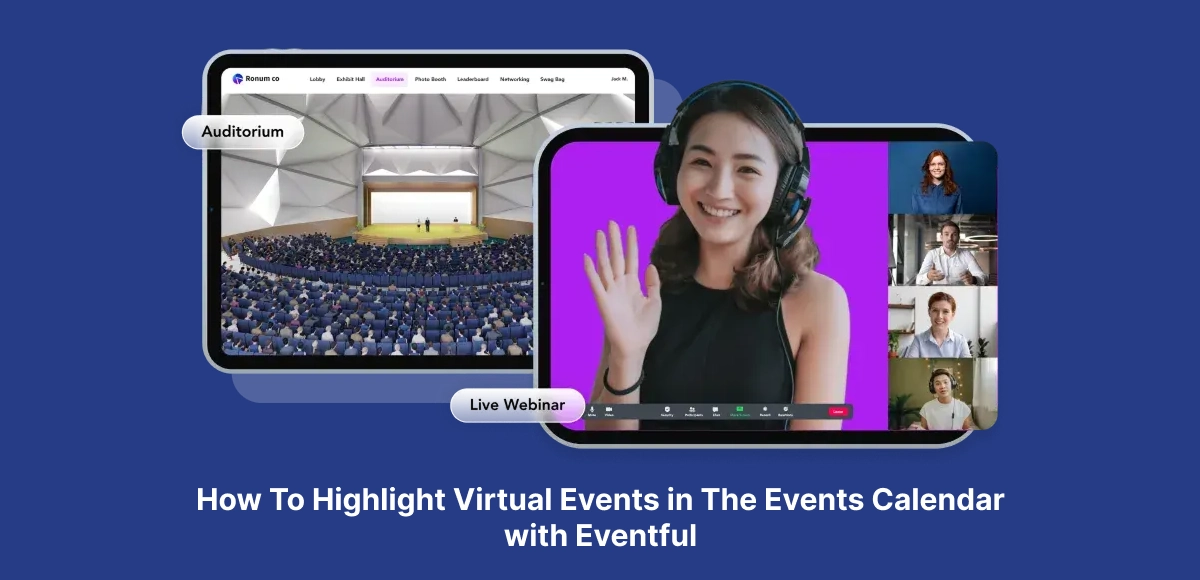
    How to Highlight Virtual Events in The Events Calendar with Eventful

    Introduction

    Virtual events are here to stay — from online conferences to live-streamed concerts and webinars, they’ve become a cornerstone of modern engagement. But while The Events Calendar is excellent at organizing them, its default layouts often make these online events blend in with everything else.

    If you want your virtual experiences to stand out, you need more than a list — you need a visual showcase. That’s where Eventful comes in. With its flexible layouts, filters, and styling tools, you can easily highlight virtual events in The Events Calendar, turning plain listings into dynamic, branded showcases that drive attendance.

    In this guide, you’ll learn how to make your online events pop — with beautiful Eventful layouts that fit perfectly into your WordPress site and catch the attention of every visitor.

    💡 Why Highlight Virtual Events?

    Online audiences are bombarded with information — webinars, livestreams, virtual summits, and meetups all compete for the same attention span. That’s why it’s essential to highlight virtual events in The Events Calendar using visuals, structure, and interactivity that make them impossible to overlook.

    🎨 Strong Visuals Drive Engagement

    A plain list of dates and links won’t grab attention. But a visually appealing layout — with event images, color highlights, and clear calls-to-action — instantly makes your virtual events more engaging and clickable.

    🧭 Clarity Improves Navigation

    Virtual attendees want simplicity. When your events are organized cleanly with clear times, dates, and access links, users are far more likely to register or attend.

    🌍 Highlighting Key Details Boosts Attendance

    Displaying crucial info such as time zones, registration buttons, and streaming platform links upfront reduces friction and confusion, increasing sign-ups and participation.

    💼 Professional Presentation Builds Trust

    A polished, branded design signals quality and professionalism. Visitors are more likely to take your online events seriously — and that credibility directly impacts attendance and conversion rates.

    When you combine these elements through Eventful, you transform your standard listings into an immersive, trustworthy showcase for your online audience.

    How The Events Calendar Handles Virtual Events

    The Events Calendar is one of the most popular tools for managing events in WordPress — and it includes built-in options for hosting online experiences. You can add virtual event details like meeting links, livestream URLs, or webinar access info directly within each event.

    🔗 Virtual Event Fields

    When creating an event, you can specify fields such as:

    • Online Event Link (e.g., Zoom, Google Meet, or YouTube Live)
    • Registration URL for ticketed or RSVP-based events
    • Custom labels that indicate an event is virtual or online-only

    These make setup easy for organizers and help attendees access your event from anywhere.

    📅 Default Display Options

    By default, The Events Calendar displays virtual events in simple List, Month, or Day views. While functional, these layouts focus on organization — not visual appeal. They present events in chronological order but don’t emphasize that some are online experiences.

    ⚠️ The Limitation

    The challenge is presentation. The built-in layouts are plain and text-heavy, which means your virtual events often blend in with in-person ones. They don’t grab attention or communicate the energy of your brand.

    That’s where Eventful makes the difference — letting you highlight virtual events in The Events Calendar with modern, interactive designs that capture attention and convert visitors into attendees.

    Why Use Eventful to Showcase Virtual Events

    If you want your online experiences to stand out, visuals are everything. While The Events Calendar is great for structure, Eventful brings design, energy, and engagement to your listings. Together, they make it easy to highlight virtual events in The Events Calendar with style and precision.

    🎨 Dynamic, Modern Layouts

    Eventful transforms your static listings into beautiful, interactive showcases. Choose from layouts like Grid, List, or Carousel to display your virtual events in a visually appealing way that fits your site’s design.

    💻 Visual Highlights That Grab Attention

    Add visual cues — icons, badges, or overlays — to make it instantly clear that an event is online. Pair them with custom colors and CTA buttons like Join Now, Register Free, or Watch Live to boost engagement.

    🧭 Filter and Display Virtual Events Only

    Eventful’s layout editor lets you filter events by category, tag, or even by Virtual Event status. That means you can create a dedicated section (or page) that showcases only your online events automatically.

    ⚙️ Seamless Integration, No Coding

    Eventful works as an add-on for The Events Calendar, not a replacement. You don’t need to code or modify templates — just create a layout, apply filters, and embed it anywhere using a simple shortcode.

    With Eventful, your virtual events don’t just appear on your website — they shine.

    🏷️ Step 1: Tag or Categorize Virtual Events in The Events Calendar

    Before you design your showcase, you need a way to identify which events are virtual. The good news is, The Events Calendar already includes tools that make this easy — whether you’re using categories, tags, or its built-in virtual event option.

    🗂️ Use the Built-In Virtual Event Checkbox

    When creating or editing an event, simply check the “Virtual Event” option. This marks your event as online and adds relevant fields for livestream or meeting links (like Zoom or Google Meet). It’s the simplest way to tell Eventful, “This is a virtual event.”

    🏷️ Create a “Virtual” Category or Tag (Optional)

    If you prefer more control or want to group specific types of online events — like webinars, training sessions, or virtual conferences — you can create a custom category or tag named Virtual. This helps organize your events neatly and gives you flexible filtering options in Eventful.

    ⚡ Why This Step Matters

    By tagging or marking your events correctly, you make it easy for Eventful to filter and display only your virtual events. That means your layouts stay accurate, up to date, and automatically pull in the right content — no manual updates needed.

    This foundation ensures your upcoming steps will highlight the right events in the most beautiful way possible.

    🎨 Step 2: Create a Custom Layout in Eventful

    Now that your virtual events are properly tagged or marked, it’s time to design how they’ll appear on your website. Eventful makes it incredibly easy to create layouts that look modern, professional, and perfectly aligned with your brand.

    From your WordPress dashboard, go to Eventful → Layouts → Add New. Give your layout a descriptive name like Virtual Events Grid or Online Events Carousel.

    🖼️ Choose Your Layout Type

    Eventful offers multiple layout types to fit different use cases:

    • Grid → Great for showcasing multiple virtual events at once.
    • List → Ideal for webinars or weekly online classes.
    • Carousel → Perfect for homepage highlights or featured virtual events.

    🎛️ Filter by “Virtual” Events

    In the layout editor, go to the Filter Events section and select Virtual. This ensures your layout pulls in only events that are marked as virtual in The Events Calendar.

    💡 Customize the Display

    Make your virtual event showcase instantly recognizable:

    • Add online icons (like a webcam or live badge).
    • Use labels such as “Live Online” or “Virtual Session.”
    • Include clear CTAs like Join Now, Register Free, or Watch Live.

    💾 Save and Publish

    Once everything looks great, click Publish. Eventful will generate a shortcode such as: [ eventful id=”123″ ]

    You can now use this shortcode to embed your layout anywhere on your site — and instantly highlight virtual events in The Events Calendar with style.

    🔗 Step 3: Embed the Layout Anywhere

    Once your layout is ready, Eventful makes it easy to showcase it anywhere on your site. Whether you want to feature it on your homepage, a landing page, or a dedicated virtual events hub, all you need is the shortcode generated when you published your layout.

    🏠 Add to Homepage or Landing Page

    Copy your shortcode — for example: [ eventful id=”123″ ]

    Paste it directly into your homepage or a custom landing page to instantly highlight virtual events in The Events Calendar right where your visitors will see them first.

    🎨 Use in Elementor or Gutenberg

    • Elementor: Drag the Shortcode Widget into your design and paste your .
    • Gutenberg: Add a Shortcode Block and insert the same shortcode.

    This makes it easy to blend your virtual event layout seamlessly into any WordPress page builder design.

    💻 Developer Tip

    If you’re customizing templates, developers can embed the same layout using PHP: echo do_shortcode(‘[ eventful id=”123″ ]’);

    This is perfect for sites with custom-coded event pages or dynamic content sections.

    🌍 Create a Virtual Events Hub

    Want a dedicated place for your online sessions? Create a page titled “Virtual Events Hub” and embed your Eventful layout there. It acts as a central location where visitors can browse upcoming webinars, conferences, or livestreams in one organized, visually engaging display.

    With just one shortcode, you can transform any page into a polished, branded showcase for your virtual events.

    🎨 Styling Tips for Virtual Event Showcases

    Once your virtual events are live, presentation becomes everything. Good styling helps visitors instantly recognize online events and encourages them to click, register, and attend. Here’s how to make your showcase stand out while keeping it clean and user-friendly.

    🌈 Use Vibrant Colors or Backgrounds

    Differentiate your online events visually. Add subtle background colors, gradient overlays, or banners to make your virtual listings pop against in-person ones. Consistent use of a bright accent (like blue or green) helps users instantly spot your digital events.

    🖥️ Add “Online” Badges or Icons

    A small visual cue goes a long way. Use icons or labels — like a webcam, Wi-Fi symbol, or the word Online — to indicate that the event is virtual. Eventful layouts make it easy to include custom icons or text overlays right inside the design.

    ✍️ Keep It Readable and Consistent

    Good design starts with readability. Choose clear, legible fonts and maintain consistent typography across your entire site. Use ample spacing and limit text blocks so visitors can scan your events quickly.

    📱 Design for Mobile First

    Most visitors will browse events from their phones. Ensure your layouts are mobile-friendly, images resize properly, and CTAs remain easy to tap. Eventful’s responsive design handles much of this automatically, but it’s always smart to preview your pages on multiple devices.

    🎟️ Keep Descriptions Short with Clear CTAs

    Virtual audiences prefer clarity. Use concise event titles and short summaries, and include strong CTAs like Join Now, Register Free, or Watch Live. Clear, actionable buttons convert curiosity into clicks.

    With these design touches, you’ll highlight virtual events in The Events Calendar beautifully — making them more noticeable, clickable, and engaging.

    🚀 Best Practices for Promoting Virtual Events

    Creating beautiful layouts is only half the job — the real success comes from promoting your virtual events effectively. Once you’ve used Eventful to highlight virtual events in The Events Calendar, follow these best practices to maximize visibility and attendance.

    🌍 Include Time Zone Information

    Your audience might span across different regions. Always include time zones (e.g., “3 PM EST / 12 PM PST”) in your listings. This small detail prevents confusion and ensures that global attendees show up at the right time.

    Make it easy for users to take action. Include direct links to Zoom, YouTube Live, or registration pages within your event cards or CTAs. Fewer clicks mean higher conversion rates and better attendance.

    ⏳ Add Countdown Timers for Urgency

    Countdowns create anticipation. Add a timer to your layout or landing page to remind visitors that registration or the event start is approaching. This sense of urgency can significantly boost sign-ups.

    📣 Share Layouts Across Channels

    Don’t stop at your website — share your Eventful layouts through social media posts, email newsletters, and landing pages. Screenshots or embeds of your virtual events carousel can drive traffic from external platforms back to your WordPress site.

    When you combine great visuals with smart promotion, your virtual events don’t just get noticed — they get booked out.

    ⚠️ Common Mistakes to Avoid

    Even with great tools like Eventful and The Events Calendar, a few simple missteps can keep your virtual event showcase from reaching its full potential. Here are the most common mistakes to avoid when you’re setting out to highlight virtual events in The Events Calendar.

    🚫 Forgetting to Mark Events as “Virtual”

    If you don’t check the “Virtual Event” box or properly tag your events, they won’t appear in your Eventful layout. Always confirm that your events are categorized or flagged correctly before publishing your showcase.

    🎢 Overloading the Page

    Adding too many effects, animations, or event cards can overwhelm your visitors and slow down your page. Keep your layout clean and focused on your most important upcoming virtual sessions.

    📱 Ignoring Mobile Optimization

    Many attendees will browse and register from their phones. Always preview your Eventful layout on mobile devices to ensure images scale properly, buttons remain tappable, and navigation feels smooth.

    🖼️ Using Low-Quality or Inconsistent Branding

    Blurry images or mismatched colors weaken your brand. Use high-quality visuals, stick to a consistent color palette, and ensure your fonts match your overall site design. Cohesion builds trust — especially for online audiences.

    Avoiding these mistakes will help you create a polished, fast, and reliable layout that truly elevates your virtual event experience.

    🎯 Conclusion

    With online events becoming a core part of how communities connect, presentation matters more than ever. Using Eventful, you can easily highlight virtual events in The Events Calendar with stunning, branded layouts that captivate your audience and boost attendance.

    Instead of letting your webinars or livestreams fade into plain lists, Eventful helps you turn them into beautiful showcases — complete with icons, CTAs, and responsive design that looks great on every device.

    Now it’s your turn to make your virtual events shine.

    FAQs – Highlight Virtual Events in The Events Calendar

    1. How do I highlight virtual events in The Events Calendar?

      You can easily highlight virtual events in The Events Calendar using the Eventful plugin. Just mark your events as Virtual, create a layout in Eventful, filter by Virtual Events, and embed the generated shortcode anywhere on your site.

    2. Can I use Eventful for both online and in-person events?

      Yes. Eventful works seamlessly with The Events Calendar for any type of event — online, in-person, or hybrid. You can create different layouts or filters to showcase each category separately.

    3. Does Eventful support Zoom or webinar links?

      Absolutely. When you create a virtual event in The Events Calendar, you can add Zoom, Google Meet, or custom streaming URLs. Eventful automatically displays those links in your layout, making it easy for visitors to join directly.

    4. Is the virtual event layout mobile-friendly?

      Yes. Every layout built with Eventful — including grids, lists, and carousels — is fully responsive. Your virtual event showcases will look great and function smoothly on mobile, tablet, and desktop devices.

    5. Can I embed multiple Eventful layouts on one site?

      Definitely. Each Eventful layout generates its own shortcode (like [ eventful id="123" ]). You can create multiple layouts — for example, one for Virtual Events and another for Featured Events — and place them anywhere on your WordPress site.

    Showcase Your Virtual Events in Style

    Create beautiful, branded event layouts with Eventful today.

  • How to Showcase Featured Events in a WordPress Carousel

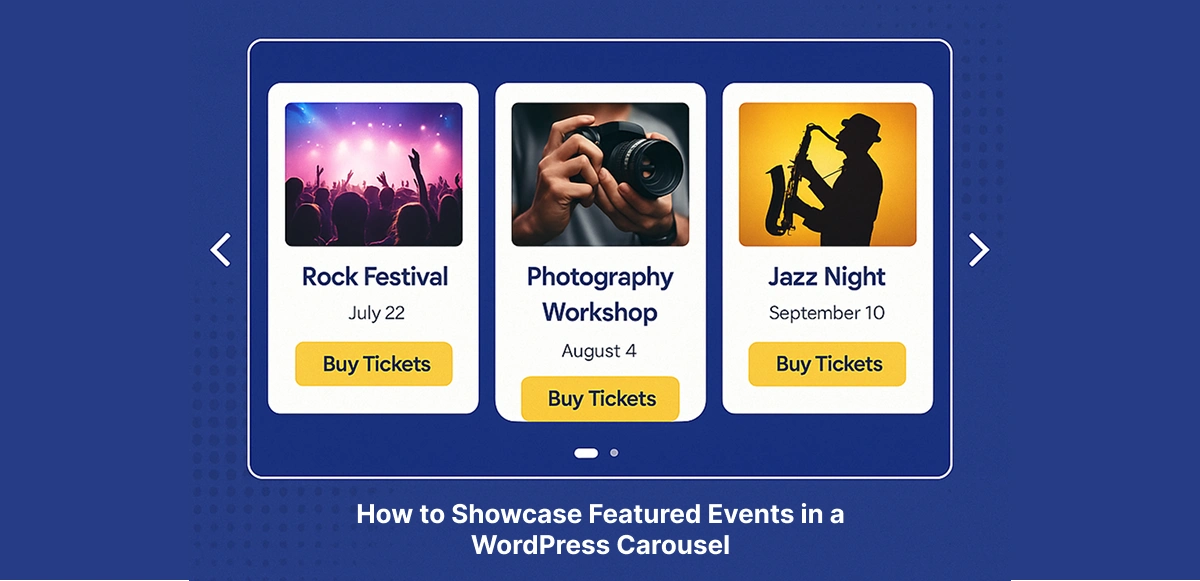
    How to Showcase Featured Events in a WordPress Carousel

    🎠 Introduction

    When it comes to event promotion, visual presentation matters just as much as the details themselves. A well-designed showcase can turn casual visitors into excited attendees — and nothing captures attention better than motion and design working together.

    Unfortunately, most default event lists in WordPress look static and uninspiring. They get the job done but fail to create the excitement your events deserve. Visitors have to scroll through plain lists of text and dates, which doesn’t exactly build anticipation.

    That’s where a WordPress event carousel changes everything. By turning your featured events into a dynamic, swipeable experience, you can instantly highlight what’s coming next — whether it’s a conference, concert, or festival — all while keeping your site’s design sleek and interactive.

    And the best part? You don’t need to code a single line. With Eventful, you can create a fully customized, responsive event carousel in just minutes — complete with images, titles, dates, and “Buy Tickets” buttons that turn interest into action.

    In today’s fast-paced digital world, attention is everything — and static event lists just don’t cut it anymore. A WordPress event carousel instantly elevates your website, adding motion, style, and interactivity that draw visitors in and keep them scrolling.

    🎞️ Capture Visitor Attention

    Movement naturally attracts the eye. By displaying your events in a carousel, you create a smooth, swipeable showcase that feels alive — perfect for highlighting what’s new, trending, or upcoming.

    Carousels make the most of limited screen real estate. You can feature multiple events in a compact area without overwhelming visitors, especially on mobile devices.

    🏠 Keep Your Homepage Fresh and Engaging

    Instead of a static list of past and upcoming events, your homepage can automatically update to show what’s next. Each time you add a new featured event, your carousel updates itself — keeping your site dynamic and current.

    🎤 Perfect for Any Event Type

    Whether you’re promoting music festivals, conferences, webinars, or recurring community events, a WordPress event carousel makes your schedule look professional and exciting.

    With motion, design, and storytelling all in one place, your event showcase becomes an experience — not just a list.

    ⚙️ Step 1: Install Required Plugins

    Before you can build your WordPress event carousel, you’ll need the right tools in place. Eventful works alongside The Events Calendar to transform your event listings into stunning, interactive displays.

    📅 The Events Calendar

    This is your foundation for managing event data. Use it to create events, add descriptions, dates, venues, and ticket links. It’s one of the most popular event management plugins for WordPress — reliable, flexible, and widely supported.

    🎨 Eventful

    Eventful is the magic ingredient that turns your static event listings into modern layouts — including grids, lists, and carousels. It lets you design beautiful showcases for featured or upcoming events without touching a line of code.

    🧩 Optional: Elementor or Gutenberg

    You can place your WordPress event carousel anywhere using the shortcode Eventful generates. For maximum flexibility, you can insert it in Elementor (via the Shortcode Widget) or Gutenberg (via the Shortcode Block).

    💡 Note: Eventful Is an Add-On, Not a Replacement

    Eventful doesn’t replace The Events Calendar — it enhances it. You’ll still use The Events Calendar to manage your event data, while Eventful handles how those events look and feel on your site.

    Once these plugins are installed, you’re ready to start designing a layout that turns your event page into a real showcase.

    To build a WordPress event carousel that truly highlights your most important events, you don’t need to create a separate category — The Events Calendar already has a “Feature Event” option built in.

    When editing an event in The Events Calendar, simply check the “Feature Event” box under Event Options. This instantly marks the event as a highlighted one in your system.

    featured events in WordPress

    Once your events are marked, go to the Eventful Layout Editor and choose the Carousel layout. Under the Filter Events dropdown, select Feature. This tells Eventful to only pull events that have been flagged as featured.

    Filter Featured Events in Eventful

    ⚡ Why This Matters

    By combining these two features, you can quickly create a dynamic, automated WordPress event carousel. Anytime you check “Feature Event” on a new listing, it automatically appears in your carousel layout — no manual updates required.

    This workflow keeps your homepage fresh and ensures your most important events always stand out.

    Now that your events are marked as featured, it’s time to design the WordPress event carousel that will showcase them. Eventful makes this process quick and flexible.

    1️⃣ Add a New Layout

    From your WordPress dashboard, go to Eventful → Layouts → Add New. Give your layout a descriptive name, like Featured Carousel.

    Eventful provides multiple layout presets, but for this showcase, select Carousel. You can also explore variations such as Center Carousel or Multi-Row Carousel for different visual effects.

    3️⃣ Configure Filter Events

    In the Filter Events settings, select Feature. This ensures only events marked as Featured in The Events Calendar will appear in this carousel.

    4️⃣ Adjust the Design

    Customize your carousel to fit your brand and site design:

    • Slides to Show → Control how many events are visible at once.
    • Autoplay → Add movement for a dynamic feel.
    • Navigation Arrows / Dots → Decide how users move between slides.
    • Pagination & Speed → Fine-tune timing and transitions.

    5️⃣ Save & Publish

    When you’re satisfied with the setup, click Publish. Eventful will generate a unique shortcode, such as: [ eventful id=”xxx” ]

    This shortcode is your key to embedding the carousel anywhere on your site.

    Once you’ve created your layout, Eventful gives you a shortcode like: [ eventful id=”123″ ]

    This makes your WordPress event carousel incredibly flexible — you can place it anywhere across your site with just a few clicks.

    📝 Pages or Posts

    Paste the shortcode directly into the WordPress editor to showcase your carousel on event pages, blog posts, or custom landing pages.

    🎨 Elementor Shortcode Widget

    Drag in the Shortcode Widget in Elementor and paste the [ eventful id="123" ]. This is perfect for placing your carousel inside custom-designed pages or hero sections.

    📦 Gutenberg Shortcode Block

    Use the Shortcode Block in Gutenberg, paste in your Eventful shortcode, and your carousel will appear instantly.

    Want a compact upcoming-events carousel in your sidebar? Or a full-width carousel across your homepage? Just insert the shortcode into a Text Widget or your homepage hero area.

    💻 For Developers: Template Integration

    If you’re customizing theme templates, you can hard-code the carousel with: echo do_shortcode(‘[ eventful id=”123″ ]’);

    This gives developers complete control over where and how the carousel appears.

    With one shortcode, your WordPress event carousel becomes reusable, flexible, and perfectly placed anywhere your audience will see it.

    Building your WordPress event carousel is just the beginning — the real magic happens when you style it to match your brand and optimize it for performance. A polished, responsive carousel makes your events look professional and keeps visitors engaged.

    🎨 Match Your Brand

    Eventful’s layout editor lets you customize colors, typography, and spacing so your carousel feels like a seamless extension of your website. Consistency builds trust, so make sure your event showcase reflects your brand identity.

    🎟️ Add Clear CTAs

    Every event in your carousel should guide visitors toward action. Add strong call-to-action buttons like “Buy Tickets”, “Register Now”, or “Learn More” directly on the slides to increase conversions.

    📱 Test Mobile Responsiveness

    Most visitors will view your events on their phones. Always preview your WordPress event carousel across devices to ensure the layout scales beautifully and navigation (swipe, arrows, dots) works smoothly.

    ⚡ Keep It Fast & Smooth

    Animations should enhance, not slow down. Use optimized images, enable caching, and consider a CDN (Content Delivery Network) to keep your carousel fast-loading and fluid.

    A well-styled carousel doesn’t just look better — it delivers a user-friendly experience that drives attendance and ticket sales.

    A WordPress event carousel is a powerful tool for promoting your events — but only if it’s used wisely. To keep it effective and engaging, follow these best practices:

    🌟 Highlight Only the Most Important Events

    Your carousel should be a stage for your headline events, not every single listing. Feature the ones that matter most — like keynote sessions, headline concerts, or limited-time offers — to keep the spotlight where it belongs.

    🛑 Avoid Overcrowding

    Too many slides can overwhelm visitors. Keep your carousel lean and focused, showcasing 5–8 events at most. Quality over quantity ensures users actually pay attention.

    🔄 Update Regularly

    A stale carousel signals that your site isn’t active. As new featured events are added in The Events Calendar, refresh your Eventful layout so your carousel always feels current and relevant.

    🎨 Maintain Consistent Design

    Match your carousel styling with your site’s branding — fonts, colors, and button styles should feel unified across all pages. A consistent design builds trust and makes navigation effortless.

    By following these tips, your WordPress event carousel won’t just look beautiful — it will drive real engagement and conversions.

    ⚠️ Common Mistakes to Avoid

    Even the best tools can fall short if used incorrectly. Here are a few common pitfalls to watch out for when creating your WordPress event carousel with Eventful.

    🚫 Forgetting to Publish the Layout

    This is one of the most common mistakes. If your Eventful layout is still in draft mode, the shortcode won’t display anything. Always make sure the layout is published before embedding it on your site.

    🎢 Mixing Too Many Animation Effects

    Less is more. Overusing animation styles, speeds, or transitions can make your carousel look chaotic and distract visitors. Choose one smooth, professional animation that fits your site’s aesthetic.

    🖼️ Ignoring Image Optimization

    High-resolution images that aren’t optimized can slow down load times — especially for mobile users. Use compressed, properly sized images to keep your WordPress event carousel fast and responsive.

    If you forget to enable the Featured Event filter in Eventful, your carousel may display unwanted events or appear empty. Double-check that your layout is pulling the correct “Featured” events from The Events Calendar.

    Avoiding these mistakes ensures your carousel runs smoothly, looks professional, and keeps visitors focused on the events that matter most.

    🎯 Conclusion

    A WordPress event carousel doesn’t just make your site look better — it makes it work better. By showcasing your featured events in an interactive, visually engaging way, you turn plain listings into experiences that capture attention and drive attendance.

    With Eventful, creating a carousel is fast, simple, and fully customizable. Whether you’re running a concert series, hosting conferences, or managing community events, Eventful gives you the tools to design, display, and delight — all without code.

    1. How do I create a WordPress event carousel?

      You can easily create a WordPress event carousel using the Eventful plugin. After installing The Events Calendar and Eventful, build a new layout, choose “Carousel,” customize it, and embed the shortcode anywhere on your site.

    2. Can I display only featured events in the carousel?

      Yes. The Events Calendar includes a “Feature Event” option. Once you check that box, you can use Eventful’s Filter Events → Feature option to display only those highlighted events in your carousel automatically.

    3. Does Eventful work with The Events Calendar plugin?

      Absolutely. Eventful is built specifically as an add-on for The Events Calendar, enhancing it with modern layouts like grids, lists, and carousels — without replacing its core functionality.

    4. Can I add multiple carousels on different pages?

      Yes. Each Eventful layout generates a unique shortcode (e.g., [ eventful id="xxx" ]). You can create as many layouts as you want and embed them on different pages or sections of your website.

    5. Is the carousel mobile-friendly?

      Definitely. Every WordPress event carousel created with Eventful is fully responsive by default. It automatically adjusts for tablets and smartphones, ensuring a smooth experience across all devices.

    Build Stunning Event Carousels Today

    Showcase your featured events with beautiful, responsive layouts.

  • How to Customize The Events Calendar Layouts with Eventful

    How to Customize The Events Calendar Layouts with Eventful

    🎯 Introduction

    When it comes to managing events in WordPress, The Events Calendar is one of the most popular plugins available. It’s powerful, reliable, and packed with features for scheduling and ticketing. But there’s one drawback—its default layouts are visually limited.

    For professional websites, plain event listings can feel too basic. Whether you’re running a conference, promoting a concert, or organizing community workshops, your events deserve a presentation that matches the quality of your brand.

    That’s where Eventful steps in. With Eventful, you can customize The Events Calendar layouts with modern designs like grids, lists, and carousels—all styled to fit your branding. Best of all, it’s easy to use: create a layout, copy the shortcode, and place it anywhere on your site for a polished, professional event showcase.

    💡 Why Customize The Events Calendar Layouts?

    If you’re using The Events Calendar, you already know it’s a great tool for managing events. But presentation is just as important as functionality. Here’s why it’s worth taking the time to customize The Events Calendar layouts with Eventful.

    🌟 First Impressions Matter

    Your event pages are often the first interaction potential attendees have with your brand. A plain list of events may get the job done, but a polished, modern layout instantly communicates professionalism and quality.

    🧭 Better Navigation & User Experience

    Custom layouts make it easier for visitors to browse events. Whether you’re showcasing a grid of conferences, a carousel of concerts, or a simple list of workshops, better design means users can quickly find the events that interest them.

    🎟️ Increased Engagement & Ticket Sales

    Visual appeal translates directly into higher engagement. When events are displayed with eye-catching images, clear CTAs, and branded styling, attendees are more likely to click through, learn more, and purchase tickets.

    In short, customizing your layouts isn’t just about design—it’s about creating a seamless experience that builds trust and drives conversions.

    ⚙️ How Eventful Works with The Events Calendar

    Eventful isn’t here to replace The Events Calendar—it’s designed to enhance it. Think of Eventful as a visual add-on that makes your event pages look as good as the events themselves.

    ➕ An Add-On, Not a Replacement

    The Events Calendar handles the core functionality: creating events, setting times, managing venues, and syncing ticketing. Eventful builds on top of that, giving you the ability to transform how those events are displayed.

    🔗 ID-Based Shortcodes for Layouts

    Each Eventful layout you create generates a unique shortcode, like: [ eventful id=”123″ ]

    Simply place that shortcode in any page, post, or widget area, and your custom layout will appear exactly as designed—whether it’s a grid, list, or carousel.

    🎨 Centralized Layout Editor

    All customization happens in the Eventful layout editor. From one place, you can:

    • Filter by categories, tags, or featured events.
    • Control the number of events displayed.
    • Style layouts with colors, fonts, and overlays.
    • Add CTAs like “Buy Tickets” or “Learn More.”

    This centralized system keeps your designs consistent and easy to manage—no coding required.

    🛠️ Creating a Custom Eventful Layout (Step by Step)

    Designing your own event showcase with Eventful is quick and beginner-friendly. Here’s how to create a custom layout that makes The Events Calendar shine.

    1️⃣ Add a New Layout

    From your WordPress dashboard, go to Eventful → Layouts → Add New. Choose the type of layout you want to create:

    • Grid → perfect for conferences, festivals, or multi-track events.
    • List → great for webinars, workshops, or chronological schedules.
    • Carousel → ideal for featured or VIP events you want to highlight.

    2️⃣ Configure the Event Source

    Decide what events to display:

    • All Events → showcase everything on your calendar.
    • Category-Specific → display only selected categories (e.g., “Workshops” or “Concerts”).
    • Featured Events → highlight only promoted or special events.

    3️⃣ Adjust Layout & Styling

    In the Eventful layout editor, fine-tune the design to match your site’s branding:

    • Set columns and spacing for balance.
    • Customize typography for event titles and details.
    • Add image overlays for a modern touch.
    • Include CTA buttons like “Buy Tickets” or “Learn More” to drive action.

    4️⃣ Publish & Copy the Shortcode

    Once you’re happy with the design, click Publish. Eventful will generate a unique shortcode, such as: [ eventful id=”123″ ]

    Copy this shortcode—it’s what you’ll use to embed the layout anywhere on your site.

    📍 Embedding Custom Layouts Anywhere

    Once you’ve created and published a layout, Eventful gives you a shortcode like: [ eventful id=”123″ ]

    This shortcode can be placed almost anywhere in WordPress, making your customized Events Calendar layouts both powerful and flexible.

    📝 Use in Posts & Pages

    Paste the shortcode directly into the content editor. Your custom grid, list, or carousel will appear wherever you place it—perfect for dedicated event pages or blog announcements.

    🎨 Add to Elementor or Gutenberg

    • In Gutenberg, insert a Shortcode Block and paste the [ eventful id="xxx" ].
    • In Elementor, drag in the Shortcode Widget and drop the code inside.
      This makes it easy to blend event showcases with your site’s overall design.

    🗂️ Place in Sidebars, Footers, or Landing Pages

    Want to show “Upcoming Events” in your sidebar or highlight featured events in your footer? Just paste the shortcode into a Text Widget or Custom HTML Widget and it will display seamlessly.

    💻 Developers: Call Shortcodes in Templates

    For developers or advanced users, you can embed Eventful layouts directly into your theme or template files with: echo do_shortcode(‘[ eventful id=”123″ ]’);

    This allows you to hard-code event layouts into headers, landing pages, or custom templates while still keeping the layout design managed through the Eventful editor.

    With this flexibility, your events can appear anywhere on your WordPress site—always styled, branded, and easy to update.

    🎨 Styling & Branding Options

    Customizing The Events Calendar layouts isn’t just about structure—it’s about making sure your events look like an extension of your brand. With Eventful, you can design layouts that blend seamlessly into your WordPress site and reflect your event’s personality.

    🎨 Match Layouts to Brand Colors & Fonts

    Inside the Eventful layout editor, you can easily adjust colors, typography, and spacing. This ensures your event grids, lists, or carousels align with your brand identity—whether that means bold, vibrant colors for concerts or clean, minimalist designs for corporate events.

    💻 Add Custom CSS for Advanced Control

    For users who want extra precision, Eventful supports custom CSS classes. This allows you to fine-tune every detail, from hover effects on event cards to custom button styles. It’s the perfect balance between beginner-friendly controls and advanced customization.

    🖌️ Maintain Consistency with Event Promotions

    Consistency builds trust. By applying the same styles across all Eventful layouts, your events feel cohesive with your posters, email campaigns, and social media graphics. Visitors instantly recognize your branding and associate it with professionalism.

    With Eventful, customizing layouts goes beyond aesthetics—it creates a branded event experience that feels polished from start to finish.

    ⚡ Advanced Customization Tips

    Once you’ve mastered the basics of Eventful, you can unlock even more flexibility by tailoring your customized Events Calendar layouts to specific use cases. These pro tips will help you create layouts that are not only beautiful but also highly strategic.

    🗂️ Build Category-Specific Grids

    Want to separate Workshops from Concerts or Webinars? With Eventful, you can filter layouts by categories or tags, creating dedicated grids for each type of event. This keeps your content organized and makes it easier for visitors to find what matters most to them.

    Carousel layouts are perfect for drawing attention to limited-time or high-profile events. Showcase seasonal highlights like Summer Festivals or emphasize Featured Events to keep them front and center on your site.

    📸 Create “Past Events” Archives

    Don’t let your events disappear once they’re over. Build a “Past Events” layout to display recaps, highlight reels, and testimonials. This not only adds credibility but also serves as social proof for future attendees.

    ♻️ Duplicate Layouts for Quick Variations

    Need a similar layout with slight tweaks? Eventful makes it easy to clone existing layouts. Adjust categories, styles, or filters, then publish it with a new shortcode. This saves time and ensures consistency across your event pages.

    With these advanced tips, Eventful becomes more than a design tool—it’s a strategy engine for showcasing your events in smarter, more impactful ways.

    🚫 Common Mistakes to Avoid

    Customizing The Events Calendar layouts with Eventful is simple, but there are a few pitfalls that can undermine your results. Here’s what to watch out for:

    📌 Forgetting to Publish Layouts

    It’s an easy mistake—copying a shortcode from a draft layout. If the layout isn’t published, nothing will display. Always double-check that your layout is live before embedding it.

    ⚠️ Overloading Pages with Too Many Showcases

    Just because you can embed multiple grids, lists, and carousels doesn’t mean you should. Too many showcases on one page can overwhelm visitors and slow down your site. Focus on clarity and highlight only the most relevant events.

    📱 Ignoring Mobile Responsiveness

    Most users browse events on their phones. If your layouts look great on desktop but break on mobile, you risk losing attendees. Always preview layouts on different screen sizes to ensure a smooth, responsive experience.

    Avoiding these mistakes will keep your customized Events Calendar layouts professional, user-friendly, and optimized for conversions.

    Conclusion

    Customizing The Events Calendar layouts doesn’t have to be complicated. With Eventful, you can turn plain event listings into polished grids, lists, or carousels that match your branding and engage your audience.

    Instead of settling for default layouts, Eventful gives you the freedom to create professional event showcases with just a few clicks—no coding required. From filtering by category to adding branded styling and CTAs, everything is handled in one easy-to-use editor.

    👉 Ready to upgrade your event pages? Try Eventful today and see how easy it is to customize The Events Calendar for your site.

    FAQs – Customize The Events Calendar Layouts with Eventful

    Can I customize The Events Calendar layouts without coding?

    Yes! With Eventful, you can easily customize The Events Calendar layouts using grids, lists, or carousels—all through a simple editor. No coding skills are required.

    Do Eventful layouts work with Elementor and Gutenberg?

    Absolutely. Each Eventful layout generates a shortcode, like [ eventful id="123" ]. You can drop this into a Gutenberg Shortcode block or an Elementor Shortcode widget to display your customized Events Calendar layouts anywhere.

    Can I create multiple custom layouts for different event categories?

    Yes. Eventful lets you filter by categories, tags, or featured events. That means you can create multiple custom layouts—for example, one grid for workshops and another carousel for concerts—without duplicating effort.

    Will my existing events automatically work with Eventful layouts?

    They will. Eventful integrates directly with The Events Calendar, so all your existing events can be displayed instantly in new layouts. Just publish a layout, copy the shortcode, and your customized Events Calendar layouts will be live.

    ✨ Try Eventful Today

    Bring your events to life with beautiful layouts and seamless customization.

  • How to Combine WooCommerce & Eventful for Paid Events

    How to Combine WooCommerce & Eventful for Paid Events

    🎯 Introduction

    Managing WooCommerce Eventful paid events is the smartest way to combine the best of both worlds: e-commerce and event design. WooCommerce gives you a rock-solid platform for selling tickets and handling payments, while Eventful ensures your events look professional and engaging on your WordPress site.

    The problem is that each tool alone has limitations. WooCommerce can sell tickets, but its default product pages aren’t designed to showcase events in a visually appealing way. On the other hand, Eventful creates stunning event layouts, but it isn’t built to process payments or manage ticket inventory.

    Put them together, however, and you get a complete solution. WooCommerce handles the commerce side—secure payments, multiple ticket types, and inventory control—while Eventful takes care of the presentation side, letting you display your events in beautiful grids, carousels, and lists. The result? Seamless, professional, and profitable paid events, all managed inside WordPress.

    💳 Why Use WooCommerce for Paid Events?

    When it comes to managing WooCommerce Eventful paid events, WooCommerce is the backbone that makes selling tickets and collecting payments seamless. It’s one of the most trusted e-commerce platforms in the WordPress ecosystem, powering millions of online stores—and it works just as well for event tickets as it does for products.

    🔐 Trusted Platform for Secure Payments

    WooCommerce is built on WordPress and backed by a large community of developers, ensuring security, scalability, and reliability. That means your attendees can purchase tickets with confidence, and you can rest easy knowing transactions are secure.

    💳 Multiple Payment Gateways

    From PayPal and Stripe to regional gateways and credit card processors, WooCommerce supports dozens of payment options. This flexibility is crucial for events, allowing attendees to pay using the method they trust most.

    🎟️ Ticket & Product Management

    Whether you’re running a one-time concert or a recurring weekly workshop, WooCommerce makes it easy to set up each event as a product with pricing, stock control, and variations. You can even create multiple ticket types—like Early Bird, Standard, or VIP—without needing extra code.

    With WooCommerce handling the transactions, you can focus on the event itself—while Eventful steps in to showcase those events beautifully on your site.

    🎨 Why Add Eventful to WooCommerce Paid Events?

    WooCommerce takes care of payments, but when it comes to design, its product pages aren’t built for events. That’s where Eventful shines. Adding Eventful to your WooCommerce Eventful paid events setup transforms plain listings into stunning showcases that grab attention and boost registrations.

    ✨ Eventful Makes Event Pages Beautiful

    Instead of a standard WooCommerce product page, you can present events in modern grids, carousels, or lists. Each layout is designed with events in mind—perfect for showcasing speakers, highlighting dates, or promoting ticket options in style.

    🔗 ID-Based Shortcodes Anywhere

    Every Eventful layout generates a unique shortcode like: [ eventful id=”123″ ]

    You can drop this shortcode into posts, pages, Elementor designs, Gutenberg blocks, or sidebars. Wherever you place it, the layout displays exactly as you configured it in the Eventful editor.

    🎭 Professional Branding & Navigation

    Eventful layouts are fully customizable. Adjust colors, typography, columns, and CTAs so that every showcase matches your event’s branding. This gives attendees a consistent, polished experience—from browsing your site to completing their ticket purchase in WooCommerce.

    By combining WooCommerce and Eventful, you get the best of both worlds: secure transactions backed by a beautifully designed event showcase.

    🛠️ Setting Up WooCommerce Eventful Paid Events (Step by Step)

    Ready to create your first WooCommerce Eventful paid event? Here’s how to set everything up so you can start selling tickets and showcasing events beautifully on your WordPress site.

    1️⃣ Install the Required Plugins

    You’ll need three core plugins working together:

    • WooCommerce → handles payments, checkout, and ticket/product management.
    • The Events Calendar → manages the event details (date, time, location).
    • Eventful → enhances layouts with modern grids, lists, and carousels.

    Install and activate them from your WordPress dashboard.

    2️⃣ Create a WooCommerce “Product” for Your Event

    In WooCommerce → Products → Add New, set up your event as a product:

    • Add title & description (event name + details).
    • Set pricing (standard, Early Bird, or VIP tickets).
    • Control stock/availability (number of tickets).
    • Add variations if you’re offering multiple ticket types.

    This is how WooCommerce manages ticket sales.

    3️⃣ Add the Event in The Events Calendar

    Go to Events → Add New to create the event entry. Add the event’s title, description, date, and location. In the event editor, link it to your WooCommerce product so ticket sales are synced directly.

    4️⃣ Publish an Eventful Layout

    Next, go to Eventful → Layouts → Add New and choose a layout type:

    • Grid for multi-track conferences.
    • List for webinars or recurring sessions.
    • Carousel for featured or VIP events.

    Configure filters, design options, and CTA buttons. Once you publish, Eventful generates a unique shortcode like: [ eventful id=”123″ ]

    5️⃣ Embed the Shortcode Anywhere

    Finally, copy the shortcode and place it wherever you want your paid event to appear:

    • Pages & Posts → drop it into the content editor.
    • Elementor → paste into the Shortcode widget.
    • Gutenberg → use the Shortcode block.
    • Sidebars/Widgets → paste into a Text widget.

    And that’s it—your paid event is now live, with WooCommerce powering ticket sales and Eventful powering beautiful presentation.

    🎨 Designing Paid Event Layouts With Eventful

    Once WooCommerce is handling payments, the next step is making sure your events look professional and conversion-ready. This is where Eventful transforms WooCommerce Eventful paid events into polished showcases that boost ticket sales.

    💲 Show Pricing & CTAs Clearly

    Your attendees shouldn’t have to hunt for the ticket price or “Buy Now” button. Eventful layouts let you feature pricing details and CTAs front and center, ensuring visitors can register or purchase tickets with a single click.

    🌟 Highlight VIP & Early Bird Options

    If you’re offering multiple ticket types, like Early Bird discounts or VIP packages, Eventful helps you make them stand out. Use grids or lists to clearly separate ticket tiers, so visitors understand the value of each option.

    Got a headline event or a limited-seat workshop? A carousel layout is perfect for spotlighting featured events at the top of your site. The motion draws attention and creates excitement, while still linking directly to WooCommerce for ticket purchase.

    ⏳ Add Urgency With Countdown Timers

    Nothing drives conversions like a sense of urgency. Pair Eventful layouts with countdown timers (via The Events Calendar or compatible addons) to show when ticket sales close. This motivates visitors to secure their spot before time runs out.

    With these design strategies, Eventful turns your paid events into eye-catching, conversion-optimized showcases that do more than just inform—they sell.

    ✅ Best Practices for WooCommerce Eventful Paid Events

    Selling tickets online isn’t just about having the right tools—it’s about using them strategically. To get the most from your WooCommerce Eventful paid events, follow these proven best practices.

    🛒 Keep Checkout Simple

    Every extra step in the checkout process risks losing a customer. Stick to WooCommerce’s streamlined checkout flow, avoid unnecessary form fields, and make sure payment gateways are quick and trusted.

    📸 Use Past-Event Showcases for Credibility

    New visitors want proof your events are worth attending. Eventful makes it easy to create a “Past Events” layout with photos, testimonials, or highlights. This social proof builds trust and encourages ticket purchases for upcoming events.

    👆 Place CTAs Above the Fold

    Don’t bury your “Buy Tickets” or “Register Now” buttons. In your Eventful layouts, keep CTAs visible above the fold so visitors see them without scrolling. The easier it is to act, the higher your conversions.

    🎟️ Offer Discounts via WooCommerce

    WooCommerce supports coupon codes, memberships, and subscription discounts. Use these features to reward loyal attendees or drive urgency with limited-time offers. Combined with Eventful layouts, your promotions stay front and center.

    By blending smart checkout practices with Eventful’s visual power, you’ll maximize both trust and ticket sales.

    🚫 Common Mistakes to Avoid

    Even with the right tools, small missteps can hurt your sales and user experience. Here are the most common pitfalls to avoid when running WooCommerce Eventful paid events.

    🔄 Forgetting to Sync Stock

    WooCommerce manages tickets as products. If you forget to sync product stock with event entries in The Events Calendar, you risk overselling—or worse, marking tickets unavailable when they’re still open. Always double-check inventory settings.

    📄 Using Plain WooCommerce Product Pages

    WooCommerce product pages aren’t designed for events. If you rely on them alone, your paid events will look like generic products. By embedding [ eventful id="xxx" ] layouts instead, you’ll create engaging, branded showcases that actually drive conversions.

    🎟️ Overcomplicating Ticket Options

    Offering too many ticket variations (VIP, Gold, Platinum, Super Early Bird, etc.) can confuse attendees and slow purchases. Keep ticket tiers simple and highlight the most popular option in your Eventful layouts.

    📱 Ignoring Mobile Optimization

    Most users browse and buy tickets on their phones. If your layouts or checkout aren’t mobile-friendly, you’ll lose sales. Always test your Eventful layouts and WooCommerce checkout flow across different devices.

    By steering clear of these mistakes, you’ll deliver a smooth, professional experience that boosts both trust and ticket sales.

    🎯 Conclusion

    Running successful WooCommerce Eventful paid events comes down to combining the right tools for the right jobs. WooCommerce takes care of secure payments, ticket management, and checkout, while Eventful transforms your events into beautiful, branded showcases that sell themselves.

    Instead of relying on plain WooCommerce product pages or unstyled listings, this combination gives you a complete system: seamless transactions backed by professional event design.

    👉 Ready to set up your first WooCommerce Eventful paid event? Start today and give your attendees the experience they expect—from browsing to checkout.

    How do I set up WooCommerce Eventful paid events?

    To set up WooCommerce Eventful paid events, install WooCommerce, The Events Calendar, and Eventful. Create your event in The Events Calendar, link it to a WooCommerce product (ticket), then design an Eventful layout. Finally, embed the [ eventful id="xxx" ] shortcode anywhere on your site.

    Can I create multiple ticket types (VIP, Early Bird)?

    Yes. In WooCommerce, you can create variations for your event product (like VIP, Early Bird, or General Admission). When you showcase the event using Eventful, these ticket types will be linked directly to WooCommerce checkout.

    Do Eventful shortcodes work with WooCommerce event tickets?

    Absolutely. Eventful shortcodes display your event layouts beautifully across posts, pages, and widgets. Each [ eventful id="xxx" ] layout can include events linked to WooCommerce products, giving you both great presentation and seamless ticket sales.

    Will WooCommerce automatically mark events as sold out in Eventful?

    Yes. If your WooCommerce product stock runs out, the connected event will display as Sold Out. Eventful layouts pull this information automatically, so your showcases always reflect real-time availability.

    ✨ Try Eventful Today

    Bring your events to life with modern layouts, reusable shortcodes, and WooCommerce-powered ticket sales.

  • Using Shortcodes Like a Pro: Advanced Eventful Tips for WordPress

    Using Shortcodes Like a Pro: Advanced Eventful Tips for WordPress

    🎯 Introduction

    Shortcodes are one of WordPress’s hidden power tools. With just a simple bracketed command, you can unlock features, embed dynamic content, and place event showcases anywhere on your site—without touching code.

    Yet here’s the problem: most users only use Eventful shortcodes in their simplest form. They copy an [ eventful id="123" ] shortcode, drop it into a page, and stop there—missing out on the advanced flexibility built into Eventful’s layout system.

    That’s where this guide comes in. Eventful uses an ID-based shortcode system, meaning every layout you create in the Eventful dashboard generates its own shortcode. By learning how to configure and reuse those layouts, you can go beyond basic lists and grids to build dynamic, branded event experiences across your entire site.

    This post will show you how to use Eventful shortcodes like a pro—unlocking advanced layouts, smarter workflows, and event showcases that truly stand out.

    🔎 What Are Eventful Shortcodes?

    📌 Shortcodes in WordPress

    In WordPress, shortcodes are small snippets wrapped in brackets—like [ gallery ] or [ eventful id="123" ]—that let you insert dynamic content into pages, posts, or widgets. They act as shortcuts, replacing complex code or templates with a simple command anyone can use.

    ⚡ Eventful’s Unique ID-Based System

    Unlike traditional plugins that rely on attribute-heavy shortcodes, Eventful takes a different approach. Each time you create a layout in the Eventful Layouts dashboard—whether it’s a grid, list, or carousel—the system automatically generates a unique shortcode tied to that layout: [ eventful id=”123″ ]

    All of the settings, filters, and design options for that layout are configured once in the editor. Wherever you place that shortcode, the output will always match the layout’s configuration.

    🚀 Why This Is Cleaner & More Powerful

    This ID-based system has three big advantages:

    1. No messy attributes — you don’t have to remember long strings of parameters.
    2. Centralized control — update the layout in one place, and it updates everywhere the shortcode is used.
    3. Scalable flexibility — you can duplicate layouts, tweak settings, and generate new IDs for different use cases.

    In short, Eventful shortcodes keep things clean for content creators while offering the power and flexibility developers love.

    📝 Basic Shortcode Workflow (Quick Recap)

    Using Eventful shortcodes in WordPress is straightforward once you understand the workflow. Each layout you create in Eventful generates its own shortcode, which you can reuse across your site.

    1. Create a New Eventful Layout

    Head to Eventful → Layouts → Add New in your WordPress dashboard. Choose the layout type that best fits your event showcase—whether it’s a Grid for conferences, a List for webinars, or a Carousel for workshops.

    2. Configure Layout Options

    Inside the layout editor, customize how your events will appear:

    • Data Source: filter by category, tags, or featured events.
    • Limits: control how many events display at once.
    • Design: adjust columns, spacing, overlays, and typography.
    • CTAs: enable buttons like “Buy Tickets” or “Register Now” to drive conversions.

    3. Publish & Copy the Shortcode

    Once your layout looks the way you want, click Publish. A unique shortcode will appear in the layout box, for example: [ eventful id=”123″ ]

    4. Paste Shortcode Anywhere

    You can now place this shortcode anywhere on your site:

    • Posts & Pages: paste directly into the editor.
    • Gutenberg: use the Shortcode block.
    • Elementor: drag in the Shortcode widget.
    • Widgets/Sidebars: paste in a text widget.
    • Templates (for devs): echo do_shortcode(‘[ eventful id=”123″ ]’); And just like that, your configured layout is live and ready—no coding required.

    ⚡ Advanced Layout Settings (The Real Power)

    The real strength of Eventful’s ID-based shortcodes comes from the powerful settings you configure inside each layout. Instead of cramming parameters into a shortcode, you set everything once in the layout editor—then reuse it anywhere with [ eventful id="xxx" ].

    Want to showcase only “Workshops” or highlight featured events? Eventful lets you filter events by category, tag, or featured status, ensuring that each layout displays exactly the type of events you want.

    📅 Controlling Number of Events & Timeframe

    You can set limits on how many events appear and whether they pull from upcoming or past events. This makes it easy to create a “Next 5 Webinars” list or a “Past Events Archive” carousel.

    ⏱️ Ordering Options

    Choose how your events are sorted—by date in ascending or descending order. For example, a “Countdown to Conference” section might show soonest events first, while an archive might start with the most recent.

    🎨 Design Tweaks for a Branded Look

    Eventful gives you full control over the look of each layout:

    • Columns & spacing for balanced grids
    • Image overlays for visual polish
    • Typography settings for headings and details
    • CTA button styles like “Buy Tickets” or “Register Now”

    ♻️ Reusable Layouts for Different Sections

    The best part? Layouts are reusable. You can clone an existing layout, tweak the settings, and generate a new shortcode. This makes it easy to create variations—like a homepage carousel, a sidebar list, and a category-specific grid—all without starting from scratch.

    In short, advanced layout settings give you pro-level control without needing to touch a single line of code.

    🖥️ Using Eventful Shortcodes Across WordPress

    One of the biggest advantages of Eventful’s ID-based shortcode system is that you can place your layouts almost anywhere in WordPress. No matter which editor or theme you use, a simple [ eventful id="123" ] gives you full flexibility.

    🧩 Embedding in Gutenberg Blocks

    In the WordPress block editor, add a Shortcode block and paste in your Eventful shortcode. The layout will render on the front end, letting you insert grids, carousels, or lists seamlessly inside your content.

    🎨 Adding Inside Elementor Widgets

    For Elementor users, drop a Shortcode widget onto the page and paste in the Eventful code. This allows you to integrate event layouts into custom landing pages, hero sections, or even footers without breaking design flow.

    ✍️ Inserting in Classic Editor or Reusable Blocks

    Still using the Classic Editor? Simply paste the shortcode into your post or page. If you want to reuse a layout across multiple posts, save it inside a reusable block for quick insertion later.

    🗂️ Displaying in Widgets or Sidebars

    Shortcodes aren’t limited to pages—they can also live in sidebars, footers, or widget areas. Just use a Text widget or Custom HTML widget, drop in [ eventful id="123" ], and your event showcase will display where you need it.

    💻 Developers: Using Shortcodes in Templates

    If you’re customizing a theme or building a template, you can call Eventful shortcodes directly in PHP:

    echo do_shortcode('[ eventful id="123" ]');
    

    This makes it possible to hardcode event showcases into headers, custom templates, or theme files while still keeping all layout logic centralized in Eventful.

    🔗 Combining Multiple Layouts for Dynamic Pages

    The true power of Eventful’s shortcode system comes when you mix and match multiple layouts on the same page. Since each layout has its own [ eventful id="xxx" ], you can build dynamic event experiences that go far beyond a single list or grid.

    🎡 Homepage Hero + Category Grid

    Imagine starting your homepage with a Carousel layout in the hero section to spotlight headline events, followed by a Grid of upcoming sessions grouped by category. This combination builds excitement at the top while giving visitors easy navigation below.

    🎯 Landing Pages for Tracks or Themes

    If you host multi-track events like conferences, you can create dedicated landing pages for each track—such as “Workshops” or “Webinars.” Each page simply uses a different Eventful shortcode configured to display only that category, keeping content relevant and organized.

    You don’t need to reserve showcases for the main content area. By placing a List layout in a sidebar or footer, you can display a concise “Upcoming Events” section alongside your regular content—perfect for keeping events visible on every page.

    By combining multiple layouts, you transform your WordPress site into a flexible event hub where visitors always find the right information in the right place.

    🎨 Styling & Branding Without Code

    Professional events need professional presentation. With Eventful, you don’t need to be a developer to make your event showcases match your brand identity. Every [ eventful id="xxx" ] layout comes with built-in styling controls, plus the flexibility to go deeper if you want.

    ⚙️ Adjusting Settings in the Layout Editor

    Inside each Eventful Layout, you can control the columns, spacing, typography, colors, and overlays directly from the editor. This ensures your grid, list, or carousel looks polished and aligned with your overall website design—no extra plugins required.

    🎭 Using Custom CSS for Deeper Control

    If you want to take things further, Eventful supports custom CSS classes. This allows you to refine details like hover effects, button styles, or background treatments while keeping the shortcode output clean. Developers and designers can style once in the layout and reuse it across multiple pages.

    🖌️ Keeping Layouts Consistent with Brand Guidelines

    Consistency builds trust. By applying your brand’s colors, fonts, and logo styling across all Eventful layouts, you create a seamless experience between your website, email campaigns, and event materials. Attendees should recognize your brand instantly—whether they’re looking at your homepage carousel or an event landing page.

    With Eventful, you get the flexibility to style layouts your way—without code if you prefer, but with deeper customization options when you need them.

    ⚡ Pro Tips for Power Users

    Once you’ve mastered the basics of [ eventful id="xxx" ], you can push Eventful even further with a few power-user strategies. These techniques help you scale, streamline, and get the most out of your event showcases.

    🔁 Reuse Layouts Across Multiple Pages

    If you’ve built a great Grid or Carousel, don’t reinvent the wheel. Use the same shortcode across multiple pages—homepage, landing pages, sidebars—to maintain a consistent look and save time. Update the layout once, and it updates everywhere.

    🎉 Duplicate Layouts for Campaigns or Special Events

    Need a slightly different version of an existing layout? Just clone it in the Eventful dashboard, tweak the settings (categories, colors, or limits), and publish a new shortcode. This is perfect for seasonal campaigns, holiday events, or limited-time promotions.

    🧩 Mix Eventful with Other Plugins

    Eventful shortcodes play well with others. Drop them inside tabs, accordions, or popups created by your favorite page builder or plugin. This allows you to present event information in interactive ways without heavy customization.

    ⚡ Pair with Caching/CDN for Performance

    If you’re running a large event site with multiple showcases, combine Eventful layouts with a caching plugin or CDN. This keeps pages loading fast, even when you’re displaying rich grids or multiple carousels on the same page.

    These pro tips let you use Eventful like a true power user—efficient, consistent, and optimized for both design and performance.

    🚫 Common Mistakes to Avoid

    Even though Eventful’s [ eventful id="xxx" ] shortcode system is simple, there are a few common pitfalls that can trip up new users. Avoiding these will save time and keep your event pages professional.

    📌 Forgetting to Publish Before Copying

    It may sound obvious, but if you copy a shortcode from a Draft layout, nothing will appear on the page. Always make sure the layout is Published before you embed it.

    🗂️ Using the Wrong Layout Type

    Each layout serves a purpose. A Grid is perfect for multi-track conferences, a List works best for straightforward webinar schedules, and a Carousel is ideal for featured events. Choosing the wrong layout can confuse visitors and lower conversions.

    ⚠️ Overloading Pages with Too Many Showcases

    Just because you can drop multiple shortcodes on one page doesn’t mean you should. Too many grids, lists, and carousels can overwhelm visitors and slow down your site. Be selective and intentional with placement.

    📱 Ignoring Mobile Responsiveness

    Most attendees browse on their phones. If your layouts aren’t optimized for smaller screens—columns too wide, CTAs buried—your event promotion suffers. Always preview layouts on mobile to ensure they look sharp and easy to use.

    By avoiding these mistakes, you’ll ensure your Eventful layouts stay clean, effective, and user-friendly.

    🎯 Conclusion

    Shortcodes may look simple, but in Eventful they unlock incredible flexibility. By using [ eventful id="xxx" ], you can create layouts that are flexible, reusable, and professional—perfect for promoting conferences, webinars, and workshops of any size.

    Instead of relying on plain event listings, Eventful lets you build grids, lists, carousels, and custom layouts that you can drop anywhere on your WordPress site. Update a layout once, and it updates everywhere the shortcode is used. That means less time tweaking and more time promoting your events.

    Don’t stop at just one shortcode—experiment with multiple layouts to see what works best for your audience. Mix a homepage carousel with a category grid, add a compact list in your sidebar, and test CTAs for higher registrations.

    FAQs – Using Eventful Shortcodes in WordPress

    1. How do Eventful shortcodes differ from standard WordPress shortcodes?

      Standard WordPress shortcodes often rely on long strings of attributes. Eventful uses a cleaner system: each layout you create generates a unique ID-based WordPress event shortcode (e.g., [ eventful id="123" ]). All the design and filters are handled inside the layout editor, making it easier to manage and reuse.

    2. Can I customize Eventful layouts without coding?

      Yes. Eventful layouts can be styled directly in the layout editor—adjusting columns, typography, spacing, and CTAs—without writing code. For advanced users, custom CSS can be applied to refine the design even further while still using the same Eventful WordPress shortcode.

    3. Do Eventful shortcodes work with Elementor and Gutenberg?

      Absolutely. You can paste any [ eventful id="xxx" ] shortcode inside a Gutenberg Shortcode block or an Elementor Shortcode widget. This makes it simple to embed your layouts anywhere, keeping your WordPress event layouts consistent across editors.

    4. What happens if I update a layout used by multiple shortcodes?

      That’s the beauty of Eventful’s ID-based system. If you update the settings in a layout, every page or post using that [ eventful id="xxx" ] shortcode will automatically display the new version. This ensures your WordPress event layouts stay consistent without having to edit each page manually.

    Try Eventful Today

    Bring your events to life with modern layouts, reusable shortcodes, and advanced customization—all without touching code.

  • Best WordPress Event Layouts for Conferences, Webinars, and Workshops

    Best WordPress Event Layouts for Conferences, Webinars, and Workshops

    When it comes to promoting conferences, webinars, and workshops, presentation matters just as much as content. A well-designed event page sets the tone, builds credibility, and convinces potential attendees that your event is worth their time.

    The problem? Default event listings in WordPress are often plain, text-heavy, and uninspiring. They deliver the basics—date, time, location—but fail to capture the energy or professionalism that today’s audiences expect.

    The solution is simple: modern WordPress event layouts that transform boring listings into engaging showcases. With the right layouts, you can highlight speakers, spotlight sessions, and create a seamless experience that not only informs but excites attendees to register.

    Why Layouts Matter for Professional Events

    🌟 First Impressions Build Credibility

    When someone lands on your event page, they’re making instant judgments. A cluttered or outdated design signals inexperience, while polished WordPress event layouts immediately establish credibility and professionalism. In the world of conferences, webinars, and workshops, design isn’t just decoration—it’s part of your reputation.

    🎯 Tailoring Design to the Event Type

    Different events call for different layouts. A conference benefits from grid layouts that display multiple tracks or speakers at once. A webinar works better with streamlined lists that highlight upcoming sessions in chronological order. Meanwhile, workshops shine when presented in interactive carousels that make smaller, hands-on sessions pop. Using the right design for the right format creates clarity and keeps attendees engaged.

    👥 Visual Engagement Drives Attendance

    People don’t just want to know the details—they want to feel the value of your event before they commit. Engaging visuals like speaker spotlights, countdown timers, and branded layouts help visitors imagine themselves attending. The result? Higher sign-ups, lower bounce rates, and an event experience that starts online long before it begins in person.

    Grid Layouts for Conferences

    Conferences often pack dozens of sessions, speakers, and tracks into a tight schedule. Without the right design, that information can overwhelm visitors. This is where WordPress event layouts in a grid format shine.

    🎤 Showcase Sessions, Speakers, and Tracks

    A grid layout makes it easy to present multiple sessions at once. You can highlight keynote speakers, breakout tracks, and networking sessions side by side, so attendees get the full scope of your event at a glance.

    🧭 Easy Navigation for Attendees

    Instead of scrolling endlessly through plain text, grids provide a clear, structured overview. Visitors can scan sessions quickly, click into details, and plan their agenda without friction—making your conference site feel intuitive and user-friendly.

    📅 Perfect for Multi-Day, Multi-Speaker Events

    For multi-day events with multiple tracks, a grid layout keeps everything organized. Whether you’re hosting a two-day summit or a week-long professional gathering, grids help attendees digest complex schedules without feeling overwhelmed.

    List Layouts for Webinars

    Webinars are usually short, focused, and time-sensitive—which means clarity is everything. A list layout is one of the most effective WordPress event layouts for organizing upcoming sessions in a clean, easy-to-read format.

    🕒 Chronological Structure for Clarity

    List layouts present events in order of date and time, so attendees can quickly see what’s coming up next. This reduces confusion and ensures no one misses the sessions they’re most interested in.

    💻 Perfect for Webinar Schedules

    Because webinars often happen in series—weekly training, monthly demos, or seasonal masterclasses—a simple list makes it easy to showcase multiple sessions in one place without overwhelming the page.

    👥 Simplified Navigation for Online Audiences

    Your audience may be joining from laptops, tablets, or phones. A list format provides a streamlined experience across all devices, letting visitors scroll naturally and register for sessions without distraction.

    Workshops are hands-on, interactive, and often limited in size—which means your event layout should reflect that sense of exclusivity and energy. A carousel layout is one of the most dynamic WordPress event layouts for showcasing these kinds of sessions.

    🔦 Spotlight Small Group Activities

    Carousels let you rotate through featured workshops, giving each session its own spotlight. This is especially useful when you have multiple hands-on topics running at the same time or want to highlight different instructors.

    ⚡ Add Movement and Visual Energy

    Unlike static grids or lists, a carousel adds motion to your page. That subtle animation draws the eye and keeps visitors engaged, creating a modern, interactive feel that matches the spirit of a live workshop.

    🎟️ Feature Limited-Time or Exclusive Events

    Because workshops often have limited seats or special access, a carousel is perfect for emphasizing urgency. By placing “Register Now” CTAs inside each slide, you can drive quick sign-ups before spots run out.

    Category-Specific Layouts

    Not every attendee is looking for the same thing. Some may want keynote speeches, while others care more about networking sessions or technical deep dives. That’s why category-specific WordPress event layouts are so effective for professional events.

    🎯 Organize by Theme, Topic, or Track

    You can separate your event into categories—such as business strategy, technical workshops, or leadership panels—so visitors can instantly filter for what matters most to them.

    📝 Examples of Categorization

    • Keynote Sessions: Highlight headline speakers or industry leaders.
    • Technical Workshops: Showcase hands-on, skills-based sessions.
    • Networking Events: Promote mixers, roundtables, or after-hours gatherings.

    👥 Better User Experience

    By grouping events logically, you save attendees from scrolling through irrelevant sessions. Clear categorization not only makes your website feel professional but also increases the chances of visitors registering for multiple sessions that align with their interests.

    Customization & Branding

    Your event website should feel like an extension of your brand. Generic designs can make even the best conferences or workshops look forgettable, which is why customizable WordPress event layouts are essential.

    🎭 Match Layouts to Event Branding

    From fonts to color schemes, your event layout should reflect your identity. Matching the design to your event’s theme creates a seamless experience and strengthens brand recognition.

    🖌️ Use Custom CSS for Full Control

    With Eventful, you can apply custom CSS to tailor layouts precisely. Add logos, adjust typography, or refine colors to mirror your promotional materials—whether that’s bold branding for a tech conference or elegant visuals for a professional seminar.

    📑 Maintain Consistency Across Materials

    When your website matches your flyers, social posts, and email campaigns, you build trust and recognition. Attendees should feel the same energy online as they will in the actual event space, starting with the layouts that showcase your sessions.

    SEO & Conversion Benefits

    Modern design isn’t just about looks—it also impacts how easily your events are found and how well they convert visitors into attendees. Using optimized WordPress event layouts gives you a competitive edge in both search rankings and user experience.

    📈 Optimized Layouts Improve Search Visibility

    Search engines reward structured, well-organized content. Layouts that clearly highlight event titles, dates, and details are easier for Google to index, increasing your chances of appearing in rich snippets and local searches.

    👥 Better Engagement Lowers Bounce Rate

    When your layouts are clean, visual, and easy to navigate, visitors stick around longer. Lower bounce rates signal to search engines that your site is valuable, which can further improve your rankings.

    🎟️ Clear CTAs Drive More Registrations

    Strategically placed “Register Now” or “Join Webinar” buttons inside your event showcases guide users toward action. The right WordPress event layouts make CTAs impossible to miss—boosting sign-ups and ensuring your events reach capacity.

    Eventful Plugin for WordPress Layouts

    If you want the easiest way to use professional WordPress event layouts, the Eventful plugin is your go-to solution. Built as an add-on for The Events Calendar, Eventful upgrades plain listings into polished, customizable showcases designed to boost engagement and registrations.

    🚀 Enhances The Events Calendar

    Eventful takes the solid foundation of The Events Calendar and adds modern layouts that are tailored for real-world event promotion. Instead of static lists, you get interactive grids, carousels, and spotlight designs.

    🏗️ Pre-Built Layouts for Professional Events

    Whether you’re hosting a multi-track conference, a single-session webinar, or a series of small workshops, Eventful comes with ready-made layouts that look professional out of the box.

    ⚡ Shortcodes for Flexible Placement

    Want to highlight a keynote speaker on your homepage? Or add a carousel of workshops inside a blog post? Eventful shortcodes make it simple to place showcases exactly where they’ll drive the most attention and sign-ups.

    🎤 Perfect for All Event Types

    From large-scale conferences to niche webinars and intimate workshops, Eventful provides the flexibility you need to present each event in its best light—without touching a single line of code.

    Conclusion

    The right design can make or break your event promotion strategy. Instead of relying on plain, uninspiring listings, modern WordPress event layouts let you showcase your sessions, speakers, and schedules in a way that captures attention and drives registrations.

    By choosing the right layout—whether grid, list, carousel, or category-specific—you can:

    • Build credibility and professionalism
    • Make navigation easy for attendees
    • Boost SEO visibility and engagement
    • Drive more sign-ups with clear CTAs

    Eventful makes it effortless to implement these layouts on WordPress, turning The Events Calendar into a professional event showcase.

    FAQs – Best WordPress Event Layouts for Conferences, Webinars, and Workshops

    What are the best WordPress event layouts for professional events?

    The best WordPress event layouts depend on the type of event. Grid layouts work well for conferences with multiple tracks, list layouts are ideal for webinars, and carousel layouts are perfect for workshops or smaller sessions.

    Can I customize WordPress event layouts to match my branding?

    Yes. With plugins like Eventful, you can fully customize layouts using built-in styling options or custom CSS. This ensures your event pages match your logos, brand colors, and promotional materials.

    Do modern event layouts improve attendee sign-ups?

    Absolutely. Engaging, well-structured layouts reduce confusion, highlight CTAs, and create a professional look that builds trust. The result is higher registrations and better attendance.

    Which layout should I use for a multi-day conference?

    Grid layouts are best for conferences with multiple days and speakers. They allow attendees to view sessions side by side, making it easier to plan their schedules.

    How does the Eventful plugin improve WordPress event layouts?

    Eventful enhances The Events Calendar by adding modern, pre-built layouts such as grids, carousels, and spotlight designs. It also includes shortcodes, making it easy to place showcases anywhere on your WordPress site.

    Are WordPress event layouts mobile-friendly?

    Yes. Modern event layout plugins, including Eventful, are designed to be fully responsive. This ensures your event pages look great and function smoothly across all devices.

    Ready to transform how you promote your conferences, webinars, and workshops?

  • 5 Mistakes to Avoid When Showcasing Events on Your WordPress Site

    5 Mistakes to Avoid When Showcasing Events on Your WordPress Site

    Showcasing events in WordPress is one of the most effective ways to engage your audience, boost attendance, and drive registrations. Done right, it transforms your website into a professional hub where visitors can easily discover what’s coming up next.

    The problem? Many site owners make simple but costly mistakes when presenting events. From relying on outdated default layouts to cluttering pages with too much information, these errors can quietly kill user interest and reduce sign-ups.

    The good news is that these mistakes are completely avoidable. In this post, we’ll uncover the top 5 mistakes to avoid when showcasing events in WordPress—and show you how to fix them so your event pages not only look great but also convert.

    Mistake #1: Using Only Default Event Layouts

    One of the most common problems when showcasing events in WordPress is relying only on the default layouts that come with event management plugins. While tools like The Events Calendar or WP Event Manager are great for creating and scheduling events, their built-in views are often plain, outdated, and fail to capture attention.

    A simple list of events might get the job done, but it doesn’t inspire action. Visitors are more likely to scroll past than engage, which means lower attendance and fewer sign-ups.

    The Fix: Upgrade your presentation. By using plugins like Eventful, you can transform basic event listings into modern, eye-catching layouts. Choose from grids, carousels, or ticker styles that are fully responsive and designed to look great on any device. This instantly gives your site a polished, professional feel while keeping your events front and center.

    Mistake #2: Overloading Pages with Too Many Events

    Another mistake site owners make when showcasing events in WordPress is trying to display every single event on one page. While it may seem helpful, the result is often a cluttered layout that overwhelms visitors. Instead of finding what they’re looking for, users are forced to scroll endlessly through a wall of dates and details.

    This overload not only makes your site harder to navigate but also reduces engagement. Visitors might give up before discovering the events that truly matter to them.

    The Fix: Less is more. Highlight only upcoming or featured events and use layout options like carousels or tickers to keep the design clean and interactive. Carousels let you showcase multiple events without taking up too much space, while tickers add dynamic movement that grabs attention without overcrowding the page.

    Mistake #3: Ignoring Mobile Responsiveness

    In 2025, most visitors will discover your events on a mobile device—yet many site owners overlook how their event pages look on smaller screens. When showcasing events in WordPress, a layout that works fine on desktop can easily break on mobile, leading to tiny text, overlapping elements, or endless scrolling.

    The result? Frustrated users who abandon your site instead of signing up. Poor mobile responsiveness directly translates into lower attendance and missed opportunities.

    The Fix: Always test your event showcases on multiple devices. Choose responsive plugins like Eventful, which automatically adapts grids, carousels, and tickers for mobile and tablet screens. By ensuring your events look polished everywhere, you’ll increase engagement and make it easier for users to take action.

    Mistake #4: Not Using Shortcodes for Flexible Placement

    A common mistake when showcasing events in WordPress is keeping them buried on a single “Events” page. While having a dedicated page is useful, it drastically reduces visibility—visitors may never click through unless they’re actively looking for it.

    This means your events aren’t getting the exposure they deserve, which lowers engagement and sign-ups.

    The Fix: Use shortcodes to bring events into high-visibility areas like sidebars, footers, and landing pages. For example, Eventful lets you generate a shortcode like [ eventful id="xxx" ], which you can drop anywhere on your site. This ensures your events are always in front of your audience, no matter what page they’re visiting.

    Mistake #5: Forgetting to Match Events with Site Branding

    One overlooked mistake when showcasing events in WordPress is failing to align event layouts with your overall site branding. If your events use mismatched fonts, colors, or spacing, they can look disconnected from the rest of your website. This lack of consistency reduces professionalism and can make visitors question the credibility of your events.

    The Fix: Customize your event layouts so they reflect your brand’s look and feel. Plugins like Eventful make this easy, giving you control over typography, colors, and spacing—all without coding. When your event showcase blends seamlessly with your website design, it strengthens trust and keeps your brand identity consistent.

    Conclusion: Avoid These Mistakes and Showcase Events the Right Way

    When it comes to showcasing events in WordPress, small mistakes can make a big difference. Using only default layouts, overloading pages with too many events, ignoring mobile responsiveness, hiding events on a single page, or forgetting to match your site’s branding—all of these reduce engagement and hurt attendance.

    The solution is simple: choose a plugin built for professional, responsive, and customizable event showcases. That’s where Eventful shines. With grids, carousels, tickers, and full design flexibility, Eventful makes it easy to present your events in a way that matches your brand and captures attention.

    👉 Showcase events the right way with Eventful—and turn your WordPress site into a true event hub.

    Upgrade Your WordPress Event Showcases Today

    Don’t let poor layouts or hidden events cost you engagement. Eventful transforms your event pages with modern, responsive, and customizable designs.

    Frequently Asked Questions

    1. What’s the best way to showcase events in WordPress?

      The best way to showcase events in WordPress is by using a dedicated event plugin that offers modern layouts, customization, and responsiveness. Tools like Eventful work seamlessly with The Events Calendar to transform plain event lists into engaging grids, carousels, and tickers.

    2. Do I need coding skills to customize event layouts?

      No. Most modern WordPress event plugins are built for non-technical users. With plugins like Eventful, you can adjust colors, fonts, and spacing through settings—no CSS or PHP required.

    3. Which plugin offers the best event layouts?

      While many plugins focus on management, Eventful specializes in layouts and design. It offers multiple styles—grid, list, carousel, ticker—that help your events stand out.

    4. Can I display events in sidebars and footers?

      Yes. By using shortcodes, you can place event showcases in sidebars, footers, or landing pages. This increases visibility and ensures users see upcoming events across your site.

    5. How do I make sure events look good on mobile?

      Always choose a responsive plugin. Eventful automatically adapts its layouts for mobile and tablet devices. Testing your showcases on multiple screens is also a must to ensure a smooth user experience.

  • Eventful vs. Other WordPress Event Showcase Plugins: Which One Should You Choose?

    Eventful vs. Other WordPress Event Showcase Plugins: Which One Should You Choose?

    Eventful vs WordPress event showcase plugins is a comparison every site owner should consider if they want their events to stand out. In 2025, events aren’t just about dates and times—they’re about design, presentation, and user experience.

    While many plugins handle the basics of event management—like scheduling, recurring events, and ticketing—they often fall short on the visual side. Default layouts can look plain, outdated, or inconsistent with your site’s branding. This lack of design flexibility hurts engagement, which directly impacts sign-ups, ticket sales, and attendance.

    That’s where Eventful comes in. Unlike many alternatives, Eventful is focused on stunning layouts, responsive design, and easy customization. In this guide, we’ll compare Eventful with other popular WordPress event showcase plugins so you can decide which one best fits your site’s needs.

    What Makes a Great WordPress Event Showcase Plugin?

    When comparing WordPress event showcase plugins, it’s not enough to just look at event management features. The real difference lies in how well a plugin can present your events to visitors. Here are the qualities that separate a good plugin from a great one:

    1. Layouts, Customization, and Responsiveness

    A showcase plugin should offer modern, professional layouts that adapt seamlessly to any device. Whether it’s a grid, carousel, ticker, or list, the design should look sharp and match your brand with options for colors, fonts, and spacing. Responsive design is non-negotiable in 2025—most visitors will be checking events on mobile first.

    2. Ease of Use and Shortcode Flexibility

    Not every site owner is a developer. The best plugins make it simple to add event layouts anywhere using shortcodes or blocks. This flexibility allows you to place event showcases in homepages, landing pages, sidebars, or even footers without touching code.

    3. Integration with Event Data

    A plugin is only as powerful as the data it pulls from. Great event showcase tools integrate with established event management systems like The Events Calendar, ensuring your layouts always stay up to date. This saves time and prevents errors since you don’t need to manually update your showcases.

    In short, a great event showcase plugin blends visual appeal, usability, and seamless integration—delivering events that not only inform but also captivate.

    Eventful Plugin: The Design-Focused Solution

    When comparing Eventful vs WordPress event showcase plugins, Eventful stands out as the design-first solution. Instead of focusing only on event management, it gives users the tools to present events in modern, eye-catching layouts.

    Key Features

    • Multiple Layouts: Eventful offers grids, carousels, tickers, center carousels, multi-row carousels, and lists—giving you flexibility to match different use cases.
    • Shortcode System: Each layout is generated through a simple shortcode, like [ eventful id="123" ]. You can configure all settings inside a layout post and then place the shortcode anywhere on your site.
    • Builder Compatibility: Full support for both Elementor and Gutenberg, so you can drag-and-drop your event showcases into sidebars, footers, or landing pages.
    • Responsive by Default: All layouts adapt to mobile and tablet views, ensuring your events look polished on every device.

    Free vs Pro

    • Free Version: Includes essential layouts (grid, list, carousel) and the shortcode system for easy placement.
    • Pro Version: Unlocks advanced layouts like Center Carousel and Multi-Row Carousel, extended customization options for typography and spacing, plus premium support.

    Unlike many plugins that prioritize management over visuals, Eventful focuses on making your events look stunning and professional—with zero coding required.

    Competitor Overview: Quick Comparisons

    Before diving into a side-by-side comparison of Eventful vs WordPress event showcase plugins, let’s take a quick look at some of the most popular alternatives. Each has its strengths, but also limitations that leave room for Eventful to shine.

    The Events Calendar

    One of the most widely used WordPress event plugins, The Events Calendar excels at event management. It handles scheduling, recurring events, and integrates well with other tools. However, its default layouts are plain and often require an add-on like Eventful to deliver polished event showcases.

    Modern Events Calendar (MEC)

    MEC is known for its flexibility. It includes a variety of views, along with built-in booking and ticketing features. While powerful, it can feel bloated for users who only want clean event layouts without the extras.

    EventOn

    EventOn is focused on visual design, with colorful calendars and unique layouts. But it’s a premium-only plugin, meaning there’s no free version to test before buying. Its reliance on multiple add-ons can also make setup more complex.

    WP Event Manager

    This plugin is lightweight and beginner-friendly. It’s great for basic event listings and filters, but it lacks the modern showcase layouts needed for a highly engaging event website. Most advanced features require extra extensions.

    Eventful vs The Competition: Side-by-Side

    When evaluating Eventful vs WordPress event showcase plugins, the differences become clear once you look at the essentials side by side:

    Design & Layouts

    Most event plugins prioritize functionality over visuals, leaving you with plain lists or calendars. Eventful, however, is built with modern layouts in mind—grids, carousels, tickers, multi-row designs, and more. If your goal is to impress visitors and keep them engaged, Eventful leads the pack.

    Ease of Use

    While plugins like MEC and EventOn offer powerful options, they can feel overwhelming or bloated. Eventful keeps things simple with its shortcode system (

    ) and layout posts. This lets you configure once, then drop the showcase anywhere—pages, posts, sidebars, or footers.

    Customization

    Eventful gives you direct control over colors, typography, spacing, and responsiveness without requiring CSS tweaks. Other plugins may offer customization, but often hide it behind complex settings or premium add-ons.

    Integration

    Eventful is designed specifically to work with The Events Calendar, the most popular WordPress event management plugin. This ensures that your event data flows seamlessly into beautiful layouts without extra setup.

    Pricing

    • Eventful: Free version for essentials, Pro version for advanced layouts + customization.
    • EventOn & MEC: Premium-only or heavily add-on dependent, often making them more expensive long-term.
    • WP Event Manager & The Events Calendar: Free base but limited in design, pushing users toward multiple paid extensions.

    Verdict: If you care about design, ease of use, and affordable flexibility, Eventful clearly outshines its competitors.

    Who Should Choose Eventful?

    Eventful isn’t just another plugin—it’s a specialized solution for anyone who wants their events to look as good as they function. Here’s who will benefit the most:

    Bloggers & Content Creators

    If you regularly promote workshops, webinars, or community meetups, Eventful makes it easy to showcase events directly within your content—without needing coding skills.

    Nonprofits & Community Groups

    Nonprofits often need to highlight fundraisers, classes, or local events on multiple pages. Eventful’s shortcode system allows flexible placement, ensuring your events always stay visible.

    Agencies & Businesses

    Agencies managing client sites and businesses hosting events, product launches, or seminars will appreciate Eventful’s professional layouts, which instantly elevate credibility and engagement.

    Existing Users of The Events Calendar

    If you’re already running The Events Calendar, Eventful is the natural next step. It seamlessly integrates with your existing event data, transforming basic listings into dynamic, eye-catching showcases.

    Design-First Site Owners

    For anyone who believes visual presentation is as important as functionality, Eventful is the perfect choice. Instead of plain lists, you’ll get layouts that look polished across desktop, tablet, and mobile.

    In short, Eventful is for anyone who wants to go beyond management and turn their WordPress site into a powerful event showcase.

    Frequently Asked Questions (FAQ)

    How is Eventful different from The Events Calendar?

    The Events Calendar is excellent for event management, but its layouts are limited. Eventful focuses on design and presentation, giving you grids, carousels, tickers, and lists. That’s why many users compare Eventful vs WordPress event showcase plugins and find Eventful the best add-on.

    Can I use Eventful without The Events Calendar?

    No. Eventful is built to integrate seamlessly with The Events Calendar. It pulls event data from there and transforms it into modern layouts. If you already use The Events Calendar, Eventful is the perfect showcase solution.

    Is Eventful beginner-friendly?

    Yes. Eventful uses a shortcode system ([ eventful id="123" ]) and layout posts, so you can create event displays without coding. Compared to other WordPress event showcase plugins, Eventful is simpler and easier to set up.

    Does Eventful work with Elementor and Gutenberg?

    Absolutely. Eventful is fully compatible with Elementor and Gutenberg, allowing you to insert shortcodes into any block or widget. This flexibility makes it stand out when comparing Eventful vs WordPress event showcase plugins.

    Why choose Eventful over EventOn or MEC?

    EventOn and MEC are strong plugins, but they often require premium-only licenses or add-ons for customization. Eventful, by contrast, offers a free version plus Pro upgrade, focusing on layouts and responsiveness. If design-first showcasing is your priority, Eventful is the smarter choice.

    What are the primary features of Eventful compared to other WordPress event showcase plugins?

    Eventful offers unique features such as customizable event layouts, seamless integration with popular calendar applications, and advanced ticketing options, setting it apart from other plugins that may lack such extensive functionalities.

    How does Eventful’s pricing structure compare to similar WordPress event plugins?

    Eventful typically employs a competitive pricing model, offering tiered subscriptions that cater to different user needs, while many other plugins may have a one-time fee or limited free versions, potentially leading to higher long-term costs.

    Is Eventful user-friendly for those unfamiliar with WordPress?

    Yes, Eventful is designed with a user-friendly interface and comprehensive documentation, making it accessible for users with limited WordPress experience, while some other plugins may have steeper learning curves due to more complex setups.

    Conclusion: Why Eventful Wins the Showcase Battle

    When comparing Eventful vs WordPress event showcase plugins, the difference is clear. While other plugins focus heavily on event management, Eventful delivers modern, responsive, and customizable layouts that make your events stand out. Whether you’re a blogger, nonprofit, agency, or business, Eventful gives you the tools to present events with professionalism—without coding.

    👉 Upgrade your event displays with Eventful today and transform plain event listings into stunning showcases.

    Take Your Events from Basic to Breathtaking

    Ready to give your WordPress events the design upgrade they deserve? Eventful makes it simple with beautiful layouts, shortcode flexibility, and seamless integration with The Events Calendar.