Introduction
Virtual events are here to stay — from online conferences to live-streamed concerts and webinars, they’ve become a cornerstone of modern engagement. But while The Events Calendar is excellent at organizing them, its default layouts often make these online events blend in with everything else.
If you want your virtual experiences to stand out, you need more than a list — you need a visual showcase. That’s where Eventful comes in. With its flexible layouts, filters, and styling tools, you can easily highlight virtual events in The Events Calendar, turning plain listings into dynamic, branded showcases that drive attendance.
In this guide, you’ll learn how to make your online events pop — with beautiful Eventful layouts that fit perfectly into your WordPress site and catch the attention of every visitor.
Table of Contents
💡 Why Highlight Virtual Events?
Online audiences are bombarded with information — webinars, livestreams, virtual summits, and meetups all compete for the same attention span. That’s why it’s essential to highlight virtual events in The Events Calendar using visuals, structure, and interactivity that make them impossible to overlook.
🎨 Strong Visuals Drive Engagement
A plain list of dates and links won’t grab attention. But a visually appealing layout — with event images, color highlights, and clear calls-to-action — instantly makes your virtual events more engaging and clickable.
🧭 Clarity Improves Navigation
Virtual attendees want simplicity. When your events are organized cleanly with clear times, dates, and access links, users are far more likely to register or attend.
🌍 Highlighting Key Details Boosts Attendance
Displaying crucial info such as time zones, registration buttons, and streaming platform links upfront reduces friction and confusion, increasing sign-ups and participation.
💼 Professional Presentation Builds Trust
A polished, branded design signals quality and professionalism. Visitors are more likely to take your online events seriously — and that credibility directly impacts attendance and conversion rates.
When you combine these elements through Eventful, you transform your standard listings into an immersive, trustworthy showcase for your online audience.
How The Events Calendar Handles Virtual Events
The Events Calendar is one of the most popular tools for managing events in WordPress — and it includes built-in options for hosting online experiences. You can add virtual event details like meeting links, livestream URLs, or webinar access info directly within each event.
🔗 Virtual Event Fields
When creating an event, you can specify fields such as:
- Online Event Link (e.g., Zoom, Google Meet, or YouTube Live)
- Registration URL for ticketed or RSVP-based events
- Custom labels that indicate an event is virtual or online-only
These make setup easy for organizers and help attendees access your event from anywhere.
📅 Default Display Options
By default, The Events Calendar displays virtual events in simple List, Month, or Day views. While functional, these layouts focus on organization — not visual appeal. They present events in chronological order but don’t emphasize that some are online experiences.
⚠️ The Limitation
The challenge is presentation. The built-in layouts are plain and text-heavy, which means your virtual events often blend in with in-person ones. They don’t grab attention or communicate the energy of your brand.
That’s where Eventful makes the difference — letting you highlight virtual events in The Events Calendar with modern, interactive designs that capture attention and convert visitors into attendees.
Why Use Eventful to Showcase Virtual Events
If you want your online experiences to stand out, visuals are everything. While The Events Calendar is great for structure, Eventful brings design, energy, and engagement to your listings. Together, they make it easy to highlight virtual events in The Events Calendar with style and precision.
🎨 Dynamic, Modern Layouts
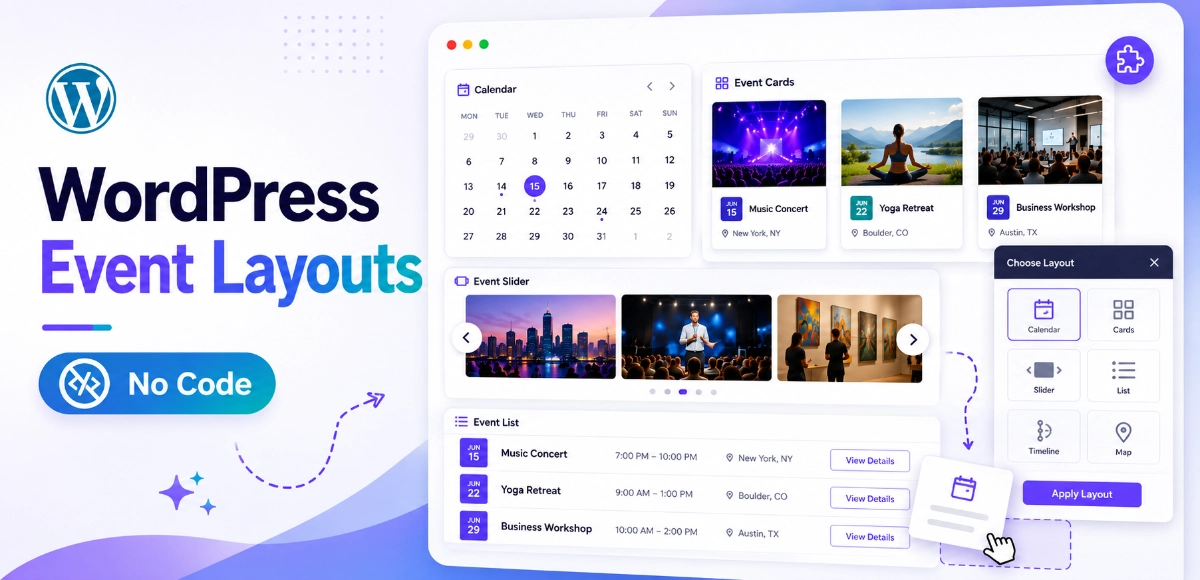
Eventful transforms your static listings into beautiful, interactive showcases. Choose from layouts like Grid, List, or Carousel to display your virtual events in a visually appealing way that fits your site’s design.
💻 Visual Highlights That Grab Attention
Add visual cues — icons, badges, or overlays — to make it instantly clear that an event is online. Pair them with custom colors and CTA buttons like Join Now, Register Free, or Watch Live to boost engagement.
🧭 Filter and Display Virtual Events Only
Eventful’s layout editor lets you filter events by category, tag, or even by Virtual Event status. That means you can create a dedicated section (or page) that showcases only your online events automatically.
⚙️ Seamless Integration, No Coding
Eventful works as an add-on for The Events Calendar, not a replacement. You don’t need to code or modify templates — just create a layout, apply filters, and embed it anywhere using a simple shortcode.
With Eventful, your virtual events don’t just appear on your website — they shine.
🏷️ Step 1: Tag or Categorize Virtual Events in The Events Calendar
Before you design your showcase, you need a way to identify which events are virtual. The good news is, The Events Calendar already includes tools that make this easy — whether you’re using categories, tags, or its built-in virtual event option.
🗂️ Use the Built-In Virtual Event Checkbox
When creating or editing an event, simply check the “Virtual Event” option. This marks your event as online and adds relevant fields for livestream or meeting links (like Zoom or Google Meet). It’s the simplest way to tell Eventful, “This is a virtual event.”
🏷️ Create a “Virtual” Category or Tag (Optional)
If you prefer more control or want to group specific types of online events — like webinars, training sessions, or virtual conferences — you can create a custom category or tag named Virtual. This helps organize your events neatly and gives you flexible filtering options in Eventful.
⚡ Why This Step Matters
By tagging or marking your events correctly, you make it easy for Eventful to filter and display only your virtual events. That means your layouts stay accurate, up to date, and automatically pull in the right content — no manual updates needed.
This foundation ensures your upcoming steps will highlight the right events in the most beautiful way possible.
🎨 Step 2: Create a Custom Layout in Eventful
Now that your virtual events are properly tagged or marked, it’s time to design how they’ll appear on your website. Eventful makes it incredibly easy to create layouts that look modern, professional, and perfectly aligned with your brand.
🧭 Navigate to Layouts
From your WordPress dashboard, go to Eventful → Layouts → Add New. Give your layout a descriptive name like Virtual Events Grid or Online Events Carousel.
🖼️ Choose Your Layout Type
Eventful offers multiple layout types to fit different use cases:
- Grid → Great for showcasing multiple virtual events at once.
- List → Ideal for webinars or weekly online classes.
- Carousel → Perfect for homepage highlights or featured virtual events.
🎛️ Filter by “Virtual” Events
In the layout editor, go to the Filter Events section and select Virtual. This ensures your layout pulls in only events that are marked as virtual in The Events Calendar.
💡 Customize the Display
Make your virtual event showcase instantly recognizable:
- Add online icons (like a webcam or live badge).
- Use labels such as “Live Online” or “Virtual Session.”
- Include clear CTAs like Join Now, Register Free, or Watch Live.
💾 Save and Publish
Once everything looks great, click Publish. Eventful will generate a shortcode such as: [ eventful id=”123″ ]
You can now use this shortcode to embed your layout anywhere on your site — and instantly highlight virtual events in The Events Calendar with style.
🔗 Step 3: Embed the Layout Anywhere
Once your layout is ready, Eventful makes it easy to showcase it anywhere on your site. Whether you want to feature it on your homepage, a landing page, or a dedicated virtual events hub, all you need is the shortcode generated when you published your layout.
🏠 Add to Homepage or Landing Page
Copy your shortcode — for example: [ eventful id=”123″ ]
Paste it directly into your homepage or a custom landing page to instantly highlight virtual events in The Events Calendar right where your visitors will see them first.
🎨 Use in Elementor or Gutenberg
- Elementor: Drag the Shortcode Widget into your design and paste your
. - Gutenberg: Add a Shortcode Block and insert the same shortcode.
This makes it easy to blend your virtual event layout seamlessly into any WordPress page builder design.
💻 Developer Tip
If you’re customizing templates, developers can embed the same layout using PHP: echo do_shortcode(‘[ eventful id=”123″ ]’);
This is perfect for sites with custom-coded event pages or dynamic content sections.
🌍 Create a Virtual Events Hub
Want a dedicated place for your online sessions? Create a page titled “Virtual Events Hub” and embed your Eventful layout there. It acts as a central location where visitors can browse upcoming webinars, conferences, or livestreams in one organized, visually engaging display.
With just one shortcode, you can transform any page into a polished, branded showcase for your virtual events.
🎨 Styling Tips for Virtual Event Showcases
Once your virtual events are live, presentation becomes everything. Good styling helps visitors instantly recognize online events and encourages them to click, register, and attend. Here’s how to make your showcase stand out while keeping it clean and user-friendly.
🌈 Use Vibrant Colors or Backgrounds
Differentiate your online events visually. Add subtle background colors, gradient overlays, or banners to make your virtual listings pop against in-person ones. Consistent use of a bright accent (like blue or green) helps users instantly spot your digital events.
🖥️ Add “Online” Badges or Icons
A small visual cue goes a long way. Use icons or labels — like a webcam, Wi-Fi symbol, or the word Online — to indicate that the event is virtual. Eventful layouts make it easy to include custom icons or text overlays right inside the design.
✍️ Keep It Readable and Consistent
Good design starts with readability. Choose clear, legible fonts and maintain consistent typography across your entire site. Use ample spacing and limit text blocks so visitors can scan your events quickly.
📱 Design for Mobile First
Most visitors will browse events from their phones. Ensure your layouts are mobile-friendly, images resize properly, and CTAs remain easy to tap. Eventful’s responsive design handles much of this automatically, but it’s always smart to preview your pages on multiple devices.
🎟️ Keep Descriptions Short with Clear CTAs
Virtual audiences prefer clarity. Use concise event titles and short summaries, and include strong CTAs like Join Now, Register Free, or Watch Live. Clear, actionable buttons convert curiosity into clicks.
With these design touches, you’ll highlight virtual events in The Events Calendar beautifully — making them more noticeable, clickable, and engaging.
🚀 Best Practices for Promoting Virtual Events
Creating beautiful layouts is only half the job — the real success comes from promoting your virtual events effectively. Once you’ve used Eventful to highlight virtual events in The Events Calendar, follow these best practices to maximize visibility and attendance.
🌍 Include Time Zone Information
Your audience might span across different regions. Always include time zones (e.g., “3 PM EST / 12 PM PST”) in your listings. This small detail prevents confusion and ensures that global attendees show up at the right time.
🔗 Link Directly to Registration or Streaming Platforms
Make it easy for users to take action. Include direct links to Zoom, YouTube Live, or registration pages within your event cards or CTAs. Fewer clicks mean higher conversion rates and better attendance.
⏳ Add Countdown Timers for Urgency
Countdowns create anticipation. Add a timer to your layout or landing page to remind visitors that registration or the event start is approaching. This sense of urgency can significantly boost sign-ups.
📣 Share Layouts Across Channels
Don’t stop at your website — share your Eventful layouts through social media posts, email newsletters, and landing pages. Screenshots or embeds of your virtual events carousel can drive traffic from external platforms back to your WordPress site.
When you combine great visuals with smart promotion, your virtual events don’t just get noticed — they get booked out.
⚠️ Common Mistakes to Avoid
Even with great tools like Eventful and The Events Calendar, a few simple missteps can keep your virtual event showcase from reaching its full potential. Here are the most common mistakes to avoid when you’re setting out to highlight virtual events in The Events Calendar.
🚫 Forgetting to Mark Events as “Virtual”
If you don’t check the “Virtual Event” box or properly tag your events, they won’t appear in your Eventful layout. Always confirm that your events are categorized or flagged correctly before publishing your showcase.
🎢 Overloading the Page
Adding too many effects, animations, or event cards can overwhelm your visitors and slow down your page. Keep your layout clean and focused on your most important upcoming virtual sessions.
📱 Ignoring Mobile Optimization
Many attendees will browse and register from their phones. Always preview your Eventful layout on mobile devices to ensure images scale properly, buttons remain tappable, and navigation feels smooth.
🖼️ Using Low-Quality or Inconsistent Branding
Blurry images or mismatched colors weaken your brand. Use high-quality visuals, stick to a consistent color palette, and ensure your fonts match your overall site design. Cohesion builds trust — especially for online audiences.
Avoiding these mistakes will help you create a polished, fast, and reliable layout that truly elevates your virtual event experience.
🎯 Conclusion
With online events becoming a core part of how communities connect, presentation matters more than ever. Using Eventful, you can easily highlight virtual events in The Events Calendar with stunning, branded layouts that captivate your audience and boost attendance.
Instead of letting your webinars or livestreams fade into plain lists, Eventful helps you turn them into beautiful showcases — complete with icons, CTAs, and responsive design that looks great on every device.
Now it’s your turn to make your virtual events shine.
FAQs – Highlight Virtual Events in The Events Calendar
-
How do I highlight virtual events in The Events Calendar?
You can easily highlight virtual events in The Events Calendar using the Eventful plugin. Just mark your events as Virtual, create a layout in Eventful, filter by Virtual Events, and embed the generated shortcode anywhere on your site.
-
Can I use Eventful for both online and in-person events?
Yes. Eventful works seamlessly with The Events Calendar for any type of event — online, in-person, or hybrid. You can create different layouts or filters to showcase each category separately.
-
Does Eventful support Zoom or webinar links?
Absolutely. When you create a virtual event in The Events Calendar, you can add Zoom, Google Meet, or custom streaming URLs. Eventful automatically displays those links in your layout, making it easy for visitors to join directly.
-
Is the virtual event layout mobile-friendly?
Yes. Every layout built with Eventful — including grids, lists, and carousels — is fully responsive. Your virtual event showcases will look great and function smoothly on mobile, tablet, and desktop devices.
-
Can I embed multiple Eventful layouts on one site?
Definitely. Each Eventful layout generates its own shortcode (like
[ eventful id="123" ]). You can create multiple layouts — for example, one for Virtual Events and another for Featured Events — and place them anywhere on your WordPress site.
Showcase Your Virtual Events in Style
Create beautiful, branded event layouts with Eventful today.