

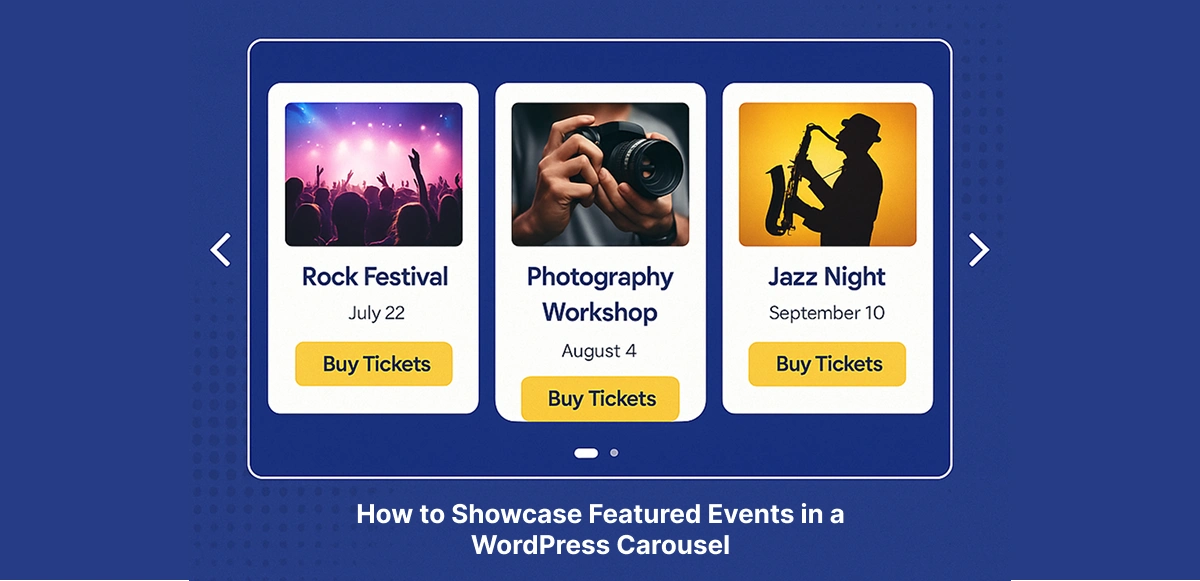

🎠 Introduction
When it comes to event promotion, visual presentation matters just as much as the details themselves. A well-designed showcase can turn casual visitors into excited attendees — and nothing captures attention better than motion and design working together.
Unfortunately, most default event lists in WordPress look static and uninspiring. They get the job done but fail to create the excitement your events deserve. Visitors have to scroll through plain lists of text and dates, which doesn’t exactly build anticipation.
That’s where a WordPress event carousel changes everything. By turning your featured events into a dynamic, swipeable experience, you can instantly highlight what’s coming next — whether it’s a conference, concert, or festival — all while keeping your site’s design sleek and interactive.
And the best part? You don’t need to code a single line. With Eventful, you can create a fully customized, responsive event carousel in just minutes — complete with images, titles, dates, and “Buy Tickets” buttons that turn interest into action.
Table of Contents
💡 Why Use a WordPress Event Carousel?
In today’s fast-paced digital world, attention is everything — and static event lists just don’t cut it anymore. A WordPress event carousel instantly elevates your website, adding motion, style, and interactivity that draw visitors in and keep them scrolling.
🎞️ Capture Visitor Attention
Movement naturally attracts the eye. By displaying your events in a carousel, you create a smooth, swipeable showcase that feels alive — perfect for highlighting what’s new, trending, or upcoming.
🗓️ Showcase Featured Events in Less Space
Carousels make the most of limited screen real estate. You can feature multiple events in a compact area without overwhelming visitors, especially on mobile devices.
🏠 Keep Your Homepage Fresh and Engaging
Instead of a static list of past and upcoming events, your homepage can automatically update to show what’s next. Each time you add a new featured event, your carousel updates itself — keeping your site dynamic and current.
🎤 Perfect for Any Event Type
Whether you’re promoting music festivals, conferences, webinars, or recurring community events, a WordPress event carousel makes your schedule look professional and exciting.
With motion, design, and storytelling all in one place, your event showcase becomes an experience — not just a list.
⚙️ Step 1: Install Required Plugins
Before you can build your WordPress event carousel, you’ll need the right tools in place. Eventful works alongside The Events Calendar to transform your event listings into stunning, interactive displays.
📅 The Events Calendar
This is your foundation for managing event data. Use it to create events, add descriptions, dates, venues, and ticket links. It’s one of the most popular event management plugins for WordPress — reliable, flexible, and widely supported.
🎨 Eventful
Eventful is the magic ingredient that turns your static event listings into modern layouts — including grids, lists, and carousels. It lets you design beautiful showcases for featured or upcoming events without touching a line of code.
🧩 Optional: Elementor or Gutenberg
You can place your WordPress event carousel anywhere using the shortcode Eventful generates. For maximum flexibility, you can insert it in Elementor (via the Shortcode Widget) or Gutenberg (via the Shortcode Block).
💡 Note: Eventful Is an Add-On, Not a Replacement
Eventful doesn’t replace The Events Calendar — it enhances it. You’ll still use The Events Calendar to manage your event data, while Eventful handles how those events look and feel on your site.
Once these plugins are installed, you’re ready to start designing a layout that turns your event page into a real showcase.
🏷️ Step 2: Mark & Filter Featured Events
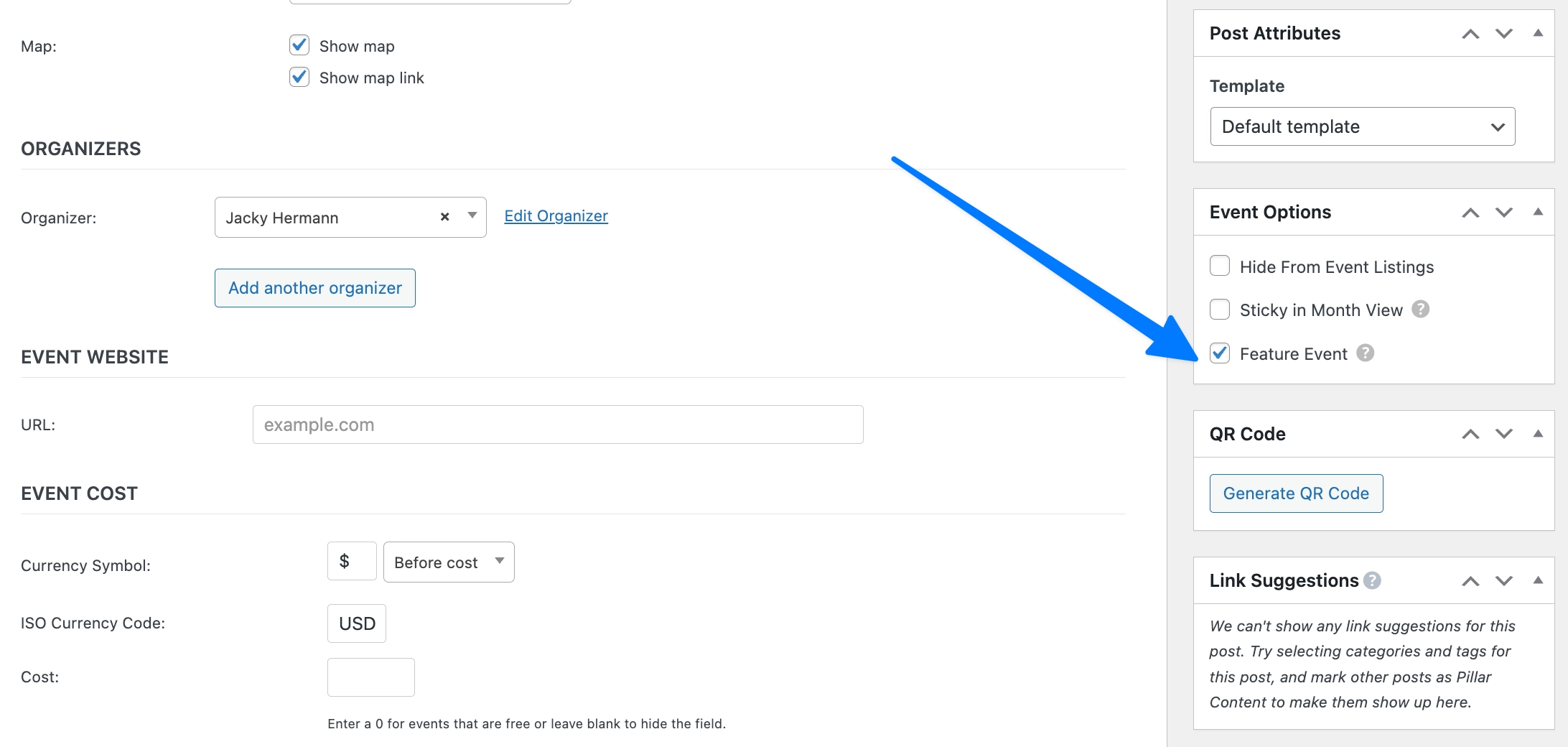
To build a WordPress event carousel that truly highlights your most important events, you don’t need to create a separate category — The Events Calendar already has a “Feature Event” option built in.
⭐ Mark Events as Featured in The Events Calendar
When editing an event in The Events Calendar, simply check the “Feature Event” box under Event Options. This instantly marks the event as a highlighted one in your system.
🎡 Filter Featured Events in Eventful
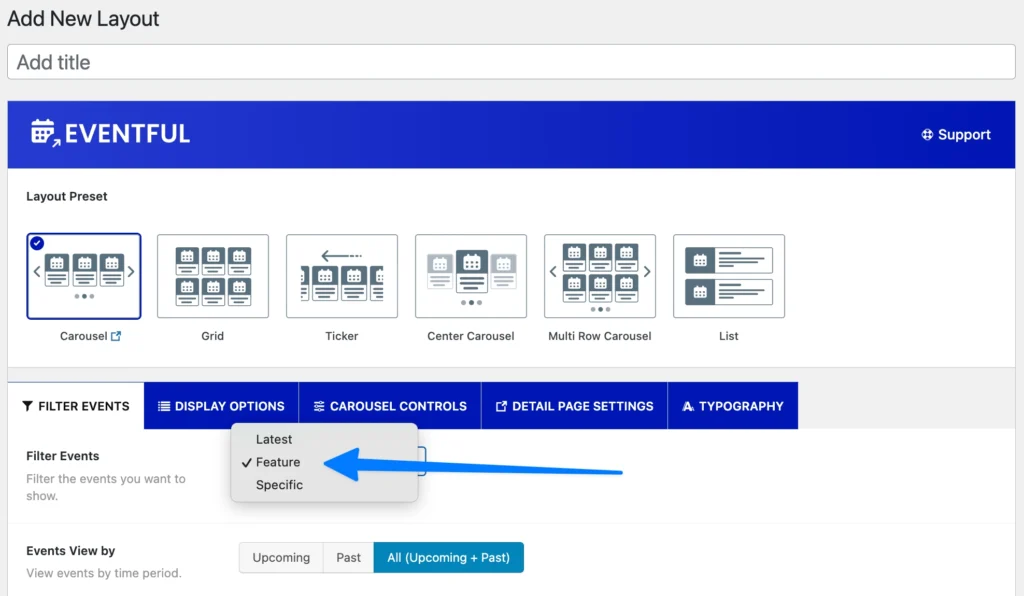
Once your events are marked, go to the Eventful Layout Editor and choose the Carousel layout. Under the Filter Events dropdown, select Feature. This tells Eventful to only pull events that have been flagged as featured.
⚡ Why This Matters
By combining these two features, you can quickly create a dynamic, automated WordPress event carousel. Anytime you check “Feature Event” on a new listing, it automatically appears in your carousel layout — no manual updates required.
This workflow keeps your homepage fresh and ensures your most important events always stand out.
🎡 Step 3: Build a Carousel Layout in Eventful
Now that your events are marked as featured, it’s time to design the WordPress event carousel that will showcase them. Eventful makes this process quick and flexible.
1️⃣ Add a New Layout
From your WordPress dashboard, go to Eventful → Layouts → Add New. Give your layout a descriptive name, like Featured Carousel.
2️⃣ Choose “Carousel” as the Layout Type
Eventful provides multiple layout presets, but for this showcase, select Carousel. You can also explore variations such as Center Carousel or Multi-Row Carousel for different visual effects.
3️⃣ Configure Filter Events
In the Filter Events settings, select Feature. This ensures only events marked as Featured in The Events Calendar will appear in this carousel.
4️⃣ Adjust the Design
Customize your carousel to fit your brand and site design:
- Slides to Show → Control how many events are visible at once.
- Autoplay → Add movement for a dynamic feel.
- Navigation Arrows / Dots → Decide how users move between slides.
- Pagination & Speed → Fine-tune timing and transitions.
5️⃣ Save & Publish
When you’re satisfied with the setup, click Publish. Eventful will generate a unique shortcode, such as: [ eventful id=”xxx” ]
This shortcode is your key to embedding the carousel anywhere on your site.
🔗 Step 4: Embed Carousel Anywhere
Once you’ve created your layout, Eventful gives you a shortcode like: [ eventful id=”123″ ]
This makes your WordPress event carousel incredibly flexible — you can place it anywhere across your site with just a few clicks.
📝 Pages or Posts
Paste the shortcode directly into the WordPress editor to showcase your carousel on event pages, blog posts, or custom landing pages.
🎨 Elementor Shortcode Widget
Drag in the Shortcode Widget in Elementor and paste the [ eventful id="123" ]. This is perfect for placing your carousel inside custom-designed pages or hero sections.
📦 Gutenberg Shortcode Block
Use the Shortcode Block in Gutenberg, paste in your Eventful shortcode, and your carousel will appear instantly.
🗂️ Sidebars or Homepage Hero Section
Want a compact upcoming-events carousel in your sidebar? Or a full-width carousel across your homepage? Just insert the shortcode into a Text Widget or your homepage hero area.
💻 For Developers: Template Integration
If you’re customizing theme templates, you can hard-code the carousel with: echo do_shortcode(‘[ eventful id=”123″ ]’);
This gives developers complete control over where and how the carousel appears.
With one shortcode, your WordPress event carousel becomes reusable, flexible, and perfectly placed anywhere your audience will see it.
🎨 Step 5: Style and Optimize Your Carousel
Building your WordPress event carousel is just the beginning — the real magic happens when you style it to match your brand and optimize it for performance. A polished, responsive carousel makes your events look professional and keeps visitors engaged.
🎨 Match Your Brand
Eventful’s layout editor lets you customize colors, typography, and spacing so your carousel feels like a seamless extension of your website. Consistency builds trust, so make sure your event showcase reflects your brand identity.
🎟️ Add Clear CTAs
Every event in your carousel should guide visitors toward action. Add strong call-to-action buttons like “Buy Tickets”, “Register Now”, or “Learn More” directly on the slides to increase conversions.
📱 Test Mobile Responsiveness
Most visitors will view your events on their phones. Always preview your WordPress event carousel across devices to ensure the layout scales beautifully and navigation (swipe, arrows, dots) works smoothly.
⚡ Keep It Fast & Smooth
Animations should enhance, not slow down. Use optimized images, enable caching, and consider a CDN (Content Delivery Network) to keep your carousel fast-loading and fluid.
A well-styled carousel doesn’t just look better — it delivers a user-friendly experience that drives attendance and ticket sales.
✅ Best Practices for Featured Event Carousels
A WordPress event carousel is a powerful tool for promoting your events — but only if it’s used wisely. To keep it effective and engaging, follow these best practices:
🌟 Highlight Only the Most Important Events
Your carousel should be a stage for your headline events, not every single listing. Feature the ones that matter most — like keynote sessions, headline concerts, or limited-time offers — to keep the spotlight where it belongs.
🛑 Avoid Overcrowding
Too many slides can overwhelm visitors. Keep your carousel lean and focused, showcasing 5–8 events at most. Quality over quantity ensures users actually pay attention.
🔄 Update Regularly
A stale carousel signals that your site isn’t active. As new featured events are added in The Events Calendar, refresh your Eventful layout so your carousel always feels current and relevant.
🎨 Maintain Consistent Design
Match your carousel styling with your site’s branding — fonts, colors, and button styles should feel unified across all pages. A consistent design builds trust and makes navigation effortless.
By following these tips, your WordPress event carousel won’t just look beautiful — it will drive real engagement and conversions.
⚠️ Common Mistakes to Avoid
Even the best tools can fall short if used incorrectly. Here are a few common pitfalls to watch out for when creating your WordPress event carousel with Eventful.
🚫 Forgetting to Publish the Layout
This is one of the most common mistakes. If your Eventful layout is still in draft mode, the shortcode won’t display anything. Always make sure the layout is published before embedding it on your site.
🎢 Mixing Too Many Animation Effects
Less is more. Overusing animation styles, speeds, or transitions can make your carousel look chaotic and distract visitors. Choose one smooth, professional animation that fits your site’s aesthetic.
🖼️ Ignoring Image Optimization
High-resolution images that aren’t optimized can slow down load times — especially for mobile users. Use compressed, properly sized images to keep your WordPress event carousel fast and responsive.
🏷️ Not Setting the Featured Filter
If you forget to enable the Featured Event filter in Eventful, your carousel may display unwanted events or appear empty. Double-check that your layout is pulling the correct “Featured” events from The Events Calendar.
Avoiding these mistakes ensures your carousel runs smoothly, looks professional, and keeps visitors focused on the events that matter most.
🎯 Conclusion
A WordPress event carousel doesn’t just make your site look better — it makes it work better. By showcasing your featured events in an interactive, visually engaging way, you turn plain listings into experiences that capture attention and drive attendance.
With Eventful, creating a carousel is fast, simple, and fully customizable. Whether you’re running a concert series, hosting conferences, or managing community events, Eventful gives you the tools to design, display, and delight — all without code.
FAQs – WordPress Event Carousel
-
How do I create a WordPress event carousel?
You can easily create a WordPress event carousel using the Eventful plugin. After installing The Events Calendar and Eventful, build a new layout, choose “Carousel,” customize it, and embed the shortcode anywhere on your site.
-
Can I display only featured events in the carousel?
Yes. The Events Calendar includes a “Feature Event” option. Once you check that box, you can use Eventful’s Filter Events → Feature option to display only those highlighted events in your carousel automatically.
-
Does Eventful work with The Events Calendar plugin?
Absolutely. Eventful is built specifically as an add-on for The Events Calendar, enhancing it with modern layouts like grids, lists, and carousels — without replacing its core functionality.
-
Can I add multiple carousels on different pages?
Yes. Each Eventful layout generates a unique shortcode (e.g.,
[ eventful id="xxx" ]). You can create as many layouts as you want and embed them on different pages or sections of your website. -
Is the carousel mobile-friendly?
Definitely. Every WordPress event carousel created with Eventful is fully responsive by default. It automatically adjusts for tablets and smartphones, ensuring a smooth experience across all devices.
Build Stunning Event Carousels Today
Showcase your featured events with beautiful, responsive layouts.