



You’ve set up The Events Calendar, published your upcoming events, and your homepage still looks like nothing is happening. Sound familiar?
Here’s the frustrating part: there’s no native way to add an event slider to your WordPress homepage. The Events Calendar gives you a month grid and a list view, and that’s about it. Both work fine on a dedicated events page. Neither belongs at the top of your homepage, where visitors decide in seconds whether your organization has anything going on.
The good news? You can fix this in about ten minutes with a free addon, without touching a line of code. In this guide, you’ll see three ways to build a WordPress event slider, then a full step-by-step tutorial using the method I recommend for non-technical site owners.
Key Takeaways:
- The Events Calendar, active on more than 700,000 sites according to WordPress.org in 2026, ships with month, list, and day views only. There’s no built-in slider or carousel.
- The fastest no-code fix is Eventful, a free addon that adds slider, carousel, grid, list, and timeline layouts through a shortcode generator with live preview.
- Filter your slider to upcoming events only, and it updates itself as old events pass. No manual slide editing, ever.
- Keep homepage sliders fast: 5 to 8 slides, compressed featured images, and a quick check on a real phone before you publish.
Table of Contents
Why Your Homepage Needs an Event Slider
People don’t scroll as much as you’d hope. In its 2018 Scrolling and Attention study, Nielsen Norman Group found that users spend 57% of their page-viewing time above the fold. If your events live on a separate calendar page, or halfway down your homepage, most visitors will never see them.
That’s a real cost. Your homepage is almost always your most visited page. Every workshop, service, fundraiser, or class that stays hidden there is a registration you didn’t get.
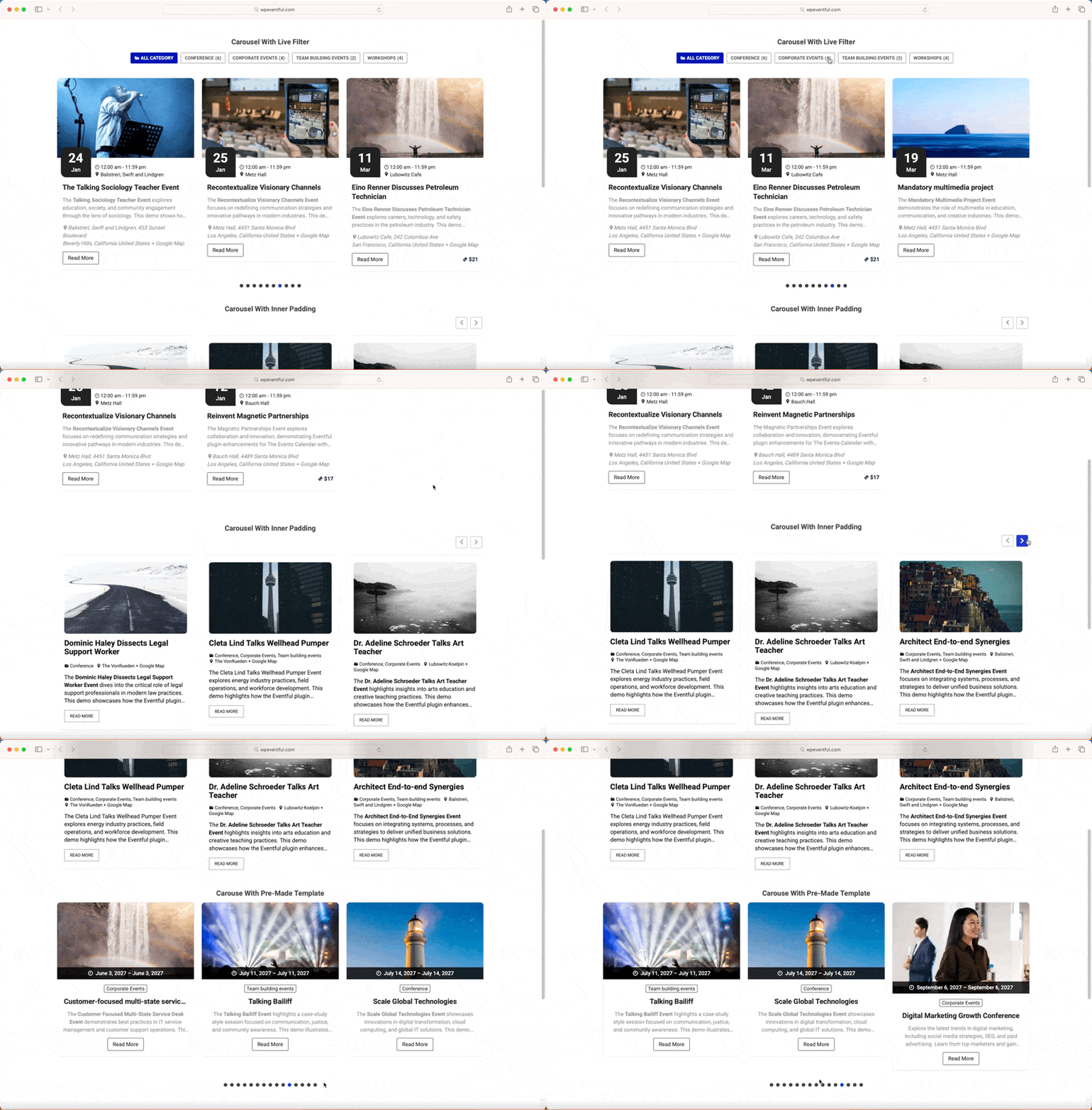
A homepage event carousel solves a layout problem, too. You can showcase five, eight, or ten upcoming events in the space of a single banner. Featured images do the selling, dates are visible at a glance, and one click takes visitors straight to the event page. Compare that with a text list or a month grid full of empty squares, and it’s not close. If you want to see what this looks like in practice, browse the events slider demo or events carousel demo before you build your own.
Why WordPress Can’t Do This Out of the Box
WordPress core has no concept of an event. That’s why most event-driven sites run The Events Calendar, the most popular events plugin in the WordPress.org directory. It handles the hard parts well: recurring dates, venues, organizers, and tickets.
Display is another story. The free plugin gives you three front-end views: month, list, and day. None of them is a slider, and none of them is designed for a homepage hero area. Search the plugin’s support forums, and you’ll find years of threads asking the same question: how do I show upcoming events as a slider on my homepage?
“But my theme already has a slider,” you might say. Here’s the catch: generic slider plugins and theme hero sliders don’t read event data. You’d have to build each slide by hand, then remember to delete it after the event ends. Miss a week and your homepage proudly advertises a bake sale that happened last Saturday. Page builders can query posts, but newer versions of The Events Calendar store event dates in their own database tables, so date-based queries that used to work often need extra setup now.
What you actually need is an upcoming events slider that pulls from your calendar dynamically, sorts by event date, and drops the ones that have passed. That’s a job for a dedicated addon.
3 Ways to Add a WordPress Event Slider
You’ve got three realistic options, depending on your budget and how comfortable you are with code.
Method 1: Use a Slider Addon for The Events Calendar (Recommended)
A purpose-built event slider plugin like Eventful connects directly to The Events Calendar’s data. It reads your events, sorts them by date, and renders them as a slider that updates itself. The free version is on WordPress.org and includes slider, carousel, grid, list, and timeline layouts, all configured through a shortcode generator with live preview.
This is the route I’d point any non-technical site owner toward. There’s nothing to code, nothing to maintain, and the slider works with Gutenberg, Elementor, and Divi.
Method 2: Build One with Your Page Builder
If you already pay for Elementor Pro or use Divi, you can build a post carousel and point it at the events post type. It works, but expect friction. You’ll need the paid tier of your builder, you’ll style every card from scratch, and getting events to sort by event date rather than publish date can turn into an afternoon of trial and error.
Fair choice if you’re already deep in a page builder ecosystem and enjoy tinkering. Frustrating if you just want the slider done.
Method 3: Custom Code (For Developers Only)
A developer can query events with WP_Query or the plugin’s own functions, then wire the results into a JavaScript library like Swiper. You get total control over markup and behavior. You also own the maintenance forever. Plugin updates can change how event data is stored, and when they do, your slider breaks quietly. Only go this way if you have a developer on call and a reason the other two methods can’t cover.
The rest of this guide walks through Method 1, because it’s the fastest path and the only one that’s genuinely no-code.
How to Add an Event Slider to Your WordPress Homepage with Eventful
Before you start, make sure The Events Calendar is active, and you’ve published a few upcoming events with featured images. The images become your slides, so this step matters more than it sounds.
Step 1: Install the Free Eventful Addon
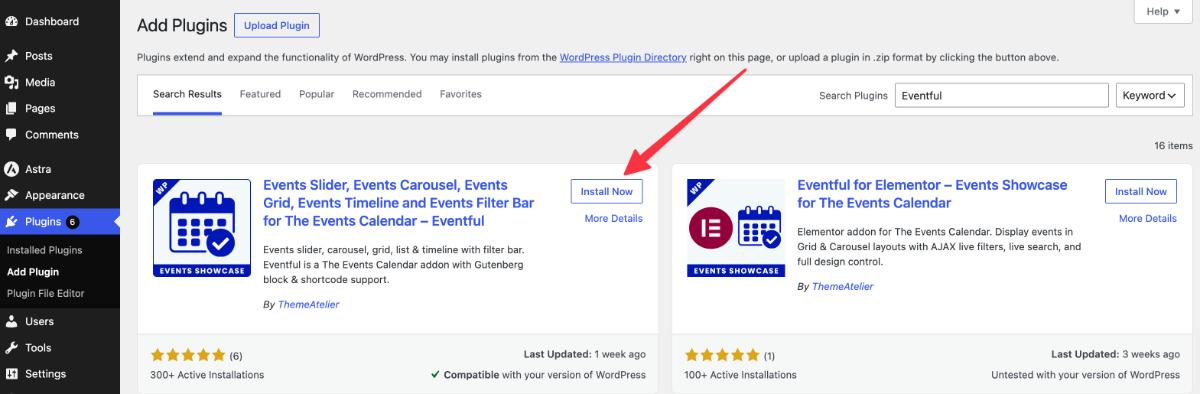
In your WordPress dashboard, go to Plugins → Add New and search for Eventful. Install and activate it. Since it’s an addon for The Events Calendar, it needs the main plugin active to do anything, and it will let you know if that’s missing.
Step 2: Create a New Shortcode
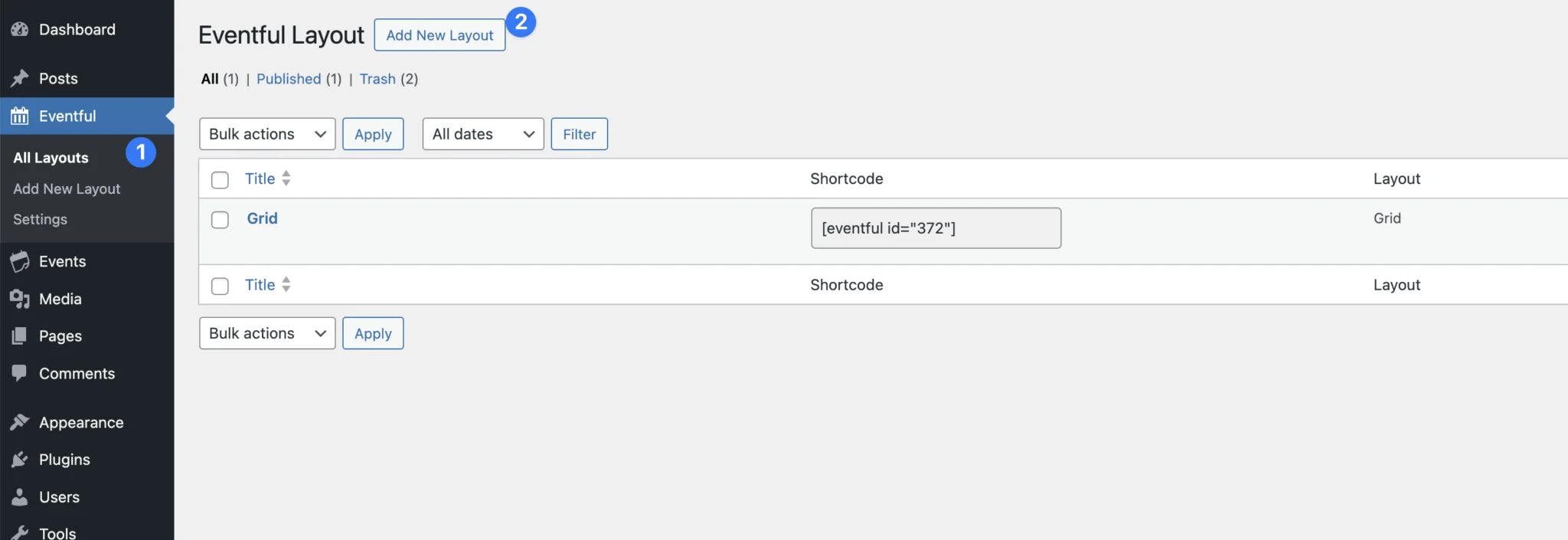
Open the Eventful area in your dashboard and create a new shortcode. This launches the shortcode generator, which is where all the work happens. Your settings sit on one side, and a live preview of your slider sits on the other, so you see every change as you make it.
There are over 300 customization options in there. Don’t let that number scare you. The defaults are sensible, and you can ship a good-looking slider by changing five or six settings.
Step 3: Pick the Slider Layout
Choose Slider as your layout. You’ll see the other options here, too, like carousel, grid, list, and timeline, and they’re all worth exploring later. For a homepage, the slider or carousel layouts make the strongest first impression.
Eventful also ships pre-made templates, including an overlay style that places the event title and date on top of the featured image. Overlay looks polished with almost no effort, which makes it a safe pick if design isn’t your thing.
Step 4: Show Only Upcoming Events
In the filter settings, set the event status to upcoming. This is the setting that makes the whole thing self-maintaining. When an event’s date passes, it drops out of the slider automatically and the next one takes its place.
You can narrow things further by category, tag, venue, or organizer. Running a church site that should only feature services and community nights? Filter by those categories and cap the count at six or eight events.
Step 5: Fine-Tune the Look and Behavior
Now use the live preview to dial things in. Turn on autoplay if you want the slider to rotate on its own, enable navigation arrows so visitors can browse at their own pace, and set how many columns show per device. One column on phones is almost always right.
Step 6: Paste the Shortcode into Your Homepage
Save your slider and copy the generated shortcode. Then open your homepage in the editor, add a Shortcode block where you want the slider to appear, and paste it in. Using Elementor or Divi instead? Drop the same shortcode into a text or shortcode module. Update the page, view your site, and your event slider is live.
Customization Tips Worth Your Time
Eventful includes more than 30 slider and carousel settings, and a handful of them make an outsized difference:
- Autoplay with pause on hover. Rotate slides every 5 seconds or so, but pause when the cursor is over the slider. Nobody likes chasing a moving button.
- Arrows and loop mode. Visible arrows invite browsing, and loop mode means the slider circles back to the first event instead of hitting a dead end.
- Per-device columns. Three columns can look great on a desktop, but check on tablet and phone separately. Eventful lets you set each one individually.
- The overlay style. Text over the featured image saves vertical space, which keeps the content below your slider from being pushed too far down the page.
Most of what you’ll need for a homepage slider is in the free version. If you’re curious what the paid tier adds, like the ticker layout and additional templates, the free vs Pro comparison breaks it down honestly.
Homepage Event Slider Best Practices
An event slider can help your homepage or hurt it. The difference comes down to restraint.
Limit the slide count. Five to eight events are plenty. Visitors won’t sit through twenty rotations, and every extra slide adds images for the page to load.
Treat featured images with discipline. Use a consistent aspect ratio across events and compress images before uploading. A slider is only as fast as the pictures inside it.
Check it on a real phone. In 2026, Statcounter data puts mobile at just over half of global web traffic. Load your homepage on your own phone: one column, readable titles, arrows big enough to tap. If any of those fail, fix them before launch day.
Give the slider context. Add a heading like “Upcoming Events” directly above it. Visitors should understand what they’re looking at without waiting for a second slide.
Troubleshooting: Slider Not Showing Up?
If your event slider looks off after you publish, one of these five culprits is almost always to blame:
- The slider is empty. Your filters are too narrow, or there are no published upcoming events that match them. Loosen the category filter or check your event dates.
- The shortcode shows as plain text. It was pasted into the wrong block type. Delete it and use a proper Shortcode block, not a code or preformatted block.
- Some slides have no image. Those events are missing featured images. Add images to the events, or turn on Eventful’s option to hide events without featured images.
- Changes aren’t appearing. A caching plugin is probably serving the old version of your homepage. Clear the cache and reload.
- The styling looks broken. That’s usually theme CSS interfering. Test briefly with a default theme like Twenty Twenty-Four, and if the slider looks fine there, your theme is the conflict.
Event Slider FAQs
How do I add an event slider to my WordPress homepage without coding?
Install The Events Calendar and the free Eventful addon, open Eventful’s shortcode generator, choose the Slider layout, and filter to upcoming events. Then paste the generated shortcode into a Shortcode block on your homepage. The whole process takes about ten minutes and requires no code.
Does The Events Calendar include a slider view?
No. The free version of The Events Calendar includes month, list, and day views only. If you want The Events Calendar slider view, you need a display addon like Eventful, which reads your event data and outputs a homepage-ready event slider automatically.
Is the Eventful event slider free?
Yes. The free version on WordPress.org includes the slider, carousel, grid, list, and timeline layouts, plus the shortcode generator with live preview. The Pro version adds extras like the ticker layout, more templates, and advanced display options for sites that need them.
Can I show only upcoming events in the slider?
Yes. Set the event status filter to upcoming in the shortcode generator. Past events drop out of the slider automatically once their date passes, so the slider stays current without any manual editing. You can also filter by category, tag, venue, or organizer.
Will an event slider slow down my homepage?
Any slider adds some JavaScript and images, but the impact is small if you keep it lean. Limit the slider to 5 to 8 events, compress your featured images, and test your homepage speed after adding it. Done that way, the difference is barely measurable.
Does the slider work with Elementor and Divi?
Yes. Eventful outputs a standard WordPress shortcode, so it works anywhere shortcodes are accepted: Gutenberg’s Shortcode block, Elementor’s shortcode widget, or a Divi text module. The slider stays fully responsive regardless of which editor your homepage is built with.
Put Your Events Where People Actually Look
Adding an event slider to your WordPress homepage isn’t a developer project anymore. Install the free Eventful addon for The Events Calendar, pick the Slider layout in the shortcode generator, filter to upcoming events, and paste one shortcode into your homepage. Ten minutes of setup, and the slider maintains itself from then on.
The free version covers everything most nonprofits, churches, and small businesses need. If you outgrow it and want extra layouts, templates, and display controls, take a look at Eventful Pro and the pricing page to see whether the upgrade fits your site. Either way, your events finally get the spot on your homepage they deserve.