


You run a speed test on your events page, and the number comes back worse than you hoped. You scroll down to the plugin list, see The Events Calendar sitting there, and start wondering if that’s the culprit. It’s a reasonable question — but a bad score on its own doesn’t tell you which plugin, theme, or setting actually caused it. Measure first. Blame later.
This article walks through what “events calendar slow” actually tends to mean, what’s genuinely worth investigating on an events-heavy WordPress site, and how to figure out the real cause before you disable or replace anything.
Key Takeaways
- The Events Calendar is rarely the only thing worth investigating when a WordPress events site becomes slow.
- A bad PageSpeed score alone does not identify which plugin caused the problem.
- “Slow” can mean front-end rendering, high server response time, heavy assets, slow queries, a sluggish admin, or a poor Core Web Vitals score — each needs a different diagnosis.
- Event data is highly visible during troubleshooting because it touches database records, images, templates, and date-based archives — but visibility isn’t proof of causation.
- Large event datasets, oversized images, missing caching, weak hosting, heavy themes, and other plugins can all contribute independently.
- Changing how events are displayed does not automatically fix backend performance — display and data management are separate layers.
Table of Contents
What Does “The Events Calendar Is Slow” Actually Mean?
“Slow” isn’t one problem — it’s several different ones that happen to share a symptom. Before you investigate anything, it helps to know which kind you’re actually dealing with.
Understanding your events calendar performance starts with identifying whether the problem is caused by frontend assets, server response time, database queries, or something else.
- Slow front-end rendering — the event archive or individual event pages take a noticeable moment to appear.
- High server response time (TTFB) — the server takes too long before it even starts sending the page.
- Heavy front-end assets — CSS, JavaScript, fonts, images, or embeds add page weight or block rendering.
- Slow database/query operations — retrieving or filtering event data takes noticeable server resources.
- Slow WordPress admin — editing or filtering events inside wp-admin feels sluggish.
- Poor Core Web Vitals/PageSpeed — the page loads, but scores poorly due to images, scripts, layout shifts, or fonts.
Each of those has a different cause and a different fix. Treating them as one problem is how people end up removing the wrong plugin.
Why Event Calendar Plugins Get Blamed So Quickly
An event system touches a lot of visible surface area: database records, date-based archives, images, templates, metadata, filtering logic, and its own scripts and styles. When you’re troubleshooting slow event pages specifically, the events plugin is often the thing you notice first simply because it’s everywhere on that page — it’s harder to overlook than a caching setting buried three menus deep. That’s why an events calendar slow problem can quickly get associated with the event plugin itself.
But visibility isn’t culpability. A script showing up in a network waterfall doesn’t prove it caused the slowdown. A plugin appearing in Query Monitor doesn’t prove it’s responsible for the overall problem. A poor Lighthouse score doesn’t identify a specific plugin at all — it just tells you something on that page needs attention. The Events Calendar is the plugin Eventful depends on, and event functionality genuinely can involve queries, metadata, and assets that matter more on a site that’s already constrained elsewhere. But “involved” and “responsible” aren’t the same claim, and skipping straight from one to the other is how a working plugin gets uninstalled for the wrong reason. In an events calendar slow situation, the better approach is to verify the actual cause before blaming the plugin.
What Can Actually Slow Down an Events Website?
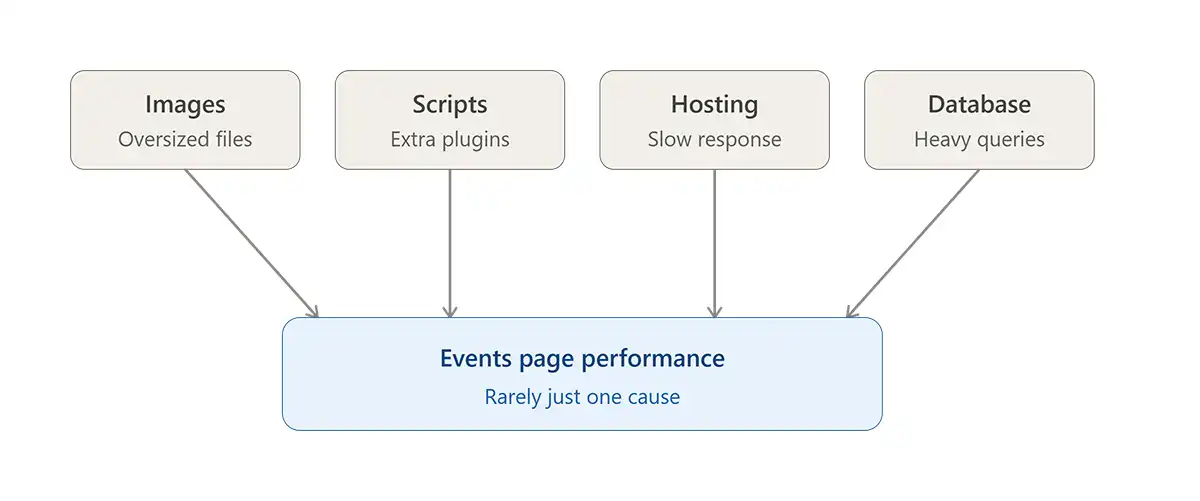
None of these factors is automatically responsible on any given site — they’re the places worth checking, in roughly the order they tend to matter.
| Possible Cause | What You May Notice | How to Investigate |
|---|---|---|
| Large event datasets or recurring events | Archive or filtered views feel sluggish | Compare event count against page load; test a smaller date range |
| Heavy featured images | Event pages load slower than other pages | Check image file sizes and dimensions in DevTools Network panel |
| Uncached pages or queries | Repeat visits aren’t noticeably faster | Check if page/object caching is active and configured for event pages |
| Weak or overloaded hosting | Whole site is slow, not just events | Check hosting CPU/memory/concurrent-request diagnostics |
| Theme or page-builder overhead | Non-event pages are also heavy | Compare a plain page against an event page in DevTools |
| Other plugins (analytics, chat, sliders, security) | Many scripts load on every page | Review the Network panel and Query Monitor’s plugin breakdown |
| Plugin conflicts | Unexpected queries or duplicate assets | Isolate plugins one at a time on staging |
| Third-party content (maps, video, tracking, fonts) | Slow-loading embeds on event pages | Identify external requests in the waterfall |
Is The Events Calendar Slow? How to Check
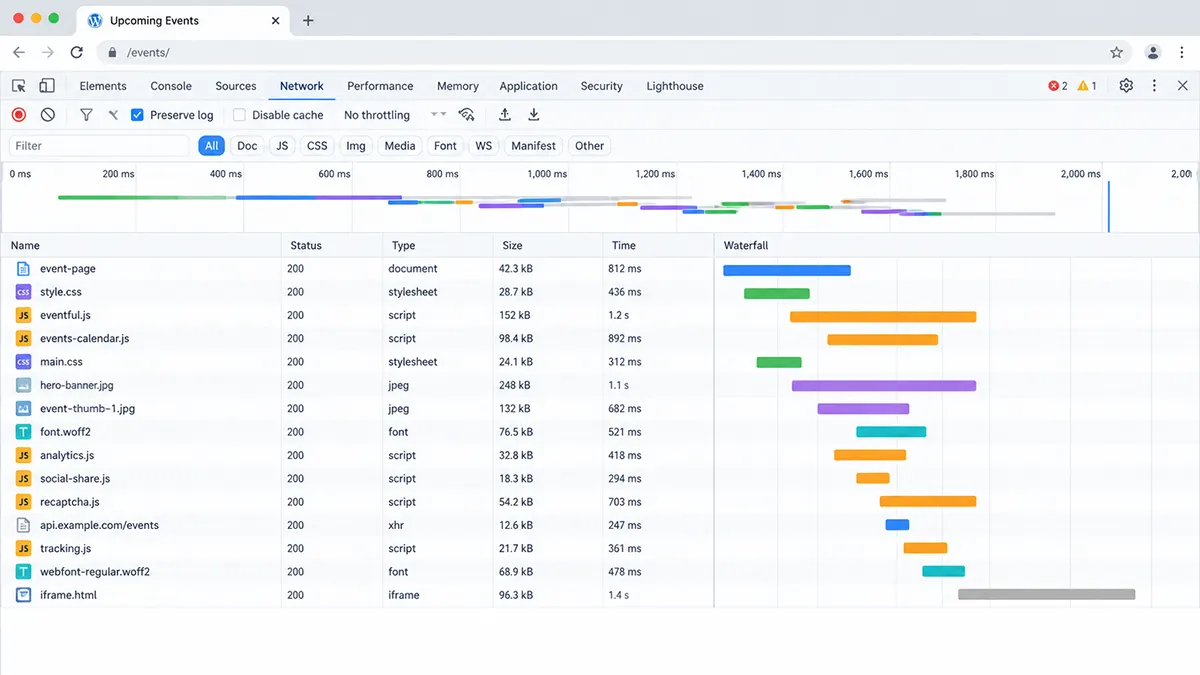
Don’t start disabling plugins directly on a live site unless you know exactly what you’re doing — that risks breaking something for real visitors while you’re still guessing, and it can hide the very evidence you’re trying to collect. A staging environment turns this from a gamble into a test you can repeat and trust.
- Take a backup before changing anything.
- Use a staging site where possible, not production.
- Establish a baseline — record how the site performs right now.
- Test a normal page against an event page to see if the gap is event-specific.
- Inspect front-end requests for oversized or slow-loading assets.
- Inspect query and server behavior with an appropriate diagnostic tool.
- Temporarily isolate plugins on staging, one at a time.
- Compare the results against your baseline after each change.
- Check hosting-level diagnostics for CPU, memory, or slow-query signals.
- Retest after each meaningful change instead of changing several things at once.
A few tools come up often in this process. PageSpeed Insights gives you front-end signals — a score, not a root-cause diagnosis on its own. Your browser’s DevTools Network panel shows which specific requests are slow or oversized, and roughly when they load relative to everything else. Query Monitor shows WordPress-level query and hook behavior, including which plugin triggered which query. Your host’s own performance or slow-query diagnostics can reveal server-side bottlenecks that never show up in a browser at all. No single one of these proves causation by itself; together, across a few pages and a few plugin states, they narrow things down.
A Hypothetical Example
The following is an illustrative scenario, not a real case ThemeAtelier observed, and it includes no invented performance numbers.
A site owner assumes the calendar plugin is causing a slow events page. They follow the checklist above on a staging copy: a normal page loads noticeably faster than the event page, so the gap looks event-specific, and the calendar plugin seems like the obvious suspect. But the network waterfall reveals oversized, uncompressed event photos, and the hosting diagnostics show slow, uncached responses specifically on that template. Compressing the images and enabling caching for that page type closes most of the gap — without removing or replacing the calendar plugin at all. The plugin was visible throughout the investigation. It just wasn’t the cause.
Where Eventful Fits
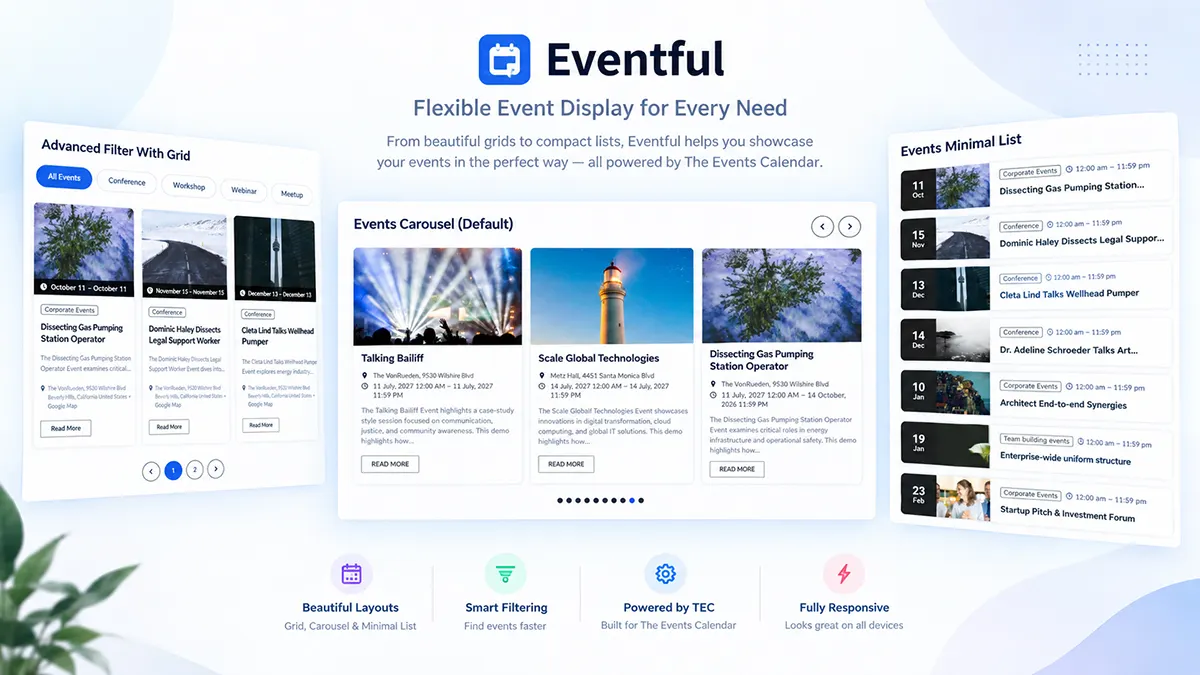
Eventful is a display and showcase add-on built for The Events Calendar — it doesn’t manage or store event data itself. The Events Calendar handles event/data management: creating, storing, and organizing events. Eventful handles presentation: how those existing events are shown, in layouts like grids, carousels, or timelines. If you’re deciding whether you need it at all, Free vs Pro: Is The Events Calendar Enough, or Do You Need an Add-on? covers that question directly, and How to Create an Event Grid in WordPress (Step-by-Step) walks through one specific layout in detail.
Eventful’s own WordPress.org changelog documents specific, dated query-efficiency work rather than a general performance claim — for example, one release notes that event counts are no longer calculated by loading every matching event into memory, and that its live filter bar no longer runs a separate database query for every term. Those are the kind of concrete, checkable statements worth trusting over a general “lightweight” label, precisely because they describe one specific behavior in one specific version rather than a blanket promise. For any claim beyond what the current changelog documents, plugin behavior changes across versions, and what was true in one release may not hold in the next.
What Eventful does not do is rewrite how The Events Calendar stores or indexes event data. If your diagnostic points to slow database queries against a large recurring-event dataset, that’s a data-management question, and it belongs with The Events Calendar’s own documentation and configuration — not with a display layer sitting on top of it.
Eventful focuses on presenting existing event content rather than replacing The Events Calendar’s underlying event-management system. It is not a performance fix, and it doesn’t rewrite The Events Calendar’s database or query architecture. If your actual problem is on the data-management side — large recurring-event datasets, for instance — a display add-on isn’t the layer that solves that.
Practical Ways to Keep an Events Site Fast
These help regardless of which display plugin you’re running:
- Correctly size and compress event images before uploading.
- Use modern image formats where your hosting and theme support them.
- Enable page and object caching appropriate to your setup.
- Choose hosting that fits your actual traffic and plugin load, like a VPS or dedicated server.
- Keep WordPress core, your theme, and plugins updated.
- Test after adding each new display or animation plugin, rather than adding several at once.
- Use a CDN where appropriate for your audience and hosting.
- Limit unnecessary third-party scripts and tracking tags.
- Periodically review large historical or recurring event datasets for genuine cleanup needs.
- Monitor performance after any meaningful site change, not just once a year.
Avoid direct SQL deletion or manual database-table cleanup. Don’t delete recurring-event data unless the process is verified against The Events Calendar’s own documentation and you have a current backup — this is not a place to guess. If a simpler display, like a compact upcoming-events list, would reduce page weight on lower-traffic pages, How to Show Upcoming Events in a WordPress Sidebar or Widget covers that option.
When the Calendar Probably Isn’t Your Main Problem
If normal, non-event pages are roughly as slow as your event pages, the calendar almost certainly isn’t your main issue — investigate the sitewide stack instead. That includes slow hosting, oversized images across the whole site, heavy page-builder pages, numerous tracking scripts, unoptimized fonts, excessive third-party embeds, WooCommerce or other complex plugins, missing caching, and sitewide slow TTFB. These affect every page, event-related or not, and they’re a common reason a specific plugin gets blamed for a problem that predates it. A slider or carousel plugin is a common example worth checking on its own terms — 7 Best Event Slider & Carousel Plugins for WordPress covers what to look for there.
FAQ – Events Calendar Slow
Does The Events Calendar slow down WordPress?
Not automatically. Like any plugin handling structured data, it adds queries, templates, and assets that can matter more on sites already constrained by hosting, images, or other plugins. Whether it’s actually contributing to a slowdown on your specific site is something to test, not assume.
Why Is My Events Calendar Slow?
It could be several things: oversized event images, missing caching, weak hosting, a heavy theme or page builder, other plugins loading scripts on that page, or the event data itself. Comparing an event page against a normal page is usually the fastest way to narrow it down.
Can recurring events affect WordPress performance?
Large or complex recurring-event configurations can create more data for WordPress to retrieve and process, which may matter on sites with many years of historical events. That’s a possible contributor worth checking, not a guaranteed cause on every site
How can I tell which WordPress plugin is slowing down my site?
Isolate plugins one at a time on a staging site and retest after each change, using tools like Query Monitor and your browser’s Network panel alongside your host’s diagnostics. No single tool proves causation on its own — isolation and comparison do.
Will changing the event layout make my website faster?
Not necessarily. A visual or display change doesn’t automatically fix backend performance issues like slow queries, high TTFB, or weak hosting — those live at the data and server layer, separate from how events are presented on the page.
Is Eventful a replacement for The Events Calendar?
No. Eventful is a display add-on that requires The Events Calendar to be installed and active — it presents existing event data in layouts like grids and carousels but doesn’t manage, store, or replace the underlying event data itself.
Conclusion
“Events calendar slow” describes several different problems, and the calendar plugin is only one of several possible contributors. Run a proper diagnostic — baseline, isolate, compare, retest — before removing or replacing anything. That process will identify the actual bottleneck far more reliably than a single PageSpeed score.
If your diagnosis points to how events are presented rather than how they’re stored, and you’re looking for other ways to display your existing The Events Calendar content, you can explore Eventful.