


This tutorial covers building an upcoming events widget with Eventful — and most visitors never open it. The homepage gets the traffic; the events page gets a glance, if that. By the time someone finds it, the event they’d have wanted to attend is three clicks and one scroll away from where they actually spend their time on your site.
A sidebar or footer doesn’t have that problem. It’s visible on every page a visitor already looks at, which makes it a natural spot for a short, always-current list of what’s coming up next. You don’t need a full calendar there — just the next three or four events, with a link to each one.
This tutorial focuses specifically on getting Eventful’s event data into that compact space, using the actual layout, filtering, and placement options the plugin currently offers. If you’d rather see a broader comparison of native WordPress widgets, The Events Calendar’s own widget, and Elementor first, our roundup of ways to add upcoming events to a sidebar or footer covers those options too.
Key Takeaways
- A sidebar works best for a short, glanceable list of upcoming events — not a full calendar or grid.
- Eventful is an add-on for The Events Calendar, so your events need to already exist there before you start.
- Eventful’s free Minimal List layout is built for exactly this kind of compact, vertical display.
- Classic themes and block themes place widgets differently — Appearance > Widgets isn’t universal anymore.
- Filtering to “Upcoming” events and setting an event limit keeps the list short and current automatically.
Table of Contents
Why Add an Upcoming Events Widget to Your Sidebar?
A full calendar and a sidebar list solve different problems. The calendar is for browsing — someone scanning dates, filtering by category, or planning weeks ahead. A sidebar list is for visibility — a quick reminder of what’s next, shown to people who weren’t necessarily looking for it.
If you already run an event slider on your homepage, a sidebar list is a natural companion rather than a duplicate: the slider grabs attention on your highest-traffic page, and the sidebar keeps a lighter version of the same information visible everywhere else on the site.
What You’ll Need
Before you start, make sure you have the following in place:
- WordPress, with a theme that has a sidebar, footer widget area, or an editable template part
- The Events Calendar, installed and active — Eventful is an add-on and requires it
- The Eventful plugin, installed and active
- At least a few upcoming events already created in The Events Calendar
This guide assumes your events already exist. If you haven’t set up The Events Calendar or added events yet, do that first — this isn’t an events-creation tutorial. If you’re evaluating whether you need more than The Events Calendar’s core features, our guide to The Events Calendar add-ons covers that decision separately.
How to Show Upcoming Events in a WordPress Sidebar
Once The Events Calendar and Eventful are both active, building a sidebar-ready event list takes four steps: create a layout, filter it to the right events, simplify what it displays, and grab the shortcode to place it.
Step 1: Create a Compact Eventful Layout
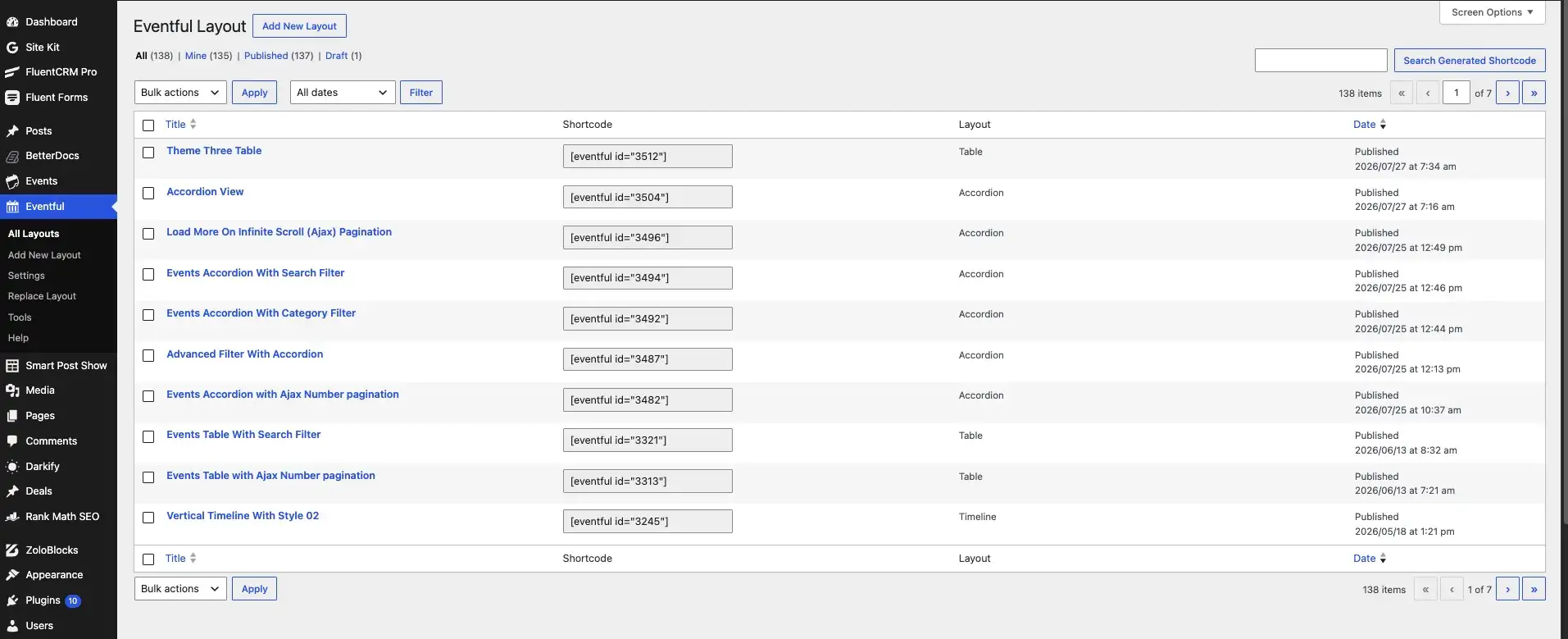
In your WordPress admin, go to Eventful > Add New Layout (you can also start from Eventful > All Layouts and click the “Add New Layout” button there). Give the layout a name you’ll recognize later, like “Sidebar Upcoming Events.”
Eventful offers several layout types, including Carousel, Grid, Ticker, Timeline, Table, and Minimal List. For a narrow sidebar, Minimal List is generally the better starting point — it’s a vertical, text-forward format that doesn’t need much horizontal room, unlike a multi-column grid or a wide carousel. A compact list also keeps event dates easy to scan and avoids the visual clutter a grid can create in a narrow column.
That said, Minimal List isn’t mandatory — if your sidebar is unusually wide, or your theme handles grids gracefully at narrow widths, a compact Grid can also work. Preview whichever layout you choose before committing to it.
Step 2: Configure Which Upcoming Events Widget Appear
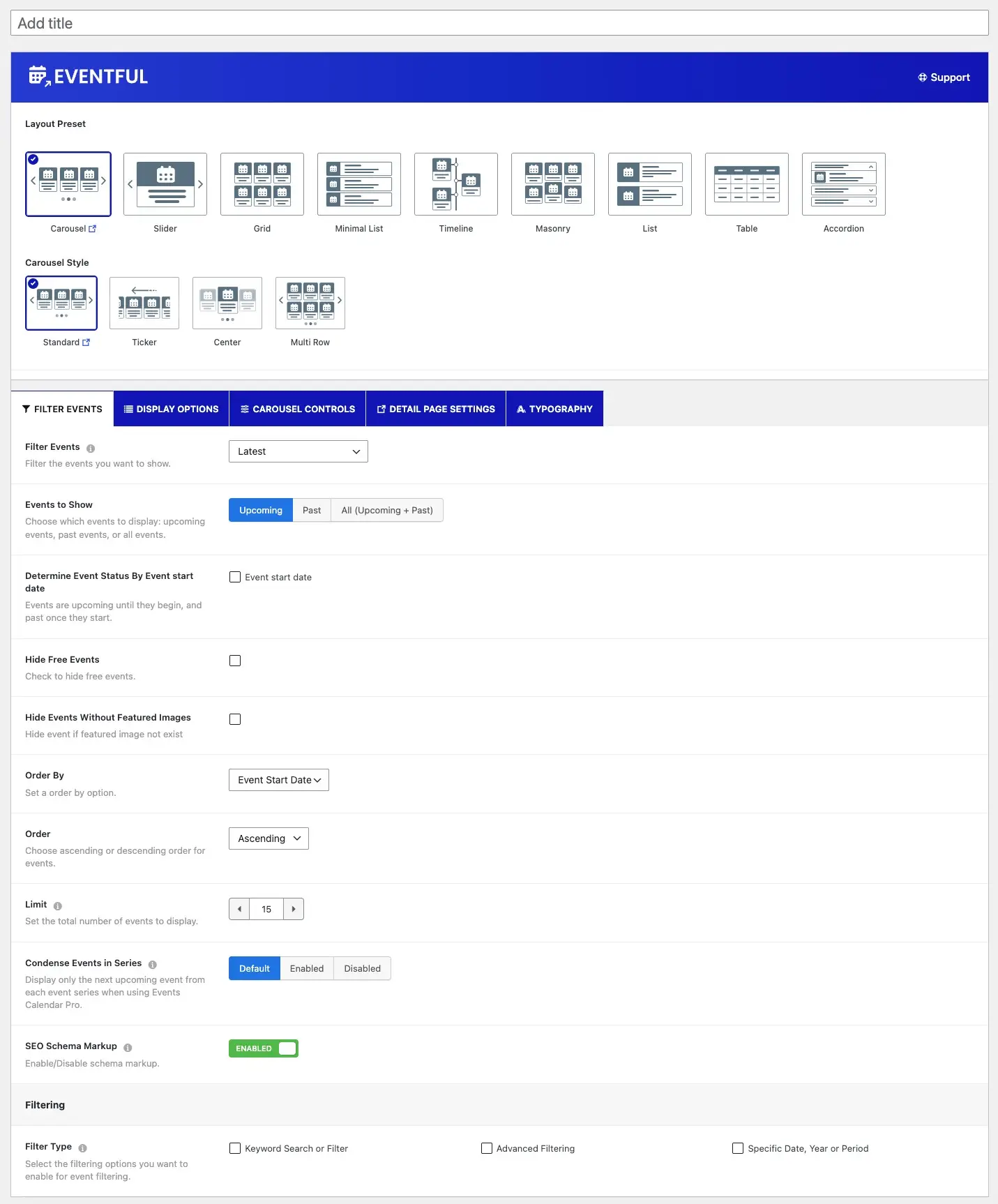
In the layout’s filtering settings, set Events to Show to “Upcoming” so past events drop off the list automatically as they pass. Set Order By to “Event Start Date” with an ascending Sort Direction, so the soonest event appears first.
Use the Limit field to cap the list at a small number — three to five events is usually right for a sidebar. Leaving this blank shows every matching event, which defeats the point of a compact list. If you only want events from specific categories or venues to appear, Eventful’s advanced filtering supports that too, with category, tag, venue, and organizer filters available alongside the basic Upcoming/Past/All setting.
Full details on every filter option are in Eventful’s filtering documentation, if you want to go beyond what a sidebar typically needs.
Step 3: Simplify the Layout for a Sidebar
A sidebar rewards restraint. In the layout’s display options, keep the Title and Meta Fields (which cover date, time, and venue) turned on — those are what a visitor actually scans for. Consider turning off Event Content (the description or excerpt) and Sharing Media, since both add height and clutter without adding much value in a narrow column.
The Thumbnail toggle is a judgment call: a small image can help an event stand out, but in a very narrow sidebar it can also force awkward line wrapping. Preview both ways and pick whichever looks cleaner on your actual theme.
It’s worth separating what you configure inside Eventful from what belongs to your theme. Eventful’s display toggles control which fields show up per event. Overall sidebar width, font size, and spacing between widgets are typically controlled by your WordPress theme, not by Eventful — if the list still looks cramped after simplifying it, that’s usually a theme styling question, not a plugin setting to hunt for.
Step 4: Save the Layout and Get the Shortcode
Publish the layout. After it saves, Eventful generates a shortcode for it, shown in a panel in the right-hand sidebar of the editor, just below the Publish button. Copy that shortcode — you’ll paste it wherever you want the list to appear.
Add Upcoming Events Widget to a Classic WordPress Sidebar
If your theme is a classic (non-block) theme, it likely has a traditional widget area, and you’ll place the shortcode through Appearance > Widgets.
- Go to Appearance > Widgets in your WordPress admin.
- Find the widget area you want to use — usually labeled something like “Sidebar” or “Footer,” depending on your theme.
- Add a Shortcode block to that widget area (search for “Shortcode” in the block inserter).
- Paste the shortcode you copied from your Eventful layout into the block.
- Save or update the widget area.
Some classic themes also support pasting the shortcode into a Text or Custom HTML widget — either works, since WordPress processes shortcodes the same way regardless of which widget contains them.
Add Upcoming Events Using a WordPress Block Theme
If your theme is a block theme, you may not have a classic Appearance > Widgets screen at all. Instead, sidebars and footers live inside templates and template parts, edited through the Site Editor.
- Go to Appearance > Editor.
- Open the template or template part that contains your sidebar or footer — this varies by theme, so look for a part literally labeled “Sidebar” or “Footer” in the template parts list.
- Click into the area where you want the event list to appear.
- Insert a Shortcode block from the block inserter.
- Paste your Eventful shortcode into it, then save the template.
Because block themes vary in how they organize templates and parts, the exact path to your sidebar or footer will differ from theme to theme. If you can’t find a dedicated sidebar template part, check whether your theme instead places that content inside a specific page or single-post template.
What Information Should a Sidebar Event List Show?
Keep it to what a visitor needs to decide whether to click: event title, date and start time, and venue if it’s relevant to your audience. A small thumbnail can work if your theme handles narrow images gracefully, but it’s optional.
Leave out long excerpts, extensive metadata, social sharing buttons, and complex filter controls — all of that belongs on your full events page, not a sidebar summary. Every one of these is something you can turn off directly in Eventful’s display options rather than trying to hide it with theme CSS.
If you want to see this same idea applied to a full-page layout instead of a sidebar, our guide to building an event grid covers a similar filtering and display-options workflow at a larger scale.
Common Problems and How to Fix Them
No Events Are Showing
Start with the basics: confirm both The Events Calendar and Eventful are active, and that you actually have published, upcoming events widget in The Events Calendar. Then check your layout’s filter settings — if “Events to Show” is set to “Past” instead of “Upcoming,” or a category/tag filter is excluding everything, the list will look empty even though your setup is otherwise correct. Also double-check you pasted the right shortcode for the layout you configured.
Past Events Are Still Appearing
This almost always traces back to the Events to Show setting in the layout’s filter panel. Make sure it’s set to “Upcoming,” not “All (Upcoming + Past).” If it’s already set correctly and old events are still showing, check whether those events have an end date/time set in The Events Calendar — an event without a clear end time can behave unexpectedly in any upcoming/past filter.
The Sidebar Looks Too Wide or Crowded
First, simplify what Eventful is displaying — turn off Event Content, Sharing Media, or the Thumbnail if you haven’t already. If the layout itself looks fine in a preview but still feels cramped inside your actual sidebar, the remaining issue is likely your theme’s sidebar width, font size, or widget spacing, not an Eventful setting.
The Sidebar Moves Below the Content on Mobile
This is normal, not a bug. Most WordPress themes intentionally stack the sidebar underneath the main content on narrow screens, since a side-by-side layout doesn’t fit on a phone. If you want the event list to appear higher on mobile, that’s a theme layout decision to make with your theme’s customizer or CSS — it isn’t something Eventful controls.
The Eventful Block Is Not Available
Eventful’s supported workflow is shortcode-based: you copy the generated shortcode and paste it into WordPress’s built-in Shortcode block (or a Code or Paragraph block). If you were expecting a dedicated Eventful block in the inserter and don’t see one, use the Shortcode block instead — it’s the documented, reliable way to place a layout anywhere WordPress accepts blocks, including widget areas and Site Editor template parts.
Sidebar Event List vs Full Event Calendar
These aren’t competing solutions — most sites benefit from running both. A sidebar list gives quick visibility to the next few events on every page it appears on. A full calendar page is still where visitors go to browse further out, filter by category, or plan around a specific date range.
Think of the sidebar as a reminder and the calendar as the destination it points to — each Eventful list item links back to the individual event page, so a curious visitor is never more than one click from the full details.
FAQ – Upcoming Events Widget
How do I show upcoming events in a WordPress sidebar?
Create an Eventful layout under Eventful > Add New Layout, choose a compact format like Minimal List, filter it to upcoming events, then paste the generated shortcode into a Shortcode block in your sidebar or footer widget area.
Does WordPress have an upcoming events widget?
WordPress core doesn’t include a dedicated events widget. Event display in a sidebar comes from a plugin — either The Events Calendar’s own widget for basic listings, or an add-on like Eventful for more layout and filtering control.
Can I add The Events Calendar events to a sidebar?
Yes. Eventful reads events directly from The Events Calendar, so once your events exist there, you can display them in a sidebar-friendly layout without re-entering any event data.
Can I display only future events in WordPress?
Yes. In an Eventful layout’s filter settings, set “Events to Show” to “Upcoming.” Past events drop off the list automatically as their dates pass, so you don’t need to update it manually.
Can I put an Eventful layout in a footer?
Yes. The same shortcode you’d use in a sidebar works in a footer widget area or footer template part — the placement steps are the same, just in a different widget area or template part.
Does Eventful work with WordPress block themes?
Yes. Since layouts are placed by shortcode, you can insert them into a block theme’s Site Editor using the Shortcode block, the same way you’d add one to a page or post.
If your events already live in The Events Calendar, getting a compact list into your sidebar is mostly a matter of picking the right layout and turning off what you don’t need. Eventful handles the connection to your event data — the free version is enough to try the Minimal List layout described above before deciding whether Pro’s additional layouts are worth it for your site.