

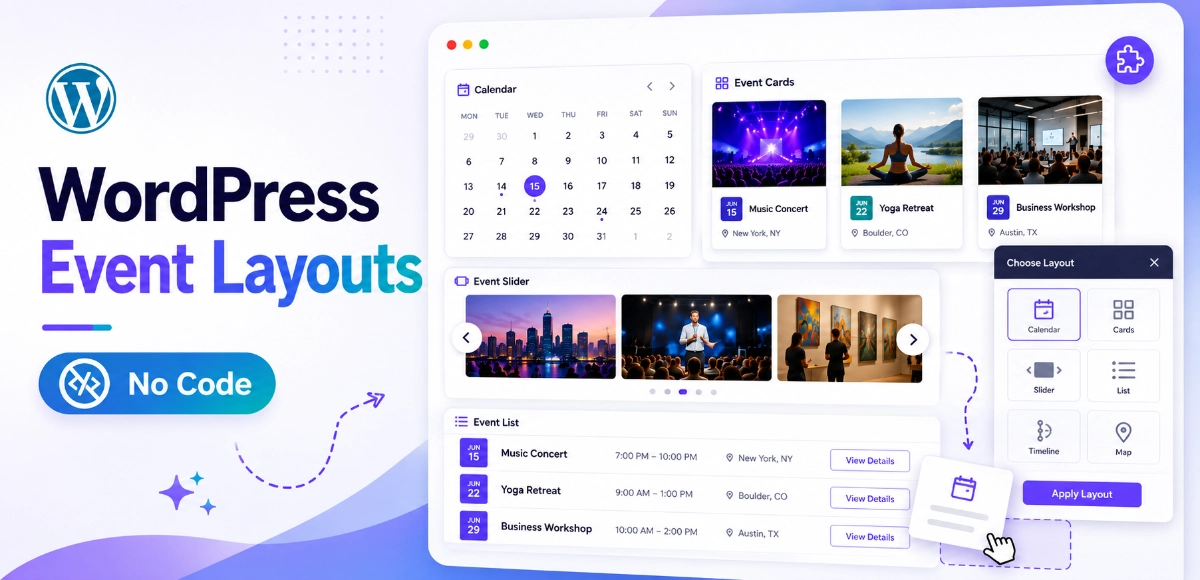

You can display events in WordPress without coding. Creating events is the easy part; making them look good on your page is where most people get stuck. You add an event, hit publish, and the front end shows a plain list that buries your best dates. The fix usually feels like it needs CSS, PHP, or a developer, but it doesn’t.
In 2026, WordPress runs 43.2% of all websites on the internet (Hostinger, WordPress Statistics 2026). Millions of those sites publish events. This guide covers the best ways to display events in WordPress without coding, in layouts people actually want to browse: grids, sliders, carousels, timelines, and clean lists.
- You don’t need code to display events. Plugins, blocks, and shortcodes cover almost every layout need.
- In 2026, mobile drives 64.35% of global web traffic (SOAX, Mobile Website Traffic, 2025), so responsive layouts are non-negotiable.
- Match the layout to the site: grids for conferences, sliders for homepages, lists for churches and schools.
- Eventful adds modern layouts to The Events Calendar, without replacing it or touching code.
Table of Contents
Why Does Your Event Layout Actually Matter?
It matters more than most site owners think. Visitors judge a page’s visual appeal in about 50 milliseconds, a snap reaction that rarely changes with more time (Lindgaard et al., Attention Web Designers, Behaviour & Information Technology, 2006). A cluttered event list loses people before they read a single date.
Good layout does three jobs. It helps visitors scan dates fast. It builds trust through a professional look. And it nudges more sign-ups by putting featured events where eyes land first.
The payoff is real. Visual-rich pages see roughly 30% longer session duration, and content paired with relevant images is retained at 65% versus 10% for text alone (WebFX, Visual Content Statistics 2026). For an events page, that’s the difference between a quick bounce and a registration.
Our take: The most common mistake we see isn’t a bad theme, it’s the default event view. Organizers spend hours on event details, then leave them in a generic list nobody scrolls.
Can You Display Events in WordPress Without Coding?
Yes. You can build a polished events section using only plugins, blocks, and shortcodes, with no CSS, PHP, or theme editing required. The base plugin manages your events, and a layout tool controls how they look.
Here’s the no-code toolkit, start to finish:
- A calendar plugin to create and store events (dates, venues, categories).
- Blocks or shortcodes to drop events onto any page, post, or widget area.
- A layout addon to switch between grid, slider, carousel, timeline, and list views.
Each piece is point-and-click. You pick a layout, set columns, choose what to show, and publish. Let’s walk through the methods.
Method 1: Use a WordPress Event Calendar Plugin
Start with a dedicated event plugin. The Events Calendar is the most widely used option, powering event management on hundreds of thousands of WordPress sites with built-in tools for venues, organizers, categories, and recurring dates.
A calendar plugin separates your data (the events) from your display (how they appear). That separation is what makes no-code design possible later. You create an event once, then show it in any layout without re-entering details.
To begin, install a calendar plugin from your WordPress dashboard, add a few events, and assign categories like “Workshops” or “Webinars.” Categories become filters later, which is where the experience gets genuinely useful.
For a starting point, the free Eventful plugin on WordPress.org extends The Events Calendar with extra layouts the moment it’s activated.
Method 2: Use Shortcodes or Blocks
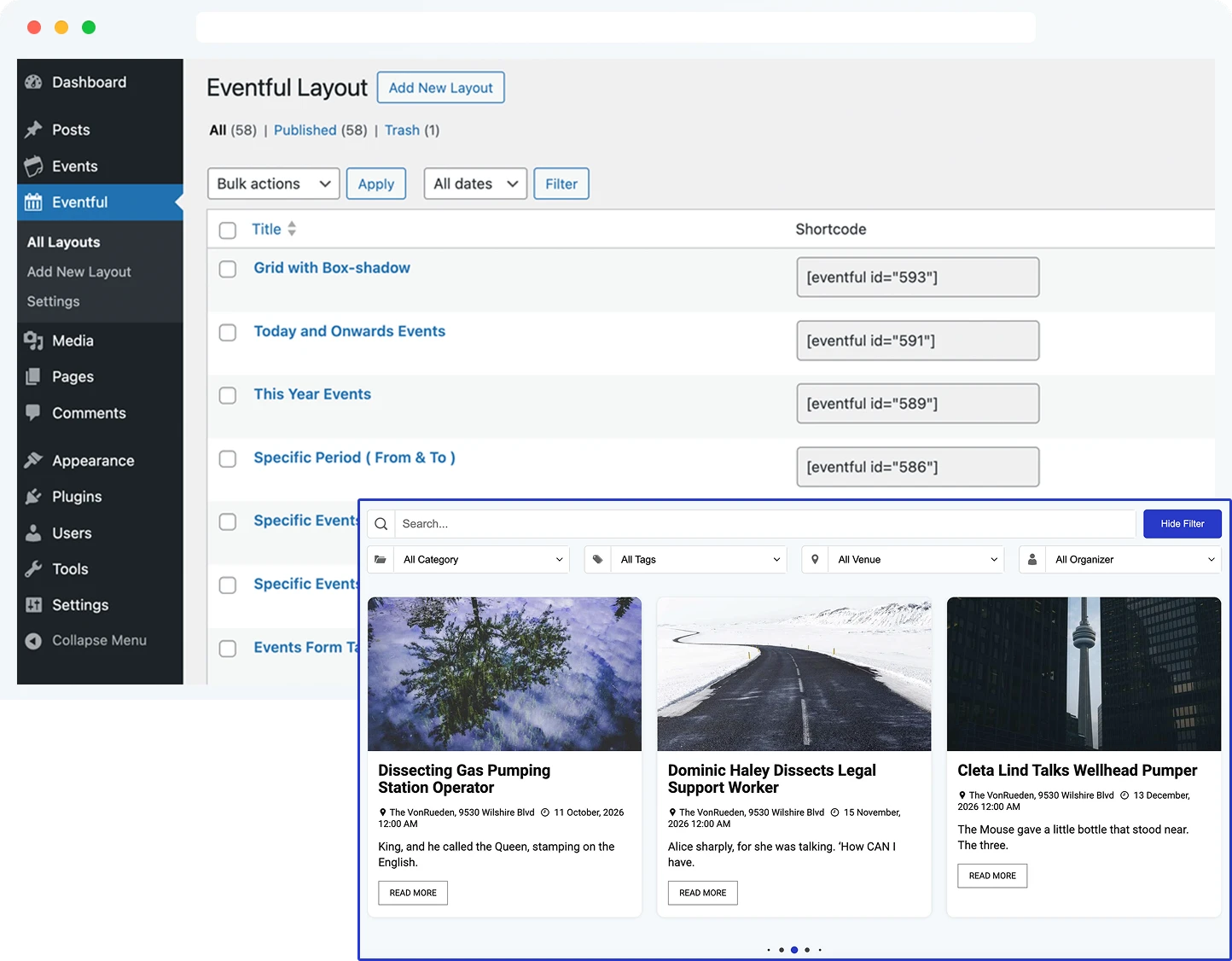
Shortcodes and blocks let you place events anywhere without code. A shortcode is a short tag, like [ eventful id="xxx" ], that you paste into a page, and WordPress swaps it for your live events. Blocks do the same thing visually inside the Gutenberg editor.
Why does this matter? Because it frees your events from a single calendar page. Drop them on the homepage, a landing page, a sidebar widget, or inside a blog post. The same events appear everywhere, always up to date.
In most no-code workflows, a block is best for editor-driven pages and a shortcode is best for widgets, page builders, or templates (WebFX, Visual Content Statistics 2026 underscores why placement near the fold drives engagement). Both output the same layouts, so pick whichever fits where you’re working.
For deeper syntax and parameters, see our complete WordPress event shortcode guide.
Method 3: When Is a Grid Layout Best?
A grid arranges events in neat rows and columns, usually two to four across, so visitors can compare many events at a glance. It’s the workhorse layout for sites with a full schedule.
Grids shine when you have volume: conferences with dozens of sessions, training providers with class catalogs, community calendars, and recurring business events. The card format gives each event an image, title, date, and button without crowding.
Because mobile drives 64.35% of global traffic in 2026 (SOAX, Mobile Website Traffic, 2025), the grid’s responsive columns are its real strength: four columns on desktop can collapse to one on a phone automatically, so nothing breaks. No media queries, no code.
Method 4: When Should You Use a Slider or Carousel?
A slider or carousel rotates events one screen at a time, showing a few featured dates in a small space. Sliders typically auto-advance; carousels let visitors swipe or click through. Both turn limited space into a rotating highlight reel.
Use them for homepage “featured events,” upcoming-event strips, and promotional sections where you want motion to catch the eye. They’re ideal when you have a handful of priority events rather than a full catalog.
Movement earns attention. Interactive content people can swipe or click can lift view time by 47% (WebFX, Visual Content Statistics 2026). On a homepage, a carousel of three upcoming events often outperforms a static list because it invites a tap.
Method 5: When Does a Timeline Layout Work Best?
A timeline stacks events in chronological order along a vertical line, making the sequence obvious at a glance. It answers “what happens next, and after that?” better than any other layout.
Timelines fit multi-day festivals, conference agendas, program schedules, and historical milestones. When the order and gaps between events carry meaning, a timeline communicates them instantly, so no one has to mentally sort dates.
Picture a two-day festival: a timeline shows Friday’s lineup flowing into Saturday’s, with times anchored down the page. Attendees plan their day by scrolling, which is exactly the behavior mobile-first audiences expect on a phone.
Method 6: When Is a Minimal List Layout the Right Pick?
A minimal list shows events as clean, stacked rows (date, title, maybe a small thumbnail) with no heavy styling. It’s the fastest layout to scan and the lightest to load, which matters on phones.
Lists are perfect for churches, schools, and nonprofits posting recurring services, classes, or meetings. They also suit any page where simplicity wins: mobile users skimming for the next date don’t want a carousel, they want a list.
This is the most mobile-friendly choice by default. With mobile bounce rates running around 58 to 60%, about 10 points higher than desktop (SOAX, Mobile Website Traffic, 2025), a fast, tidy list keeps impatient phone visitors from leaving.
Method 7: Why Add Filters, Pagination, and Load More?
Filters and pagination turn a wall of events into a usable directory. Filtering by category, tag, date, or featured/upcoming/past status lets visitors find their event without scrolling forever. Pagination and “load more” keep pages fast by loading events in batches.
The usability gain is biggest on busy calendars. A visitor looking for “Saturday’s kids workshop” shouldn’t wade through corporate webinars. One click on a category filter gets them there.
Speed is the hidden benefit. Loading 12 events at a time, then more on demand, keeps initial page weight low, which is important when mobile users abandon sessions that take more than three seconds to load (SOAX, Mobile Website Traffic, 2025).
How the layouts compare
Best Layouts by Website Type
There’s no single “best” layout. There’s a best layout for your audience. The right pick depends on how many events you run and how visitors browse on your site. Since 64.35% of traffic is mobile in 2026 (SOAX, Mobile Website Traffic, 2025), every recommendation below assumes responsive behavior by default.
| Website type | Recommended layout | Why |
|---|---|---|
| Church | List or carousel | Recurring services, quick mobile scanning |
| School | Grid or list | Many dated events parents need to compare |
| Conference | Grid or timeline | Session volume plus clear agenda order |
| Nonprofit | Slider and list | Promote key dates, list the rest cleanly |
| Community | Filterable grid | Diverse events, visitors filter to their own |
| Business | Carousel or minimal list | A few featured webinars or launches |
From support tickets: When organizers switch from the default view to a layout matched to their site type, the most common feedback isn’t “it looks nicer,” it’s “people stopped emailing to ask when the next event is.” Clear layout answers the question before it’s asked.
Why Eventful Is a Good No-Code Option
Eventful is a layout addon for The Events Calendar. It doesn’t replace your calendar; it enhances how those same events display, adding modern layouts through a settings panel instead of code. If you already use The Events Calendar, it’s the fastest path to a better-looking events section.
Out of the box, Eventful gives you Grid, Slider, Carousel, Minimal List, and Timeline layouts, plus responsive columns, ready-made templates, category and date filtering, typography and image controls, and pagination or load-more. Everything covered in this guide is a setting, not a snippet.
In 2026, with first impressions formed in 50 milliseconds (Lindgaard et al., Behaviour & Information Technology, 2006) and most visitors on mobile, a polished, responsive layout is a practical advantage. Eventful gives you that without a developer. Pro adds Ticker, Center Carousel, Multi-row Carousel, and Popup layouts when you want more.
Try it free: Add modern layouts to The Events Calendar with the free Eventful plugin, explore live styles on the Eventful demos, or compare upgrades on the Eventful homepage. When you’re ready for advanced layouts, see Eventful Pro pricing and the changelog for the latest additions.
FAQ – display events in WordPress without coding
Do I need to know code to display events in WordPress?
No. With a calendar plugin plus blocks or shortcodes, you can display events with zero code. WordPress powers 43.2% of the web in 2026 (Hostinger, 2026) largely because of this no-code flexibility; layouts are settings you click, not snippets you write.
Will a layout addon replace The Events Calendar?
No. An addon like Eventful enhances The Events Calendar; it controls how your events display while the base plugin still manages dates, venues, and organizers. You keep your existing events and simply gain grid, slider, carousel, timeline, and list views on top.
Which event layout is best for mobile?
A minimal list or responsive grid. Mobile drives 64.35% of traffic in 2026 (SOAX, 2025), and bounce rates run about 58 to 60% on phones. Lightweight, single-column layouts load fast and scan easily, keeping mobile visitors from leaving.
Can I show events on my homepage and other pages?
Yes. Shortcodes and blocks let you place events anywhere: homepage, landing pages, sidebars, or blog posts. The events stay in sync because they pull from one calendar, so updating an event once changes it everywhere it appears.
How many events should I show at once?
Use pagination or load-more to display 9 to 12 events per batch. Since mobile users abandon pages that load slowly (SOAX, 2025), loading events in batches keeps the page fast while still giving visitors access to your full schedule on demand.
Conclusion
You don’t need a developer, CSS, or PHP to build an events section people enjoy browsing. A calendar plugin handles the data; blocks, shortcodes, and a layout addon handle the look. From there, it’s about matching the layout to your audience.
Quick recap:
- Grid for volume: conferences, schools, classes.
- Slider/carousel for featured homepage events.
- Timeline for agendas and multi-day programs.
- Minimal list for clean, mobile-first browsing.
- Filters and load-more to keep busy calendars fast and findable.
With 64% of visitors on mobile and first impressions decided in milliseconds, the layout you choose is part of your event’s success. Ready to upgrade? Install the free Eventful plugin and give The Events Calendar the modern, no-code layouts your events deserve, then explore the live demos to pick your style.
For your next step, see our complete WordPress event shortcode guide for a deep dive on shortcode parameters and placement.
Sources
- Hostinger, Top WordPress Statistics for 2026, retrieved 2026-06-15, hostinger.com
- SOAX, What Percentage of Internet Traffic Is Mobile?, retrieved 2026-06-15, soax.com
- WebFX, Visual Content Statistics for 2026, retrieved 2026-06-15, webfx.com
- Lindgaard, Fernandes, Dudek & Brown, Attention Web Designers, Behaviour & Information Technology, 2006, retrieved 2026-06-15, tandfonline.com