


You’ve already built most of your site in Elementor, Divi, or Gutenberg. Now you need an events page, and The Events Calendar generates its own event pages and archive — so before installing another plugin, you want a straight answer: does your builder work with it? Yes. The Events Calendar + Elementor, Divi & Gutenberg, but the placement method and how much you can visually control differ by builder.
Gutenberg users get a dedicated Eventful Layout block. Elementor users get a widget and a shortcode option. Divi users place a generated shortcode inside a compatible module. None of that is the same question as whether you can redesign the default archive page — we’ll get to that distinction next, because it’s the one that causes the most confusion.
Key Takeaways
- The Events Calendar can be used with Elementor, Divi, and Gutenberg — all three are officially supported to some degree.
- Gutenberg has the most direct method: a dedicated Eventful Layout block.
- Elementor supports an Eventful widget and shortcode placement through the Shortcode widget.
- Divi can display Eventful layouts through a generated shortcode placed in a compatible module.
- Eventful works with The Events Calendar free — no paid plan is required for the basic workflow.
- Basic builder compatibility doesn’t mean every part of the default events archive is visually editable.
- Theme CSS can still influence fonts, spacing, and button styles regardless of which builder you use.
- No PHP template editing is required for the basic Eventful placement workflow.
Table of Contents
What Does “Compatible” Actually Mean?
“Compatible” usually means one of three different things, and mixing them up is where expectations go wrong.
Placing events on a regular page
This is adding an event grid, carousel, or list to a homepage or any page you’re already building. It’s the most common request, and it’s what Eventful is built for.
Designing an individual event page
This is different — it’s about how one specific event’s own page looks, not a showcase of multiple events. The Events Calendar’s own Elementor integration handles this separately from Eventful’s multi-event layouts.
Editing the default events archive
The `/events/` archive is generated by The Events Calendar on WordPress.org itself. Placing a builder-friendly layout elsewhere on your site doesn’t automatically turn that archive into a fully editable builder page.
A plugin can support a page builder without turning every generated archive or template into a fully builder-editable page.
Compatibility at a Glance
| Builder | Works? | Recommended Method | Paid Builder Needed? | Best Use | Main Limitation |
|---|---|---|---|---|---|
| Gutenberg | Yes | Eventful Layout block | No | Fastest setup | FSE ≠ full archive control |
| Elementor | Yes | Widget or shortcode | No, for basics | Visual placement | Some capabilities need Elementor Pro |
| Divi | Yes | Shortcode in a compatible module | No | Sites already built in Divi | No confirmed native Divi module |
Using The Events Calendar and Eventful With Gutenberg
Gutenberg offers the most direct workflow of the three, because Eventful on WordPress.org supplies a dedicated block rather than requiring a shortcode workaround. Layouts are built in the WordPress dashboard first, then placed on a page.
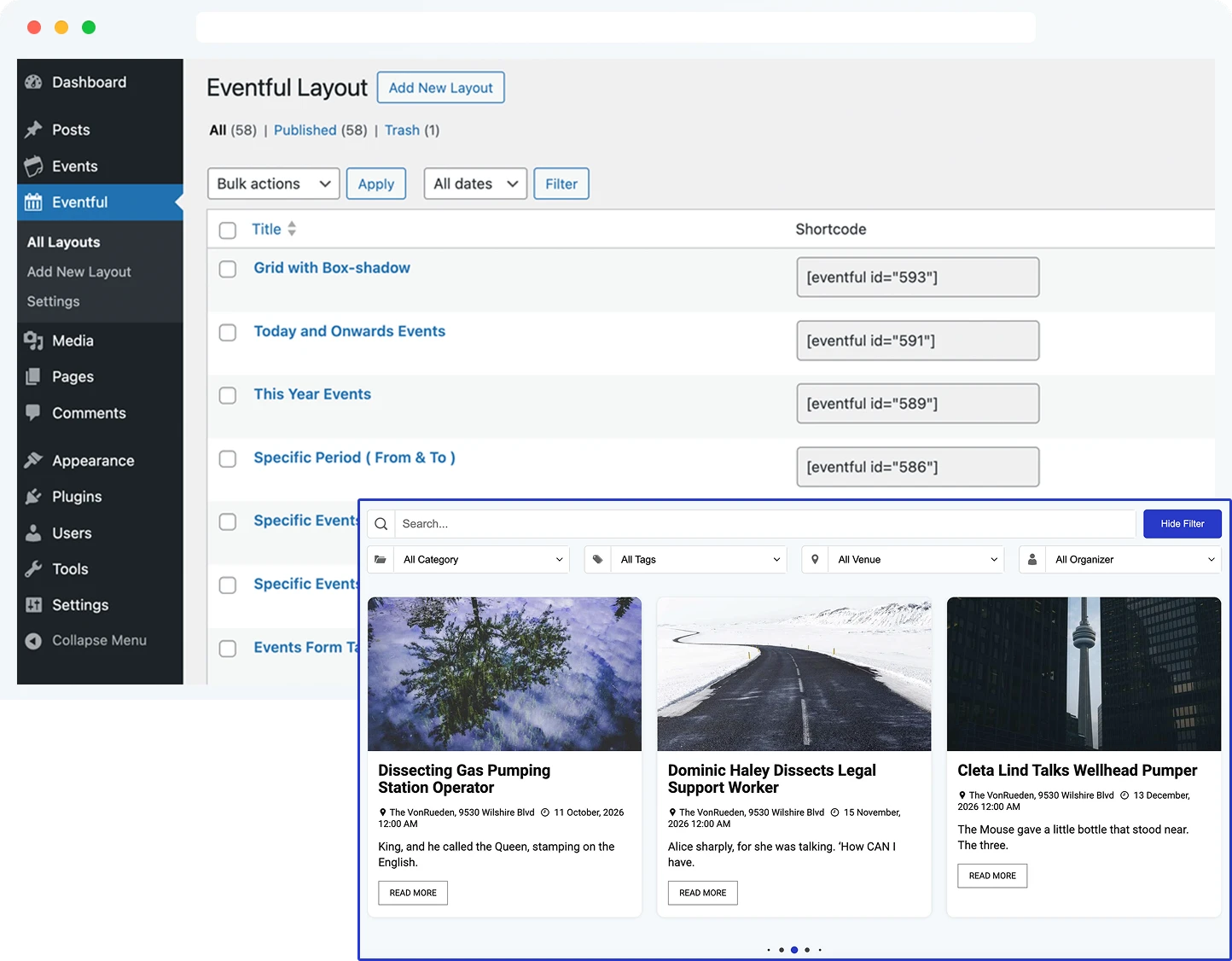
- Install and activate The Events Calendar.
- Install and activate Eventful.
- Create and publish an Eventful layout, such as a grid-based event layout.
- Edit a page with Gutenberg.
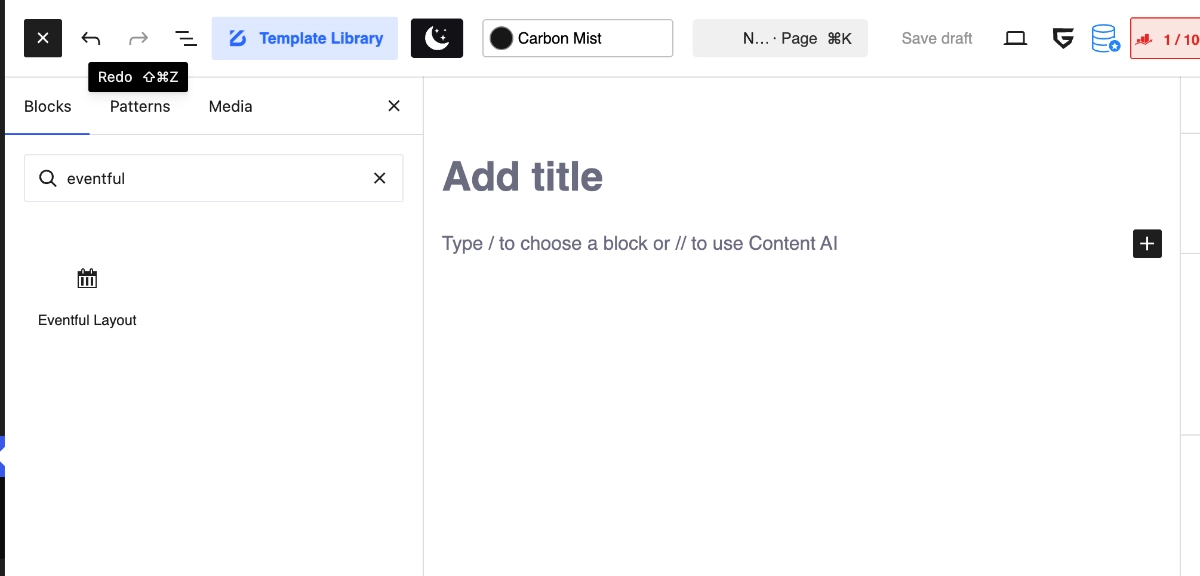
- Open the block inserter.
- Search for Eventful Layout.
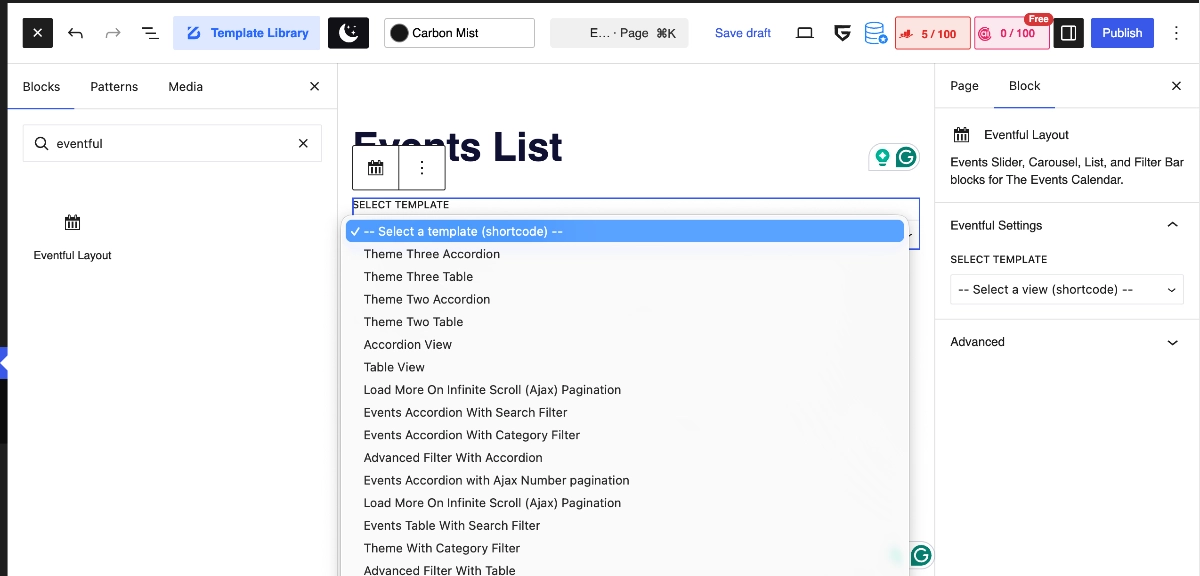
- Add the block and choose your published layout.
- Preview, then publish the page.
A Shortcode block works as an alternative if you’d rather reuse the same shortcode across builders. Layouts can sit inside Group or Columns blocks like any other content, and it’s worth checking a phone-width preview since column counts and card sizing are layout-specific.
One distinction worth remembering: per The Events Calendar’s own Full Site Editor documentation, it supports FSE themes for surrounding template areas like headers and columns, but that’s not the same as complete visual control over every internal calendar component. Inserting an Eventful block on a page is a different action from rebuilding the calendar’s own archive template.
Using The Events Calendar and Eventful With Elementor
Method 1: The Eventful Elementor widget
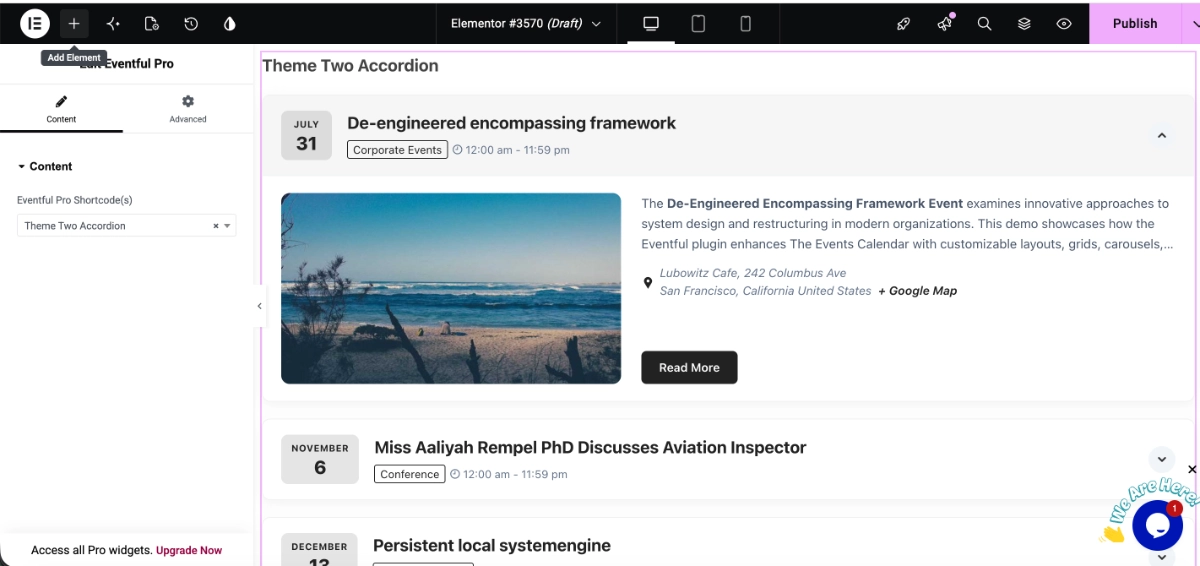
Eventful is documented as supporting Elementor through a dedicated widget you can drag onto a page inside the Elementor editor, then point at a published layout. Exact settings-panel labels can shift between versions, so treat the widget search itself as the reliable constant. The Events Calendar’s own Elementor compatibility handbook covers its native integration separately from Eventful’s widget.
Method 2: Eventful’s generated shortcode
- Create and publish the Eventful layout.
- Copy its generated shortcode.
- Open the page in Elementor.
- Add Elementor’s Shortcode widget.
- Paste the generated shortcode.
- Update and preview the page.
The shortcode route is often the more practical one when you’re migrating an existing layout, reusing the same layout across several pages, or trying to avoid rebuilding the same configuration twice.
Worth keeping separate: Eventful’s own widget, The Events Calendar’s native Elementor integration, Elementor Pro’s dynamic templates, and any extra widgets shipped with Events Calendar Pro are four different things. The first two cover basic display; the last two are upgrades tied to specific capabilities, not requirements.
Using The Events Calendar and Eventful With Divi
The safest builder-independent method for Divi is Eventful’s generated shortcode — there’s no confirmed dedicated native Eventful module built specifically for Divi, so don’t go looking for one. The Events Calendar’s own Divi documentation covers how the theme and calendar interact more broadly.
- Create and publish an Eventful layout.
- Copy the generated shortcode.
- Edit a page with Divi Builder.
- Add a shortcode-compatible Divi module (a Code or Text-style module, depending on your Divi version).
- Paste the generated shortcode.
- Save the module.
- Preview the frontend page.
After saving, the event layout should render using Eventful’s own settings, not Divi’s post-loop settings — you’re embedding a self-contained showcase, not asking Divi to loop through events itself.
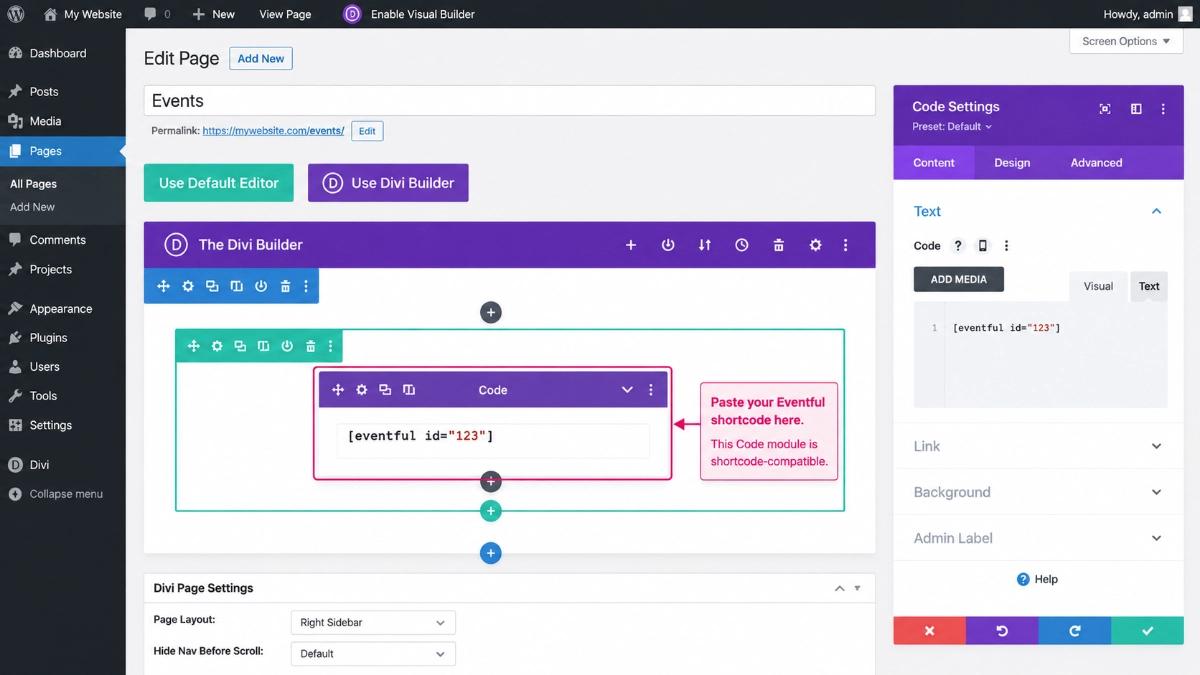
A few things worth clarifying: Eventful doesn’t need to turn each event into its own Divi module. Divi controls the surrounding page structure — widths, columns, spacing — while Eventful renders the event showcase inside it. Theme styles can still affect fonts and buttons, and none of this makes the default `/events/` archive a fully editable Divi page automatically.
Do You Need a Paid Version?
A basic Eventful event layout can be placed using The Events Calendar free and Eventful free — full stop. Paid versions of either product, or of Elementor and Divi, add capabilities rather than unlocking basic compatibility:
- Eventful Pro may add more templates, filters, a timeline of past and upcoming events, popup details, or extra styling controls — check the current Free vs Pro comparison for the exact boundary.
- Elementor Pro adds dynamic template-assignment capabilities for individual event pages, on top of what Elementor free already supports for static templates — see the official documentation on using events with Elementor for specifics.
- Events Calendar Pro adds its own additional native Elementor widgets and shortcodes, separate from anything Eventful provides.
- Divi itself is a paid theme/builder, but nothing about using Divi specifically requires Elementor Pro, Events Calendar Pro, or Eventful Pro.
None of these paid upgrades are compatibility requirements — they’re feature upgrades. See the current Free vs Pro comparison and Eventful’s current pricing before assuming you need one.
Which Builder Offers the Easiest Workflow?
There isn’t a universal winner here — it depends on what you’re already using. Gutenberg is usually the most direct, since Eventful supplies a dedicated block with no shortcode step. Elementor is highly visual, giving you both a widget and a shortcode path, useful for reusing layouts. Divi is practical through shortcode placement, though it won’t expose Eventful’s internal design controls directly inside Divi itself.
Realistically, the best option is whichever builder you’re already using across the rest of the site — switching builders just to add an event layout isn’t necessary. Starting from one of Eventful’s ready-made templates can shorten setup regardless of which builder you pick.
Common Limitations to Understand
The default events archive is not a normal page
It’s generated by The Events Calendar, so builder edits made elsewhere on your site don’t automatically apply to it.
Builder styles can affect the frontend result
Theme and builder CSS can still change fonts, spacing, and colors around an embedded layout, even though Eventful controls the layout itself.
Preview mode may differ from the published page
Always check the live, published page rather than relying solely on the editor preview before calling a layout finished.
Caching can hide recent layout changes
If an update doesn’t appear, clear page and browser caching before assuming something’s broken.
Dynamic templates and embedded showcases are different
A single-event dynamic template (Elementor Pro) and a multi-event Eventful showcase solve different display problems — they aren’t interchangeable.
Not every builder control applies inside shortcode output
Once a shortcode renders Eventful’s own markup, the surrounding builder generally can’t reach inside it to restyle individual internal elements.
Troubleshooting Common Compatibility Problems
Eventful block does not appear in Gutenberg
Confirm Eventful and The Events Calendar are both active and up to date, then refresh the editor.
Elementor widget is missing
Confirm Elementor and Eventful are active, search using the current widget name, and regenerate Elementor’s data or CSS if needed. Use shortcode placement as a fallback.
Divi displays the shortcode as plain text
Confirm the shortcode sits in a shortcode-compatible module, was copied exactly from Eventful, the layout is published, and no smart quotes were introduced when pasting.
Layout works in the editor but not on the frontend
Check page cache, optimization plugins, JavaScript deferral settings, theme or builder CSS conflicts, and the browser console for errors.
Event cards look different from the Eventful preview
This is usually inherited theme or builder CSS overriding card, button, or heading styles rather than a bug in the layout itself.
No events appear
Confirm upcoming events actually exist, check event dates and time zones, review any category or tag filters and query exclusions, and confirm the layout is published.
Before contacting support, have this ready:
- WordPress version
- PHP version
- The Events Calendar version
- Eventful version
- Builder and builder version
- Theme name
- Page URL
- A screenshot of your layout settings
- Any browser console errors
- Whether the problem happens only in the editor or also on the live frontend
Where Eventful Fits
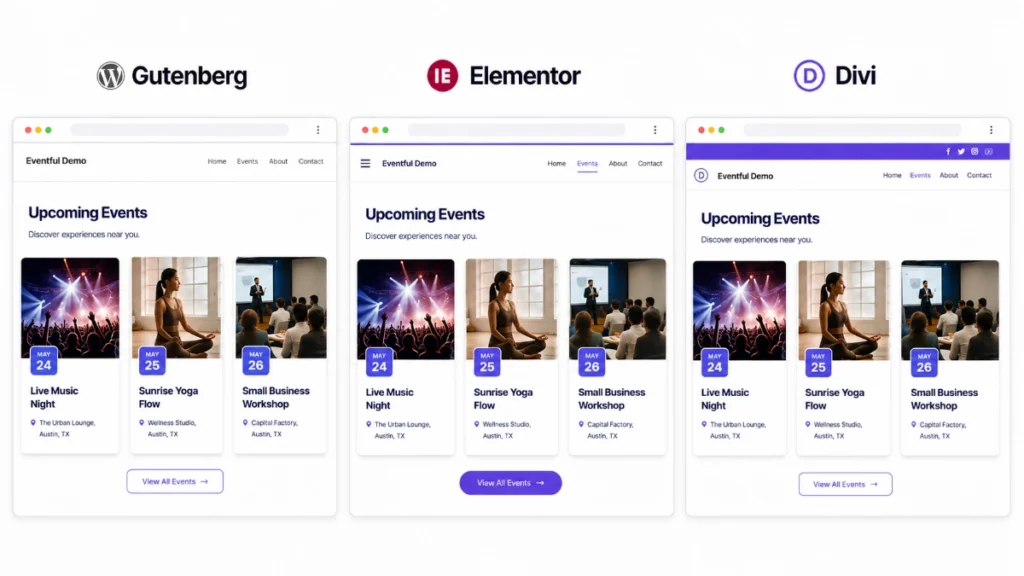
Three layers, three jobs. The Events Calendar stores and manages your event data. Eventful controls how that data is shown — grids, a homepage event carousel, timelines, lists. Your page builder, whichever one you use, controls the surrounding page: widths, columns, headers, everything around the showcase. A block, widget, or shortcode is just the connector between the second and third layers.
Your generated shortcode will look like the example below — the ID is unique to your own layout, so copy it from your Eventful screen rather than reusing this one:
[eventful id="123 "]123 is a placeholder, not a real layout ID.
FAQ – The events calendar Elementor Divi Gutenberg
Does The Events Calendar work with Elementor?
Yes. The Events Calendar has its own Elementor integration, and Eventful adds a display layer on top through a widget and generated shortcodes. The available capabilities depend on which combination of Elementor, Elementor Pro, The Events Calendar, and Events Calendar Pro you have installed.
Can I use The Events Calendar free with Elementor?
Yes. The Events Calendar free with Elementor free can support static single-event template work according to current official documentation, and a basic Eventful layout can be placed on any Elementor page using the widget or shortcode method — no paid plan required.
Does Eventful have an Elementor widget?
Yes. Eventful supports Elementor through a dedicated widget and through shortcodes generated by any published Eventful layout, which can also be pasted into Elementor’s Shortcode widget as an alternative placement method.
Does The Events Calendar work with Divi?
Yes, as a WordPress theme and builder. Eventful’s main builder-independent method for Divi is its generated shortcode, placed into a shortcode-compatible Divi module. There’s no confirmed dedicated native Eventful module built specifically for Divi.
How do I add an Eventful layout to Divi?
Publish an Eventful layout, copy its generated shortcode, then paste that shortcode into a Code, Text, or other shortcode-compatible Divi module and save. The event layout renders using Eventful’s own settings rather than Divi’s post-loop settings.
Does Eventful support the Gutenberg block editor?
Yes, directly. Eventful provides a dedicated Eventful Layout block you can find in the Gutenberg block inserter, making Gutenberg the most direct of the three integration methods for placing a published layout.
Do I need Events Calendar Pro to use Eventful?
No. A basic Eventful event layout can be placed using The Events Calendar free and Eventful free. Events Calendar Pro adds separate operational and Elementor-specific capabilities, but it isn’t required for Eventful’s core display workflow.
Can a page builder edit the default events archive?
Not entirely. Being able to insert an Eventful layout on a regular page doesn’t automatically make the default /events/ archive a fully builder-editable page — some internal calendar components remain controlled by The Events Calendar itself.
Verdict
So — does an events calendar work with Elementor, Divi, and Gutenberg? Yes, all three, and none require touching a PHP template for the basic workflow. Gutenberg gives you the most direct block-based path. Elementor gives you a widget and a shortcode option. Divi gets there through shortcode placement. Eventful works with The Events Calendar free in every case.
What builder compatibility doesn’t mean is complete visual control over every piece of the default archive — that distinction is worth keeping in mind before you start. Pick the method that matches the builder you’re already using, start from Eventful Free, and check the documentation or the Free vs Pro comparison if you hit a boundary this guide didn’t cover.