

The Eventful Accordion widget shows each event as a row that opens to show the details.
Accordion is part of Eventful Pro.
- Add Eventful Accordion to the page and open Content > Accordion Settings.
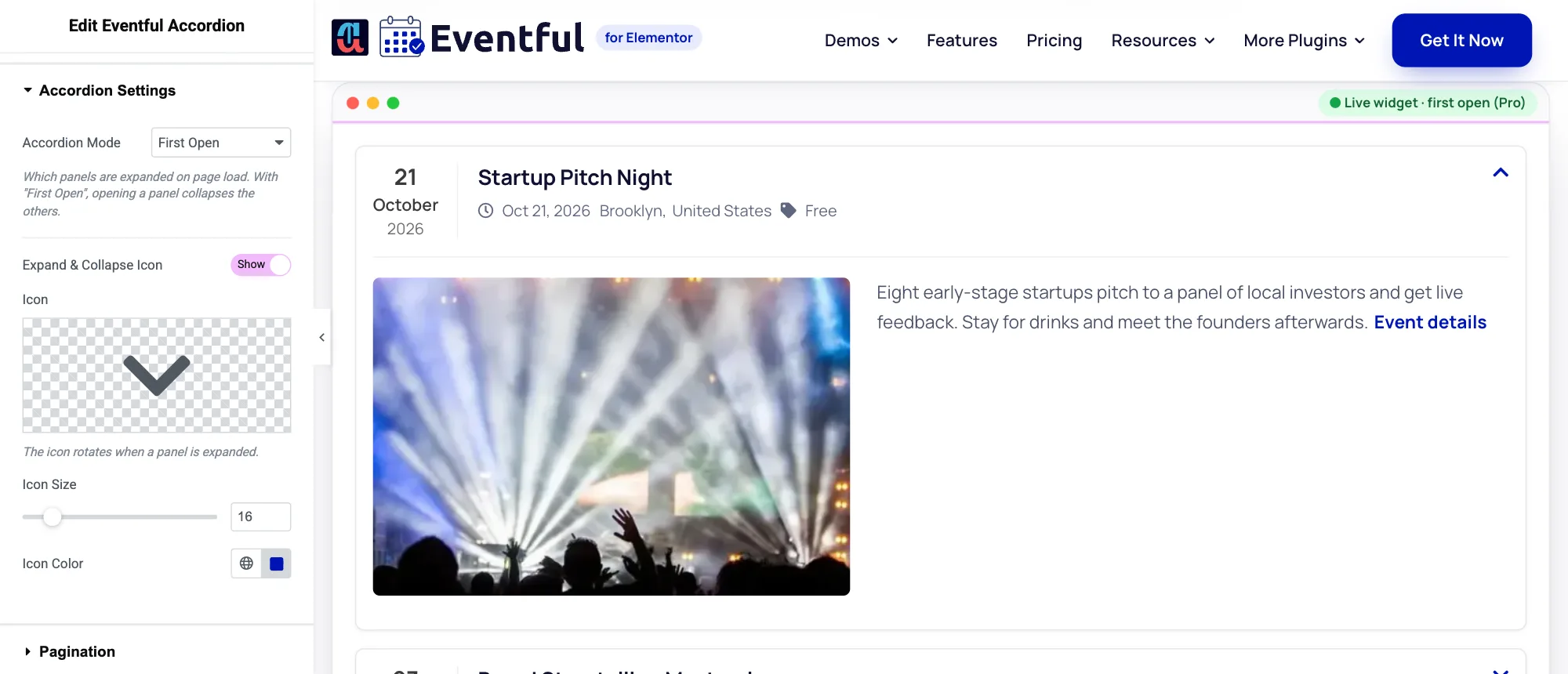
Content > Accordion Settings. - Choose the Accordion Mode: First Open (the first row is open, and opening a row closes the others), All Open or All Folded.
- Keep Expand & Collapse Icon on and pick the Icon, Icon Size and Icon Color. The icon turns when a row opens.
Start from a design #
Set Template Type to Pre-made Templates and pick Template One, Two or Three. Template One also shows a map of the venue inside each open row. See Pre-made Templates.
Image and text #
In Style > Image, Image Width (per device) sets how much of the open row the image takes, and Content Vertical Align (Top, Middle or Bottom) places the text beside it. Leave them empty for the template’s own layout. On phones the image sits above the text.
Colours #
In Style > Accordion Item, set the row background and hover background, featured-event backgrounds, border, corner radius, inner padding and the space between rows. Accent Color sets the date rail and buttons of the pre-made templates.


