

The Eventful Timeline widget shows your events in date order along a line.
Timeline is in the free version with vertical Style 01. Vertical Styles 02 to 05 and the horizontal timeline need Eventful Pro.
- Add Eventful Timeline to the page and open Content > Timeline Settings.
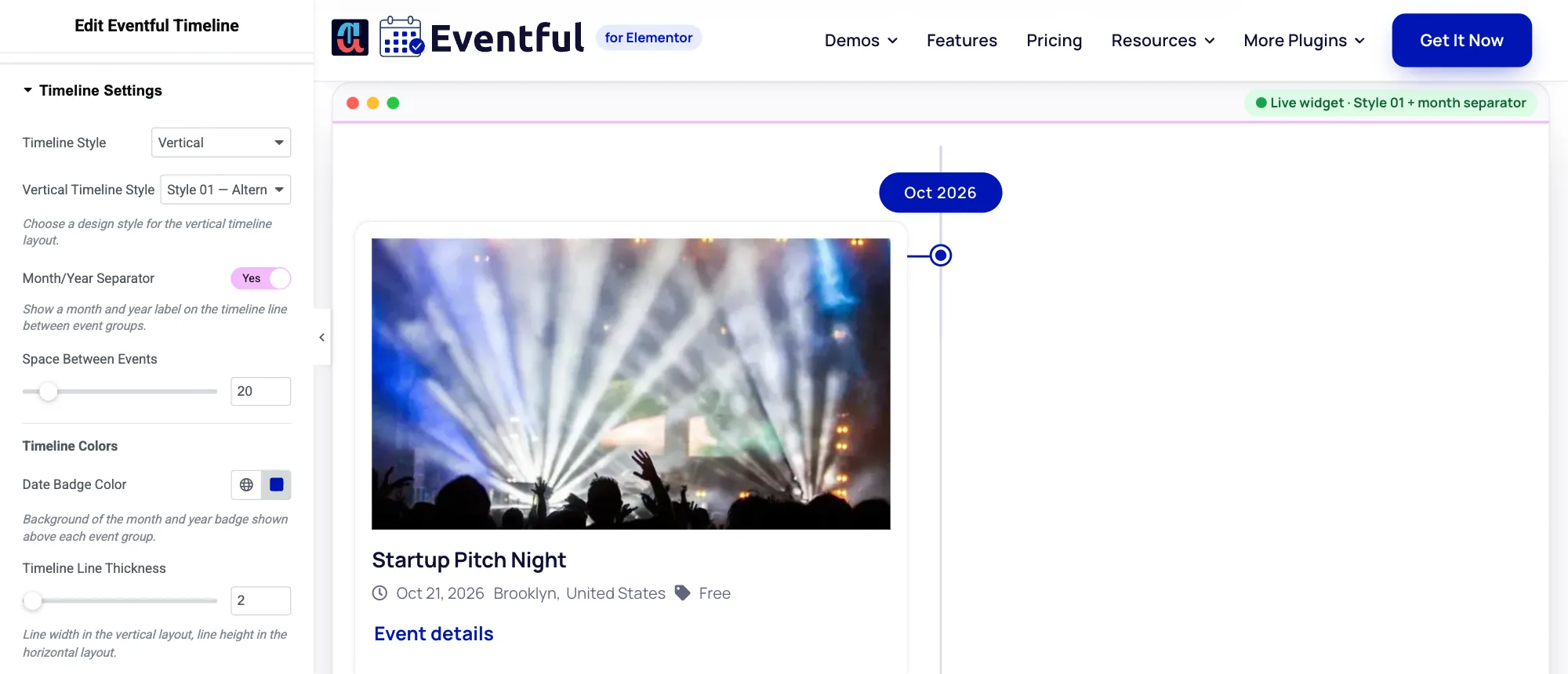
Content > Timeline Settings. - Set Timeline Style to Vertical or Horizontal (Pro).
- Pick a design (see the table below).
- For a vertical timeline, turn on Month/Year Separator to show a label such as “Oct 2026” between groups of events, and set Space Between Events.
| Style | Vertical | Horizontal (Pro) |
|---|---|---|
| 01 | Alternating: events on both sides of the line | Alternating: cards above and below the line |
| 02 | Staggered Columns (Pro) | Line on Top |
| 03 | Two Columns (Pro) | Line at Bottom |
| 04 | Line on Left (Pro) | |
| 05 | Line on Right (Pro) |
On phones, every vertical style shows the line on the left with the events beside it.
Horizontal timeline #
A horizontal timeline is a row you can swipe. Set the number of Columns per device and Space Between Events, and choose Navigation (Show, Hide or Hide on Mobile), Touch Swipe, Mouse Draggable and Mouse Wheel.
Colours #
Under Timeline Colors, set the Date Badge Color (the month and year label), Timeline Line Thickness, Track Color (the unfilled line; empty keeps the light grey), Fill Color, Event Dot Color and, for a horizontal timeline, the navigation background.
With Fill on Scroll on (the default), the line fills in Fill Color as visitors scroll down a vertical timeline or move along a horizontal one; the rest shows Track Color. Pick a fill colour that stands out from the track, for example your brand colour. Turn Fill on Scroll off for a solid line in Track Color.


