

Table of Contents
Upload the Eventful Pro for Elementor zip file in WordPress, then activate the plugin.
Before you start, make sure Elementor and The Events Calendar are installed and active. See Minimum Requirements.
- In your WordPress dashboard, go to Plugins > Add New Plugin.
- Click Upload Plugin at the top of the screen.
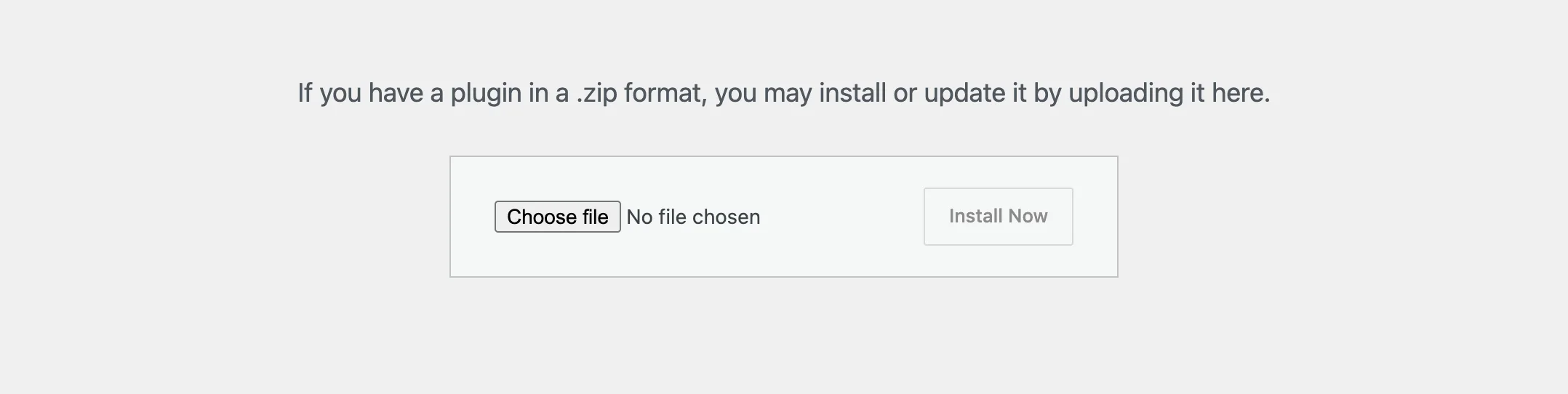
Plugins > Add New Plugin > Upload Plugin. - Click Choose File, select the
eventful-pro-for-elementor.zipfile you downloaded, and click Install Now. - When WordPress says the plugin was installed, click Activate Plugin. WordPress then opens the Eventful License page, ready for your key.
- You also see Eventful For Elementor in the admin menu, and Eventful Pro For Elementor in the list of active plugins. Until the key is active, its row shows a red Activate license link.

The active plugin on the Plugins screen.
Next step #
Activate your license key so WordPress can update the plugin.
If something goes wrong #
- A notice asks for The Events Calendar: install and activate The Events Calendar from Plugins > Add New Plugin. Eventful needs it to read your events.
- “The uploaded file exceeds the upload_max_filesize directive”: your server limits upload size. Ask your host to raise it, or upload the unzipped folder to
wp-content/plugins/by FTP and activate it on the Plugins screen. - “Destination folder already exists”: an older copy is installed. Choose Replace current with uploaded when WordPress offers it.


