

Table of Contents
Show each filter as buttons, a dropdown, radio buttons or checkboxes, and set how the filter bar is laid out.
This article continues Add AJAX Live Filters. Button filters are in the free version; dropdown, radio and checkbox filters need Eventful Pro.
Style one filter #
- In Content > Filter Events > Filter Options, open a filter row. Show Ajax Live Filter must be on.
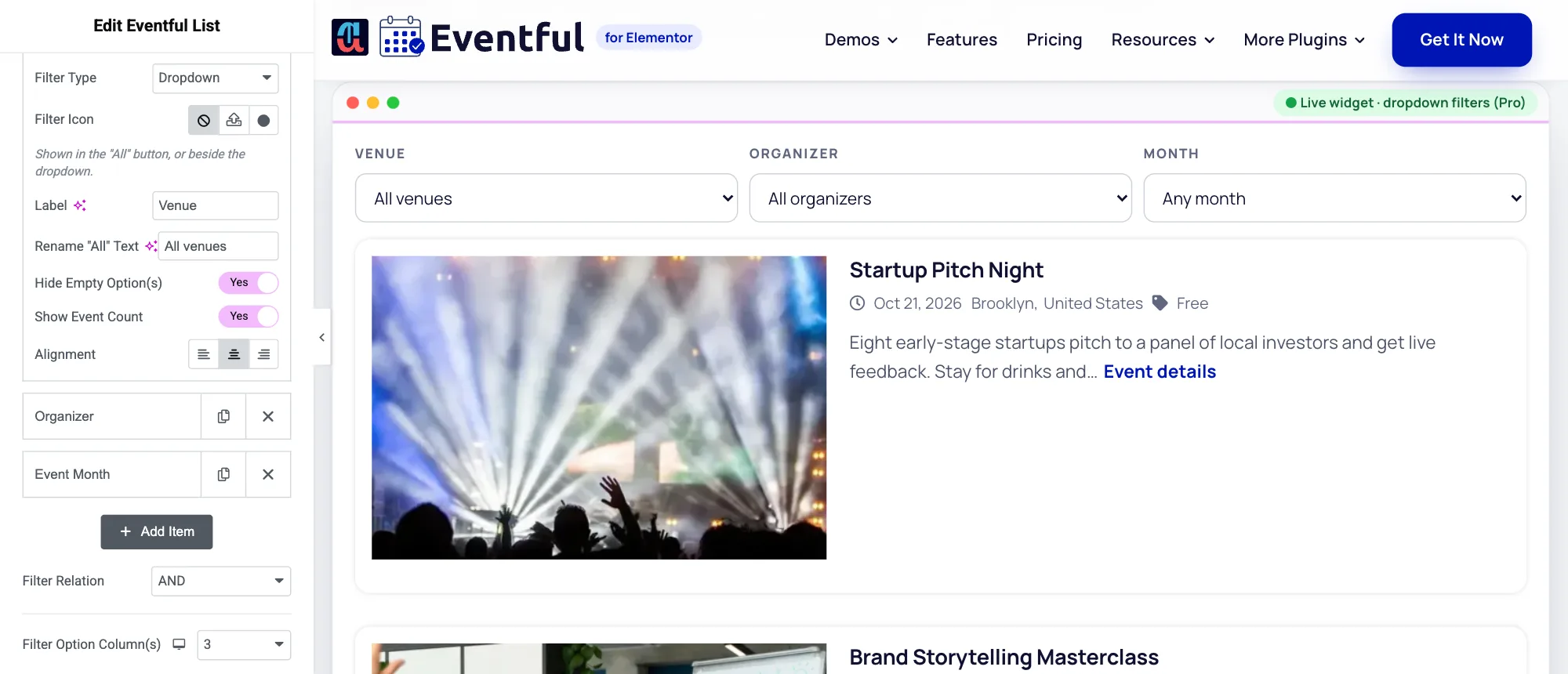
A filter row set to Dropdown, with three dropdowns in the live widget. - Choose a Filter Type: Button, Dropdown (Pro), Radio (Pro) or Checkbox (Pro). Checkboxes let visitors pick several options at once.
- Type a Label, shown above the filter, for example “Venue”.
- Change Rename “All” Text to something clearer, for example “All venues”.
- For buttons and dropdowns, pick a Filter Icon. It shows in the “All” button, or beside the dropdown.
- Turn on Show Event Count to show how many events each option has, and Hide Empty Option(s) to leave out options with no events.
- Set the Alignment of this filter: left, centre or right.
Several filters side by side #
Below the rows, Filter Option Column(s) places up to 6 filters in a row. Click the device icon to set a different number for tablet and mobile, for example 3, 2 and 1. Margin Between Columns sets the gap.
Colours #
Open Style > Filter Bar to set the colours of the filter buttons in their normal and active states, and of the Show/Hide Filter button.
Dropdown filters are named after their label for screen readers, so keep the label short and clear.


