

Table of Contents
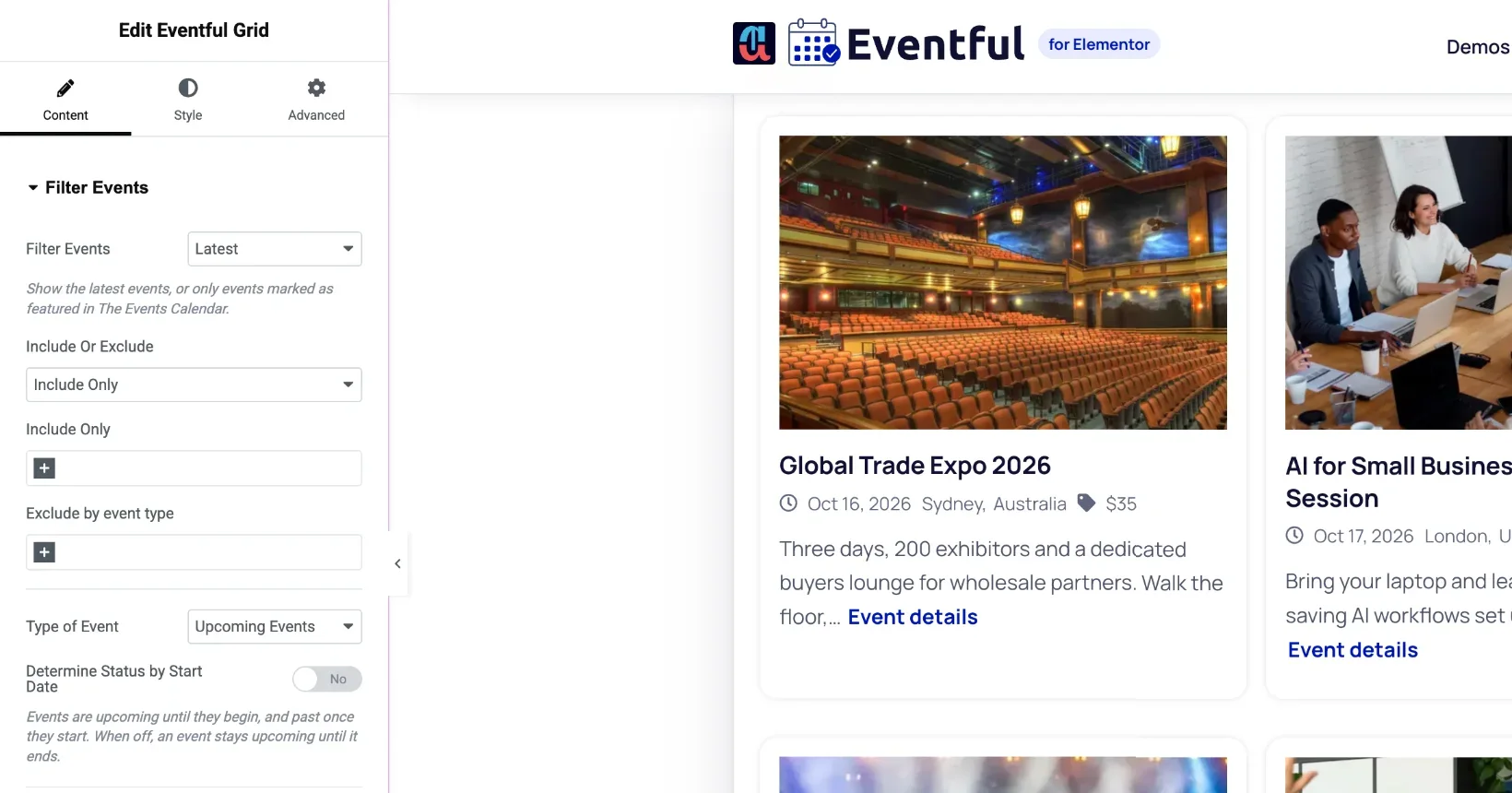
Click a widget on the page to open its settings in the Elementor panel.
- Open the page in Elementor and click the widget. Its settings open in the panel on the left.
- Use the three tabs at the top of the panel. Changes show on the page as you make them.
- Click Update to save.
The three tabs #
| Tab | What it holds |
|---|---|
| Content | Which events to show (Filter Events), the layout (Display Options), what each event shows (Content Fields), the design (Template Styles), Pagination and links (Detail Settings). Carousel, Slider, Timeline, Table and Accordion add a section with their own settings. |
| Style | Colours, typography, borders, spacing and hover states for each part of the event card. |
| Advanced | Elementor’s standard options: margin and padding, motion effects, background, border, hide on desktop, tablet or mobile, CSS classes and ID. |
Settings per device #
Some settings, such as Columns, margins and padding, can be different on desktop, tablet and mobile. Click the device icon next to the setting, or switch the preview at the bottom of the panel, and set the value for that device. See Responsive Settings.


