

Table of Contents
The Eventful Grid widget shows your events as cards in 1 to 4 columns.
Grid is in the free version. Options marked (Pro) need Eventful Pro.
Set the columns #
- Add Eventful Grid to the page and open Content > Display Options.
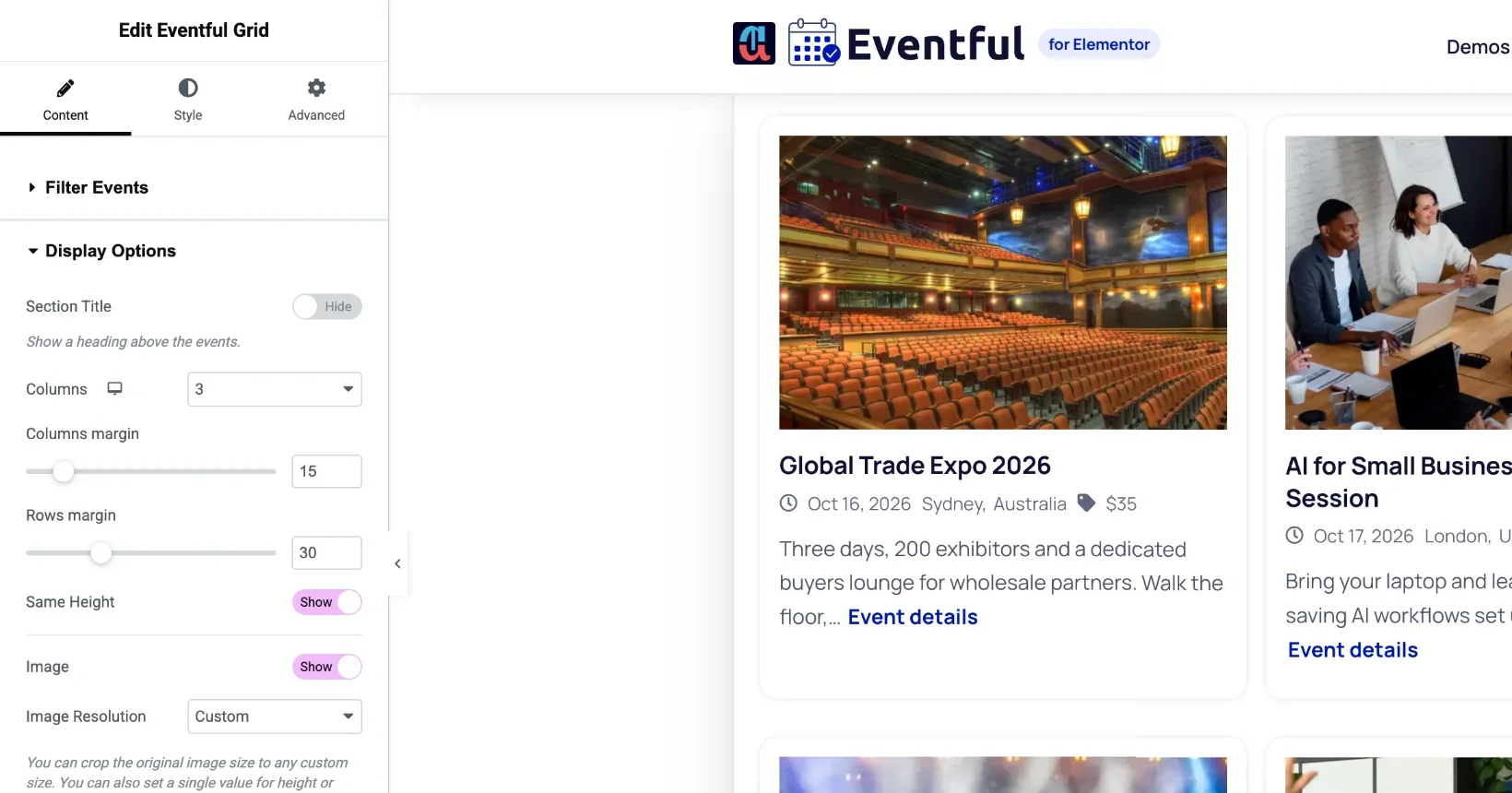
Content > Display Options. - Choose the number of Columns (1 to 4). Click the device icon next to it to set a different number for tablet and mobile, for example 3, 2 and 1.
- Set the space between cards with Columns margin and Rows margin.
- Turn on Same Height (Pro) so every card in a row is as tall as the tallest one.
Images #
- Image: show or hide the event image.
- Image Resolution: pick a registered size, or Custom and set the width and height. All cards then use the same crop.
- Load 2x Resolution Image in Retina Display: sharper images on high-density screens.
- Zoom Effect (Pro): zoom in or out on hover. Image Mode (Pro): grayscale, or grayscale with colour on hover.
- Replace With (Pro): show the event’s video or audio instead of the image, when there is no featured image or always.
- Lazy Load (Pro): load images as they scroll into view.
Where the text goes #
In Content > Template Styles, Event Content Position places the title and details below the image (Default), beside it on the left or right (Pro), or over the image (Overlay, Pro).
Start from a design #
Set Template Type to Pre-made Templates and pick Template One, Two or Three. See Pre-made Templates.
More options #
- Which events appear: Filter Events.
- What each card shows: Content Fields and Element Order.
- Long lists: Pagination Types.


