

Table of Contents
The Eventful Table widget shows your events as rows in a table.
Table is part of Eventful Pro.
Choose the columns #
In Content > Template Styles, pick a Template Type:
- Custom: the columns follow your Content Fields (image, title, event meta, content, share). Rename the headings in Table Settings > Column Headers; leave a field empty to keep the default label.
- Pre-made Templates: Template One, Two or Three, with separate columns for date, time, venue, organizer, category and cost. Under Table Columns, show or hide the Event Image, Event Date, Event Time and Event Organizer columns.
Table settings #
- Open Content > Table Settings.
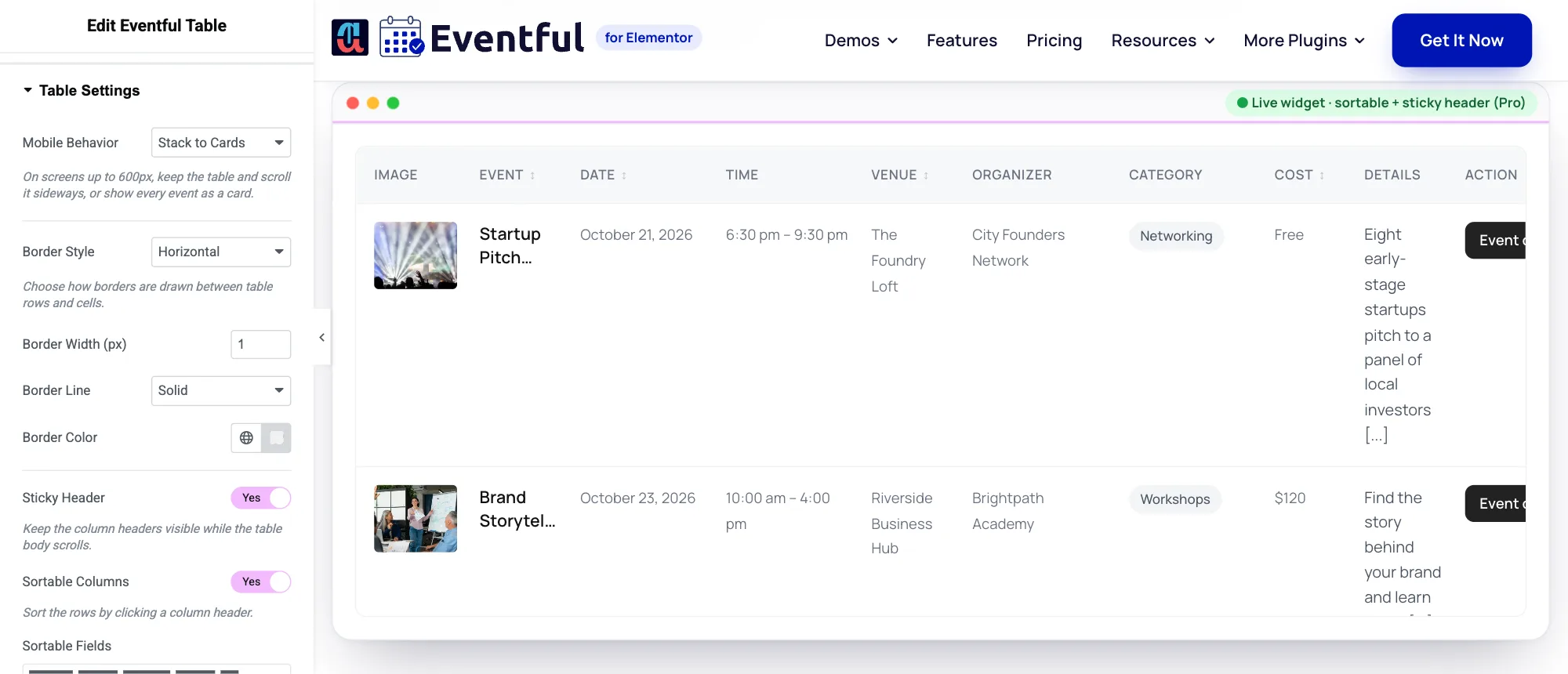
Content > Table Settings on a pre-made template. - Set Mobile Behavior: Horizontal Scroll keeps the table and lets visitors scroll it sideways; Stack to Cards shows each event as a card. It applies on screens up to 600px wide.
- Choose a Border Style (None, Horizontal, Full Grid or Outer Only), then the Border Width, Border Line and Border Color.
- With a pre-made template, turn on Sticky Header to keep the headings visible while the table scrolls, and Sortable Columns to let visitors sort by clicking a heading. In Sortable Fields, choose which columns can be sorted: Event, Date, Time, Venue, Organizer, Category or Cost.
Sortable headings work with the keyboard too: press Tab to reach a heading and Enter to sort.
Header colours, row backgrounds, featured-event backgrounds and cell padding are in Style > Table.


