

Table of Contents
Add your first events section to an Elementor page in five steps.
You need at least one published, upcoming event in The Events Calendar. If you have none yet, add one under Events > Add New.
- Open a page with Elementor: in Pages, hover over a page and click Edit with Elementor.
- In the Elementor panel, type Eventful in the search box. Drag Eventful Grid onto the page. Your upcoming events appear straight away.

The Eventful widgets in the Elementor panel. - Choose which events to show. On the Content tab, open Filter Events: pick Latest or Featured, the type of event and the limit.
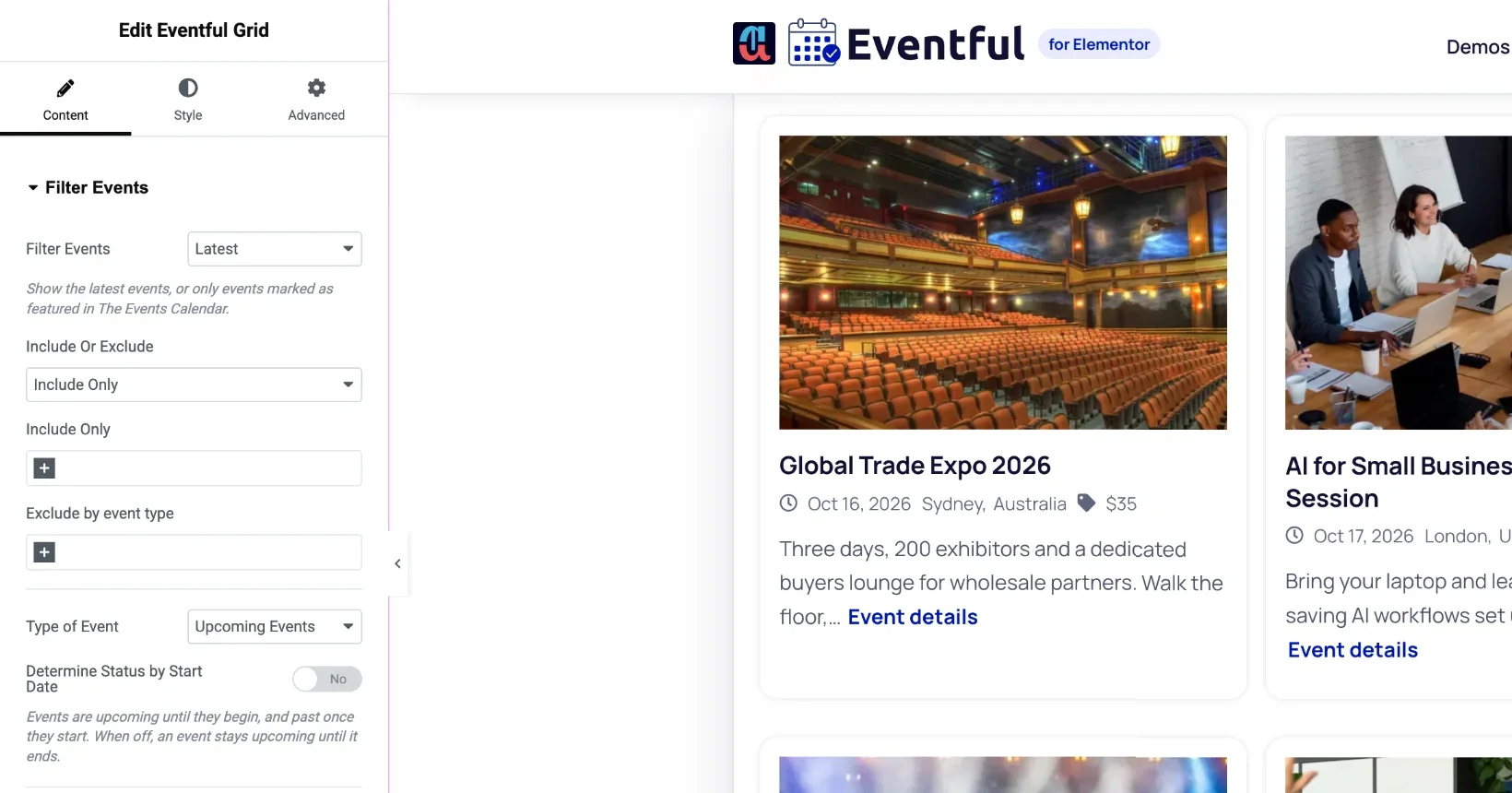
Content tab > Filter Events. - Set the layout. Open Display Options and choose the number of columns. Use Elementor’s device icons to set a different number for tablet and mobile.
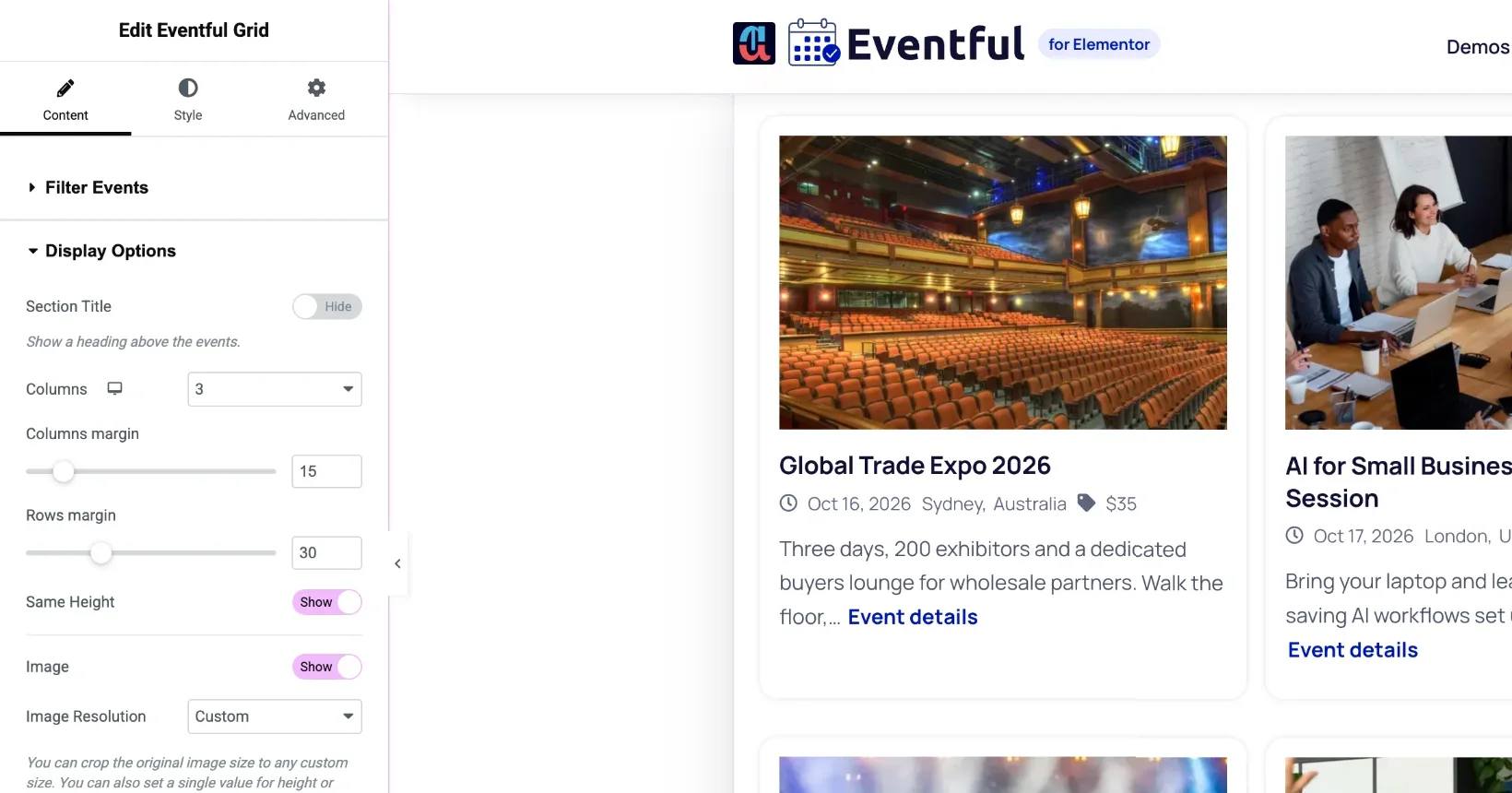
Content tab > Display Options. - Style it. Open the Style tab to change colours, fonts, borders and spacing. Then click Publish (or Update).
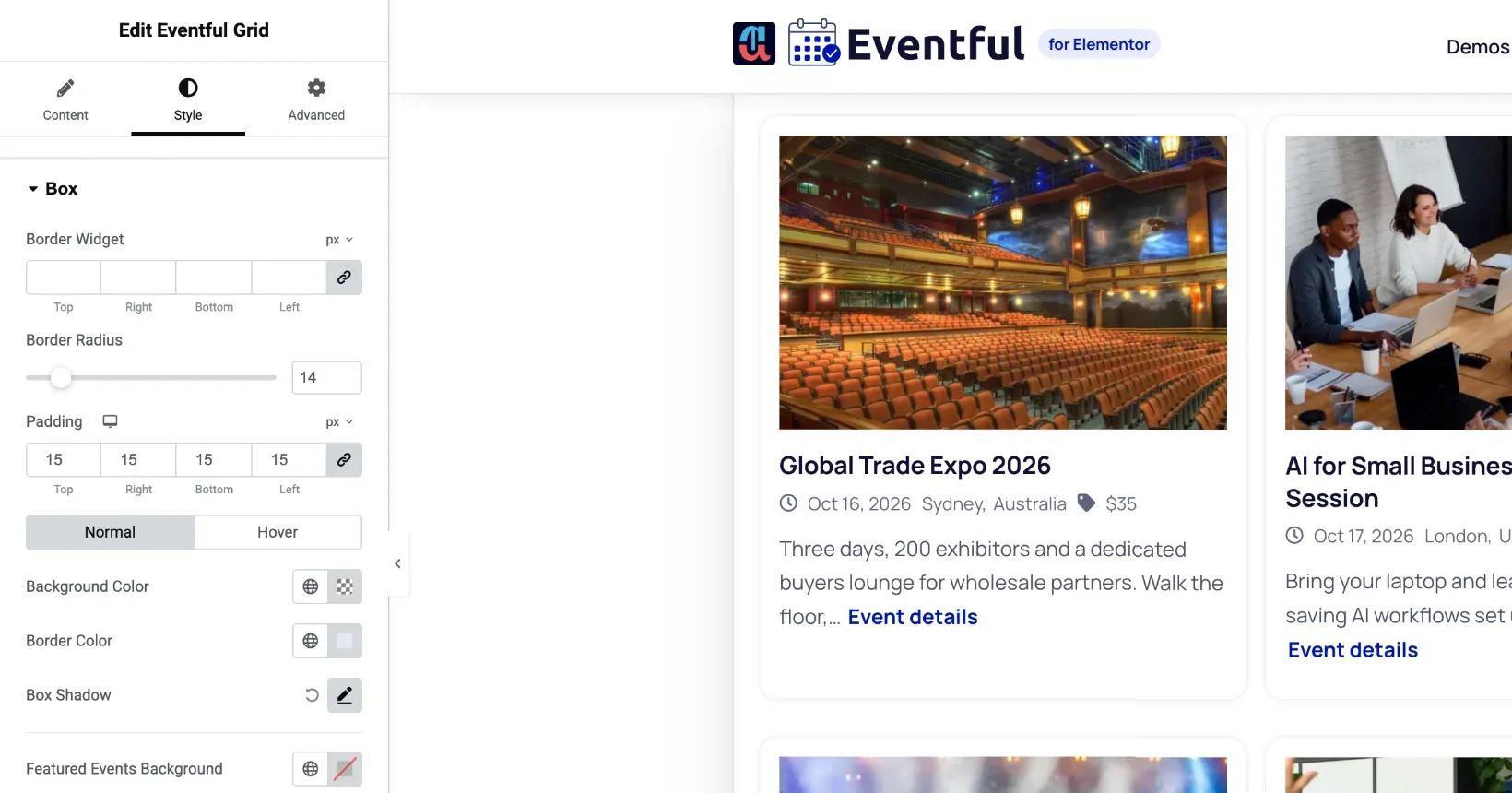
The Style tab.
Where to go next #
- Try another layout: each one is a separate widget. See the carousel, timeline and table demos.
- Let visitors filter the list: AJAX filter demo.
- Start from a ready-made design: pre-made templates demo.


