

Table of Contents
Add a filter bar above any Eventful widget, so visitors can narrow the events without a page reload.
Filters work on all 9 widgets. Button filters are in the free version; dropdown, radio and checkbox filters need Eventful Pro.
Add a filter #
- Open Content > Filter Events and scroll to Advanced Filtering.
- Turn on Enable Advanced Filtering. A first filter row appears under Filter Options.
- Open the row and choose what to filter by in Select Option.
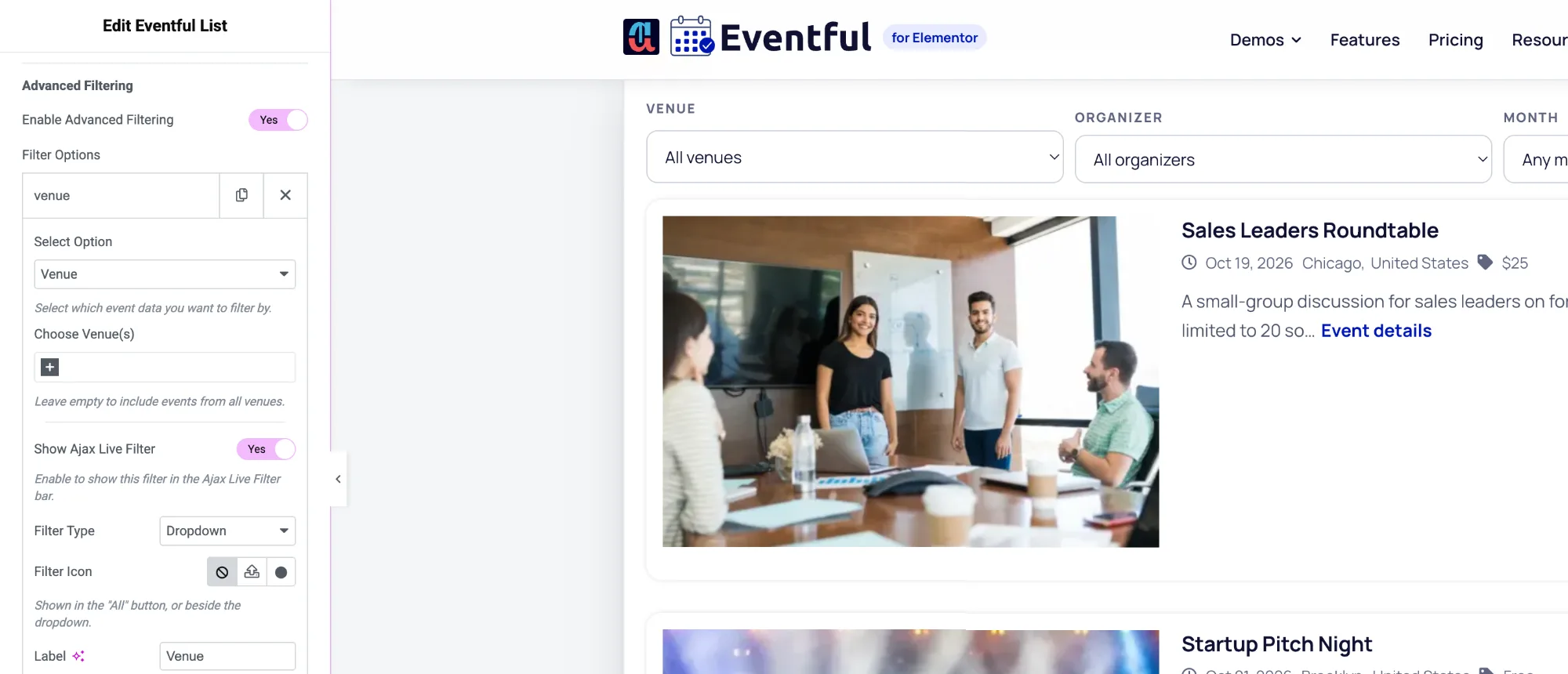
A filter row set to Venue, shown as a dropdown. - Optional: limit the choices. For example, in Choose Category(s) pick three categories. Leave it empty to offer all of them.
- Keep Show Ajax Live Filter on, so the filter appears above the events.
- Choose a Filter Type: Button, or Dropdown, Radio or Checkbox (Pro).
- Set the Label and, if you like, Rename “All” Text (for example “All venues”).
- Turn on Show Event Count to show the number of events next to each option, and Hide Empty Option(s) to leave out options with no events.
Click Add Item under the rows to add another filter, for example a category filter next to a month filter.
What you can filter by #
| Select Option | Visitors choose from |
|---|---|
| Categories | Event categories |
| Tags | Event tags |
| Venue | Venues |
| Organizer | Organizers |
| Event Type (Time-Based) | Upcoming, Past, or All (Upcoming + Past) |
| Event Timeframe | Currently Happening, Yesterday, Today Only, Today and Onwards, This Week, Next Week, Upcoming Weekend, This Month, Next Month, This Year, and 1 week, 1 month or 1 year ago to today |
| Event Month | Months that have events |
| Event Year | Years that have events |
Operator and relation #
- Operator (per row): IN shows events in any of the chosen options, AND only events that match all of them, NOT IN leaves those options out.
- Filter Relation (below the rows): AND means an event must match every filter; OR means matching one is enough.
Filter only, without a filter bar #
Turn off Show Ajax Live Filter on a row and it only narrows the events, with nothing shown to visitors. For example: a Venue row set to one venue makes a widget for that venue only.
Layout of the filter bar #
Filter Option Column(s) places several filters side by side (1 to 6, set per device), and Margin Between Columns sets the gap. Colours are in Style > Filter Bar.


